Black and White Printer Test Page Guide
Is your printer acting weird? Are you not sure if it’s working the way it should? Do you want to check your ink levels, print quality, or connection before you print something important? If you said yes to any of these, you are in the right place. A printer test page is a simple tool that shows you if your printer is working well.
It’s like a quick health check for your printer. And the best part? You don’t need to be a tech expert to print one. Anyone can do it, even if this is your first time. In this guide, we will show you the easiest ways to print a black and white printer test page. We will cover Windows, Mac, and even how to print one right from your printer. By the end, you will know exactly what to do, step by step. Let’s get started!
What Is a Printer Test Page?
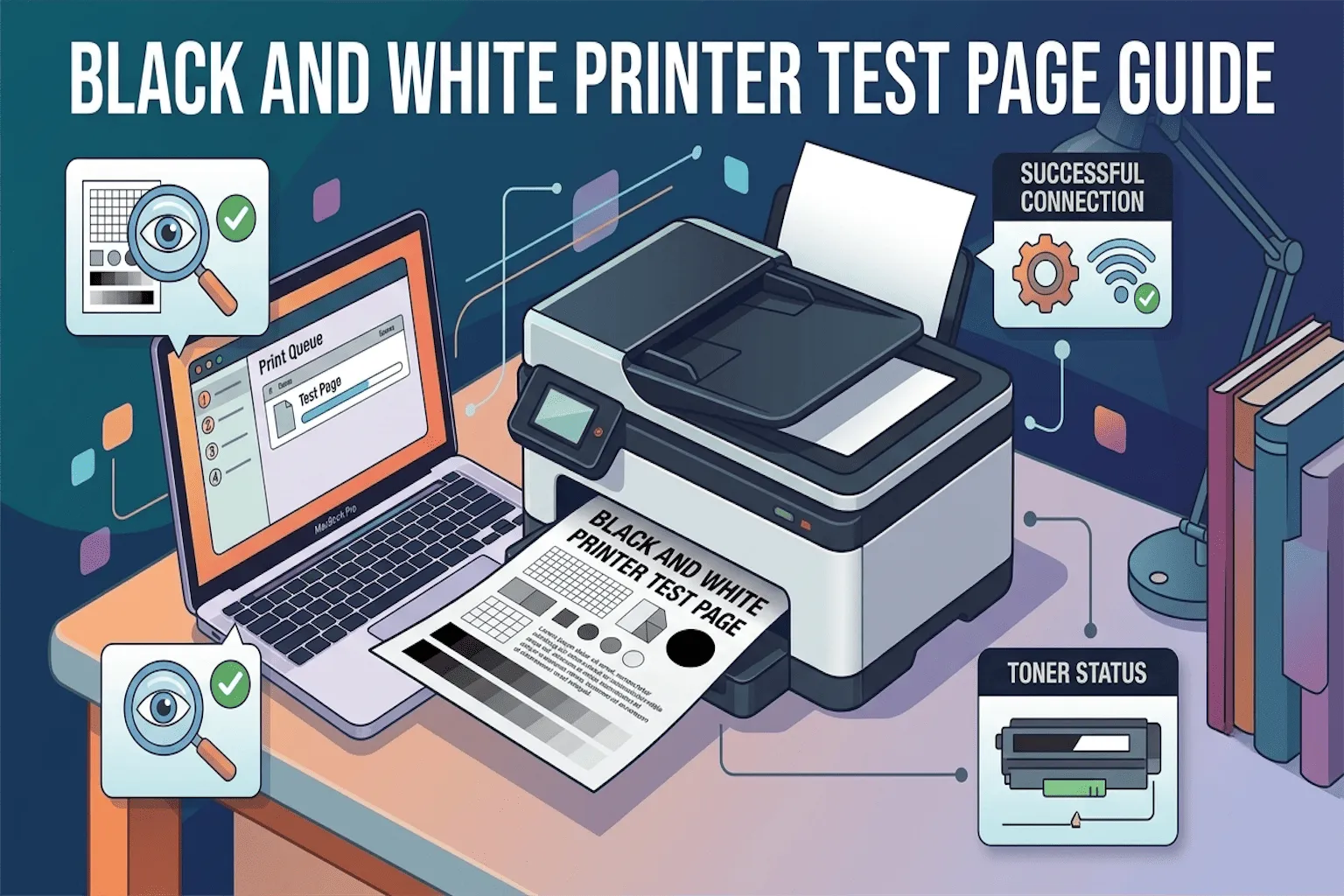
A printer test page is a sample page your printer prints to check if everything is working right. It usually shows:
- Straight lines and shapes
- Text in different sizes
- Color or black and white blocks
- Basic printer information (like model name and ink status)
Think of it like a doctor checking your heartbeat before a big check-up. It tells you fast if something is wrong, so you can fix it early.
Why Should You Print a Test Page?
You might be wondering, “Why do I even need this?” Good question! Here are the main reasons people print a black and white test page:
- To check if the printer is connected properly
- To see if the black ink or toner is working well
- To spot streaks, faded lines, or blank spots
- To confirm the printer is ready before printing something important
- To fix small problems before they become big ones
Printing a test page takes less than a minute, but it can save you a lot of time and stress later.
How to Print a Black and White Test Page on Windows
Windows makes this pretty simple. Just follow these steps:
Step 1: Open Printer Settings
Click on the Start Menu, then go to Settings. Click on Devices, and then choose Printers & Scanners.
Step 2: Choose Your Printer
Find your printer name in the list and click on it. Then select Manage.
Step 3: Print the Test Page
Click on Print a Test Page. Your printer will then print a simple black and white page with lines and text.
Step 4: Check the Result
Look at the page. Are the lines clear? Is the text easy to read? If yes, your printer is working great!
How to Print a Black and White Test Page on Mac
Mac users can also do this in just a few clicks.
Step 1: Open System Settings
Click on the Apple menu, then choose System Settings (or System Preferences on older Macs).
Step 2: Go to Printers & Scanners
Find and click on Printers & Scanners from the list.
Step 3: Select Your Printer
Click on your printer’s name, then click Open Print Queue.
Step 4: Print the Test Page
In the print queue window, click on the Printer menu at the top, then select Print Test Page. That’s it! Your Mac will send a simple test print to check everything is working.
How to Print a Test Page Directly From Your Printer
Did you know you don’t even need a computer for this? Most printers let you print a test page using just the printer’s own buttons. Here’s how:
- Turn on your printer.
- Look for a Setup or Menu button on the printer.
- Use the arrow keys to find Reports or Print Reports.
- Select Test Page or Print Quality Report.
- Press OK or Enter.
Your printer will print the test page in a few seconds. This is a great option if your computer is not connecting to the printer at all.
What to Look For in Your Test Page
Once your test page prints, check for these things:
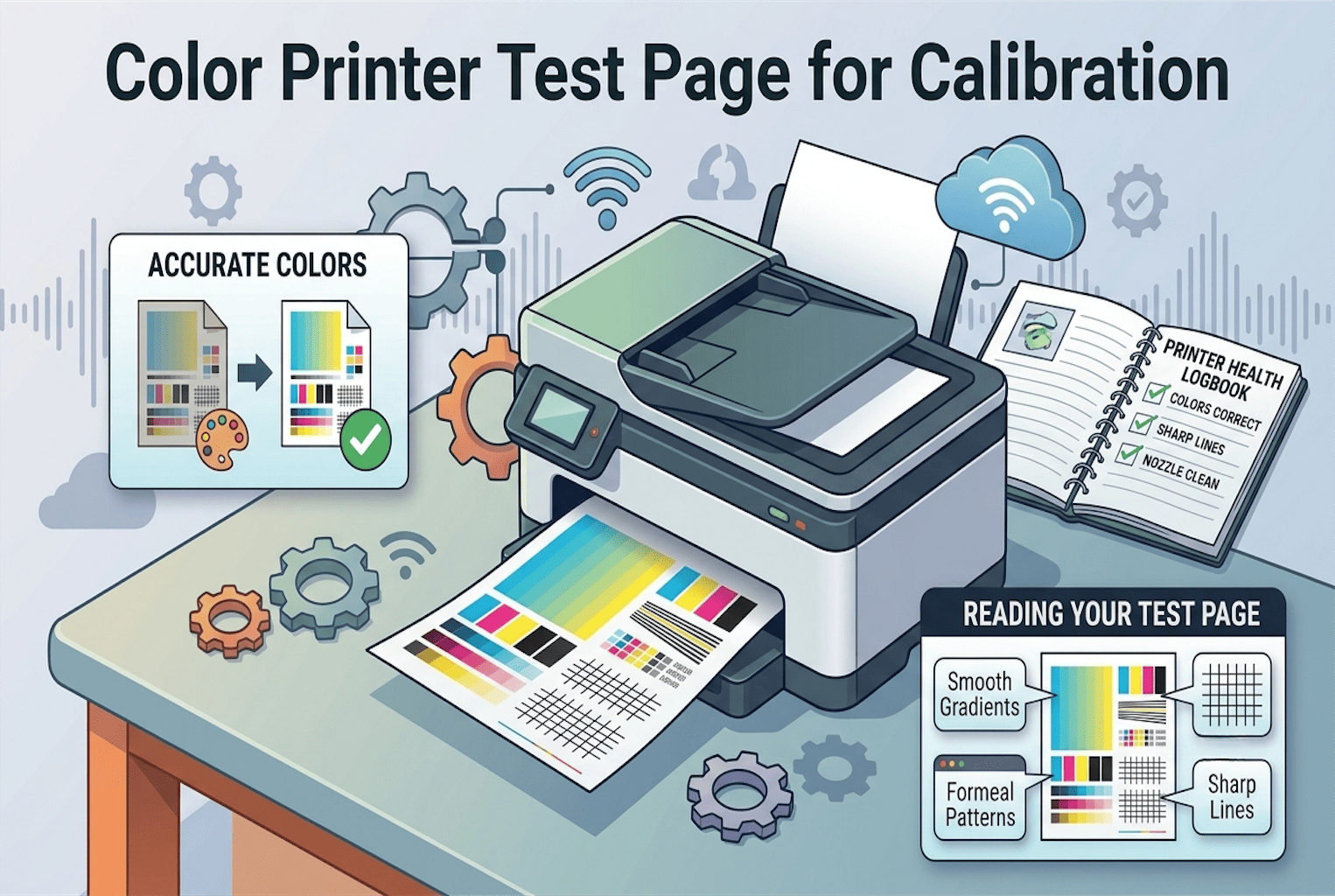
- Clear black lines with no fading
- No streaks or smudges
- Even ink or toner coverage
- Sharp, readable text
If everything looks good, your printer is healthy and ready to go. If you notice problems, don’t worry. We’ll cover the most common ones next.
Common Test Page Problems and Easy Fixes
Sometimes the test page shows a problem. Here are the most common ones and how to fix them.
Faded or Light Print
This usually means low ink or toner. Try replacing the ink cartridge or toner and printing the test page again.
Streaks or Lines on the Page
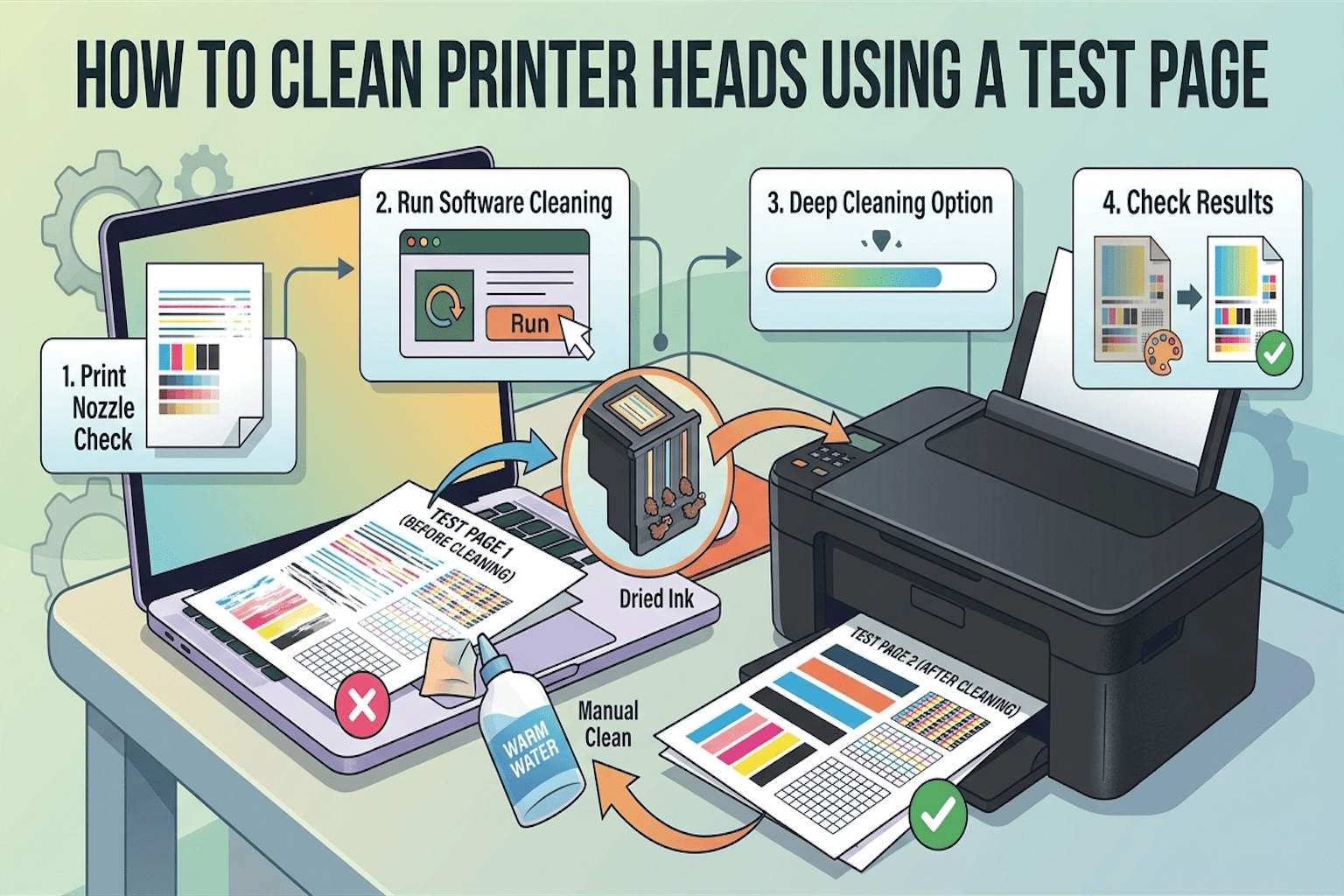
This can mean the print head is dirty. Most printers have a built-in cleaning tool. Look for Printer Maintenance in your settings and run the cleaning cycle.
Blank Page
This could mean the ink cartridge is empty, not installed correctly, or the printer needs a restart. Turn off the printer, check the cartridge, and try again.
Test Page Won’t Print at All
Check if your printer is properly connected to your computer, either by cable or Wi-Fi. Also, make sure the printer is turned on and has paper.
Tips to Keep Your Printer Working Well
A few small habits can help your printer stay in top shape:
- Print a test page once a month, even if you don’t need to
- Keep your printer clean and dust-free
- Don’t let ink cartridges sit empty for too long
- Update your printer drivers regularly
- Use good quality paper to avoid jams
Final Thoughts
Printing a black and white printer test page is one of the easiest ways to make sure your printer is working the way it should. Whether you’re on Windows, Mac, or just using the printer’s own buttons, the steps are simple and quick.
Now that you know how to print a test page and what to look for, you can catch small problems early and keep your printer running smoothly for a long time. Give it a try today, it only takes a minute, and it can save you a lot of trouble later.
FAQs About Printer Test Pages
1. Why is my test page printing blank?
A blank test page usually means one of three things. Your printer isn’t connected properly, the ink or toner is empty, or the print head is badly clogged. Start by checking the connection and ink levels, then try again.
2. How often should I print a test page?
If you use your printer often, once a month is a good habit. If you don’t print much, try every few weeks. This keeps the ink from drying up inside the printer.
3. Why does my test page have streaks or lines on it?
Streaks usually mean a dirty or clogged print head. Most printers have a built-in cleaning tool in the settings menu. Run that, then print another test page to check if it’s fixed.
4. Can I print a test page without a computer?
Yes! Most printers let you print one using just the printer’s own buttons. Look for a Setup or Menu button, then find Reports or Test Page in the options.
5. What does a good test page look like?
A good test page has sharp black lines, clear text, and even ink coverage with no fading, streaks, or blank spots. If your page looks like this, your printer is working just fine.