How to Diagnose Printer Problems With a Test Page
Is your printer giving you a hard time? Are you tired of blank pages, blurry text, or weird lines showing up out of nowhere? What if there was one simple trick that could tell you exactly what’s wrong in under two minutes? There is. It’s called a color test page, and it’s the fastest way to figure out how to diagnose printer problems with a test page without calling a technician or spending money you don’t need to spend.
In this guide, we’ll tell you everything in plain, simple words. No confusing steps. Just clear answers so you can get back to printing. Keep scrolling by the end, you’ll know exactly what’s wrong with your printer and how to fix it.

What is a Test Page and Why is it Important?
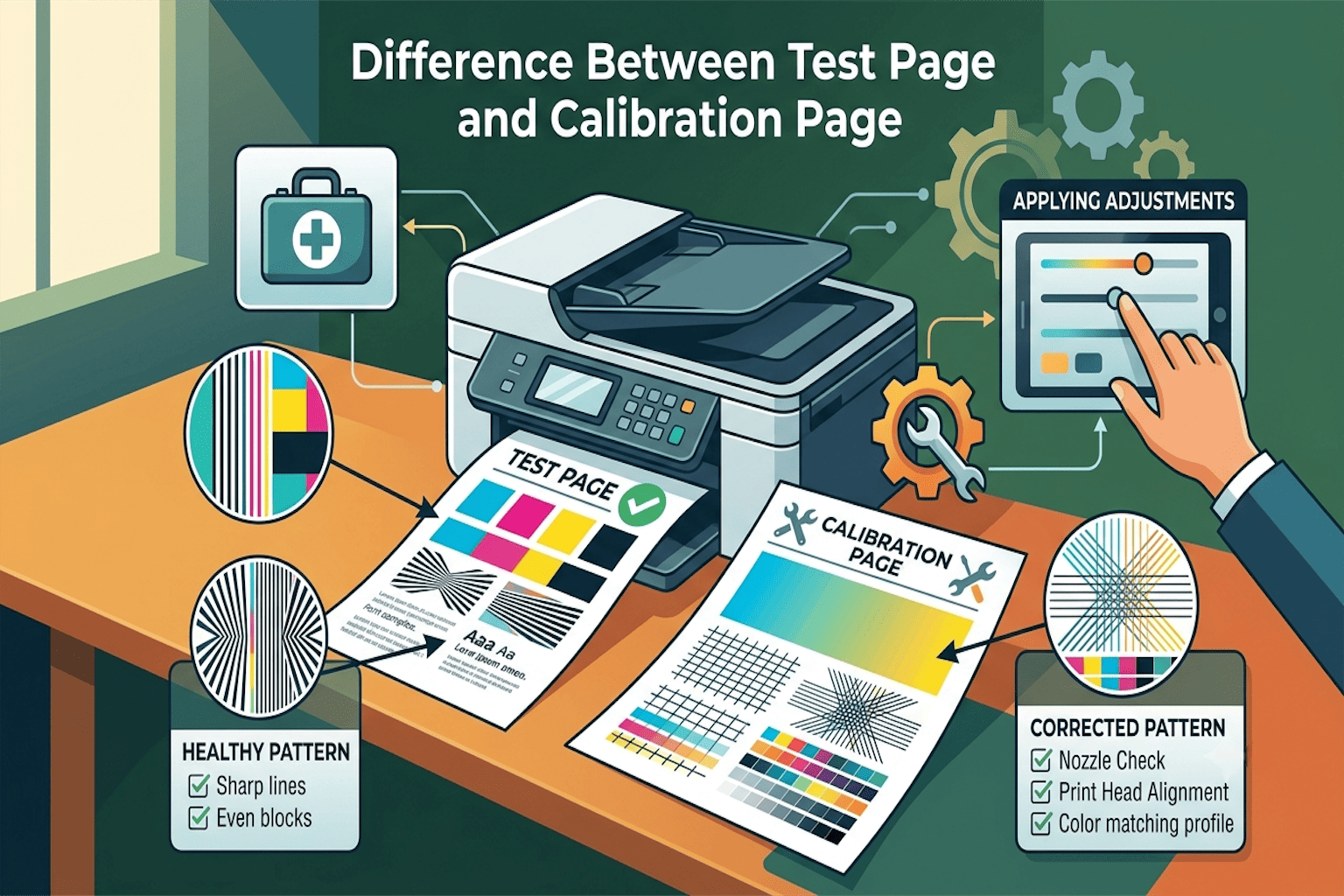
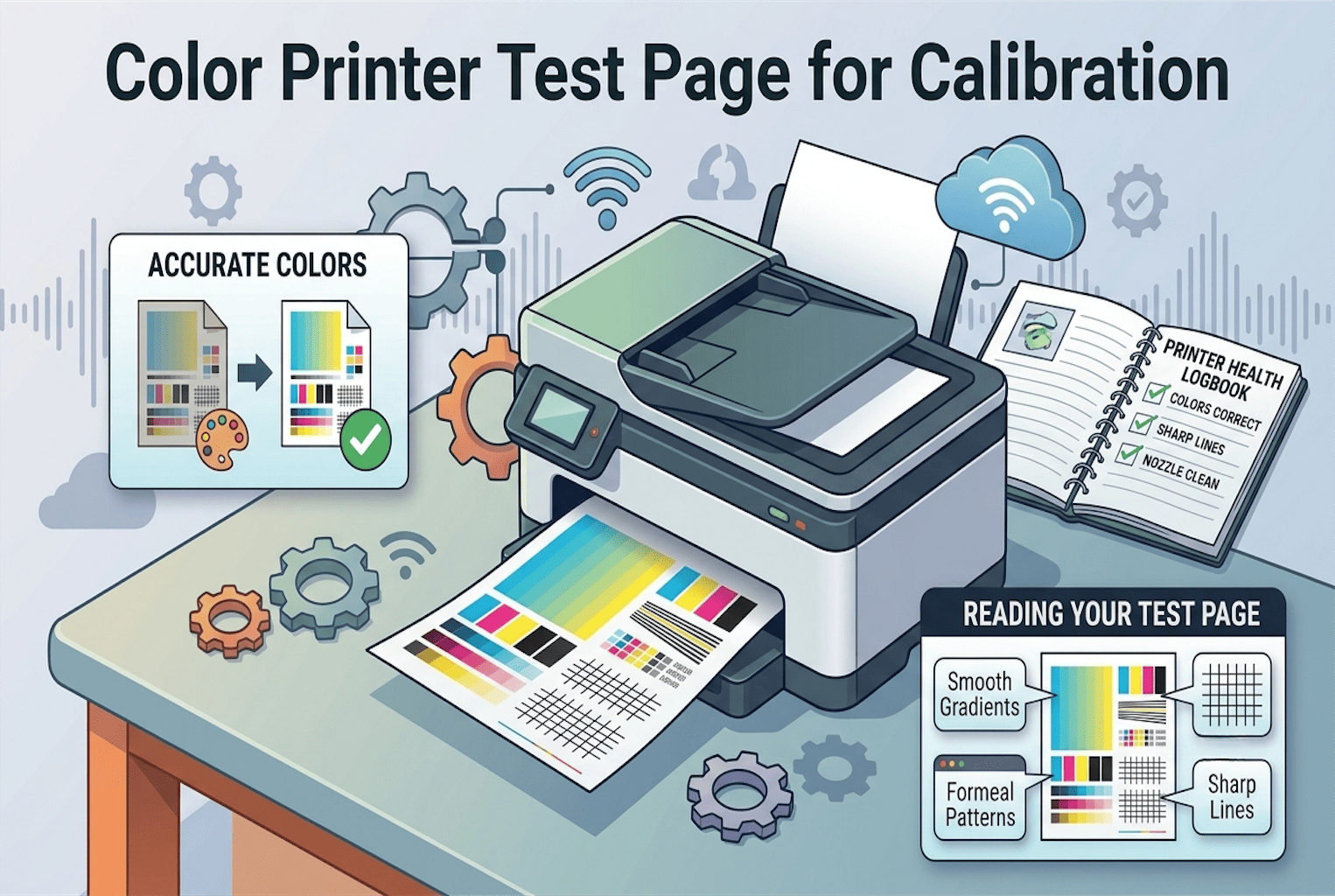
A test page is a sample page that your printer creates on its own, without needing a document from you. It usually shows colored blocks (red, blue, green, yellow, black), straight lines, and small text in different sizes.
In short, a test page works like a quick health checkup for your printer. Just like a doctor checks your blood pressure to see how your body is doing, a test page checks your printer’s ink flow, alignment, and connection all in one glance.
Best Ways to Diagnose Printer Problems With a Test Page
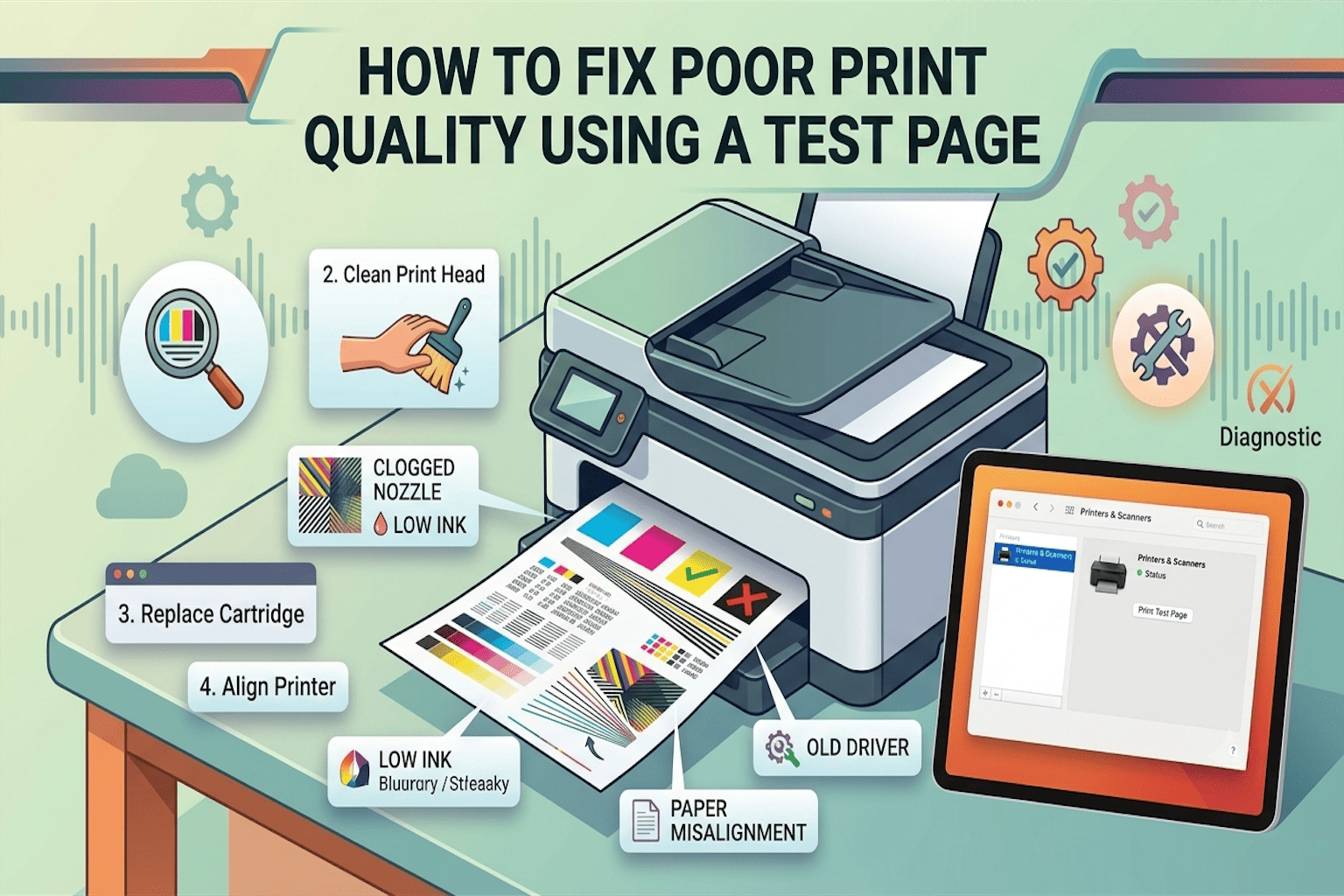
To diagnose printer problems with a test page, print a sample page from your printer settings and compare the result to common issues like blank pages, faded colors, missing colors, streaky lines, or blurry text. Each pattern points to a specific cause, so you can fix the exact problem instead of guessing. Below are the most common signs you’ll see on a test page, what they mean, and how to fix them.
Blank Page Comes Out
If nothing prints at all, this usually points to empty or dry ink cartridges, a paper jam, or a loose connection cable. First, check your ink levels, then make sure the printer is properly connected to your computer or Wi-Fi. Also, peek inside the paper tray to rule out a hidden jam.
Faded or Streaky Colors
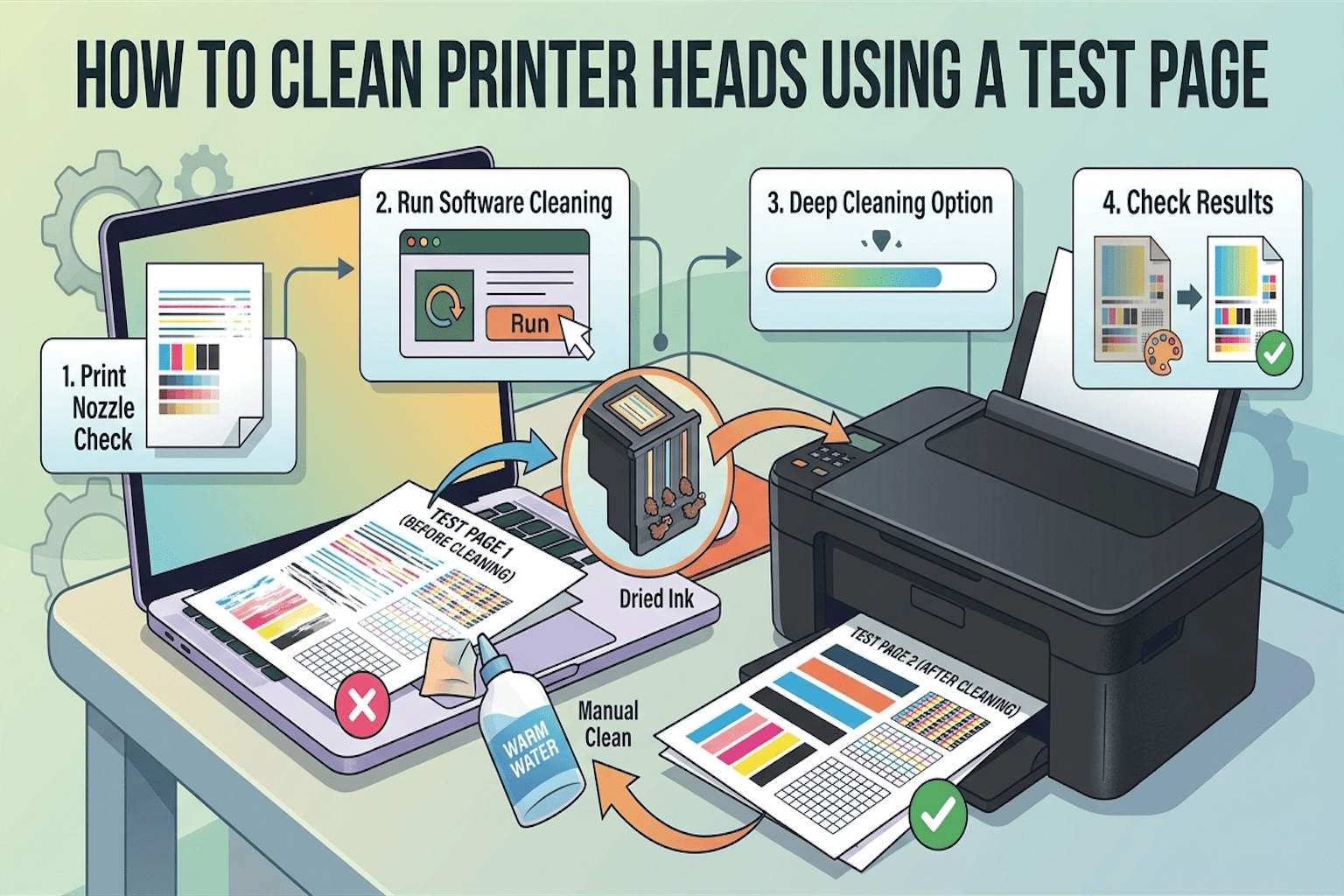
Notice pale colors, patchy lines, or streaks across the page? This is a classic sign of low ink or toner, clogged print nozzles, or dirty print heads. To fix it, run the printer’s built-in cleaning tool, which is usually found under “Maintenance” in your printer settings. This simple step solves the problem in most cases.
Wrong or Missing Colors
If blue looks green, or one color is missing entirely, your printer is likely dealing with a dried-out cartridge or a misaligned print head. So, replace the problem cartridge first, and then run a head alignment test from your printer’s software to fine-tune the results.
Lines or Streaks Across the Page
Thin horizontal or vertical lines usually mean dust or debris on the print rollers, a dirty print head, or worn out parts, which is common in older printers. Therefore, gently clean the rollers with a lint-free cloth, then run a cleaning cycle from your printer settings to clear out any leftover residue.
Blurry or Smudged Text
If your text looks smudged or out of focus, this often points to wrong paper type settings, too much humidity in the room, or a dirty print head. As a result, check that your paper settings match the paper you’re using, and let the printer sit in a dry area whenever possible.
When Should You Call a Professional?
Most printer problems can be solved at home using the steps above. However, if you’ve tried everything and your test page still looks wrong, it might be time to get expert help.
- Call a professional if the printer makes unusual grinding or clicking noises.
- If parts appear physically damaged.
- If the problem keeps coming back even after cleaning. There’s no shame in asking for help, as some issues are simply mechanical and need a trained hand.
Final Thoughts
Printer problems can feel stressful, especially when you’re in a rush. But now you know exactly how to diagnose printer problems with a test page quickly, easily, and without any technical headache. Just print the page, compare it to the signs above, and follow the simple fix. In most cases, your printer will be back to normal in just a few minutes.
If your printer keeps jamming even after a clean test page, check out our guide on how to fix poor print quality using a test page for more help. And if you want to avoid printer trouble in the future, our printer test page guide is a great next read. For official troubleshooting steps straight from the source, you can also check the support pages of HP, Canon, Epson, or Brother.
Frequently Asked Questions
How often should I print a test page?
It’s a good idea to print one every few weeks, or anytime your printouts start looking off. This helps you catch small problems before they become big ones.
Why does my printer’s test page look faded?
This is almost always caused by low ink or a clogged print head. Running a cleaning cycle usually fixes it.
Can I print a test page without a computer?
Yes! Most printers let you print a test page directly using the buttons on the printer itself. Check your printer’s manual for the exact steps.
Does a test page use a lot of ink?
No, a test page uses a very small amount of ink. It’s a safe and cheap way to check your printer’s health.
What should a normal test page look like?
A normal test page shows sharp colors, clean lines, and clear text with no streaks, gaps, or smudges. If yours looks different, one of the fixes above should solve it.