Color Printer Test Page for Calibration
Have you ever printed a photo and the colors looked all wrong? Maybe the red looked orange. Maybe the blue looked too dark. Or maybe the whole page came out striped and faded. Sounds annoying, right? Here’s the good news. You don’t need to buy a new printer or call a repair person.
All you need is a simple color printer test page for calibration. This one small step can fix most color problems in just a few minutes. In this guide, you’ll learn just easy steps anyone can follow, even if you’ve never touched a printer setting before. Ready? Let’s scroll down and get your printer looking sharp again.
What Is a Color Printer Test Page?
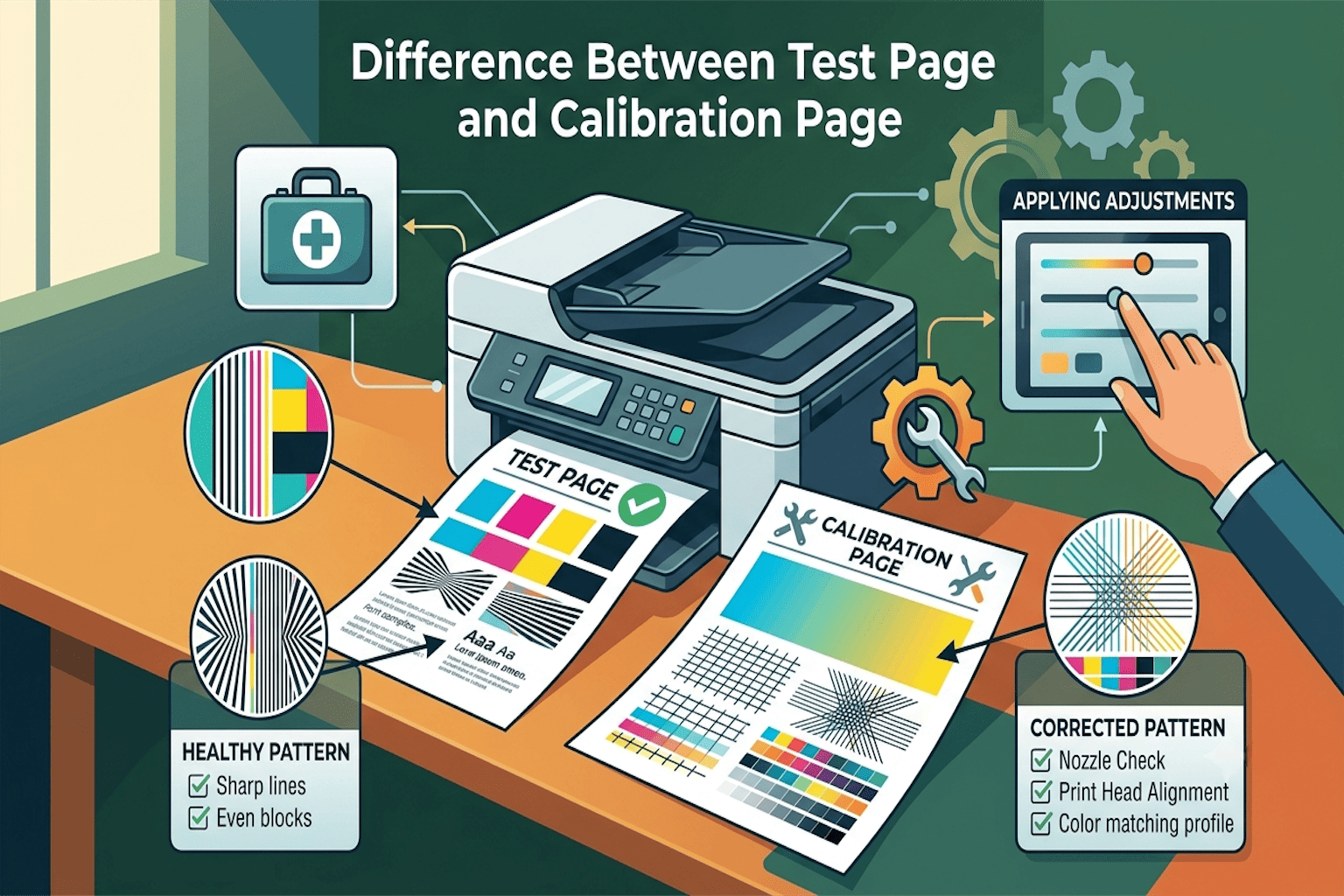
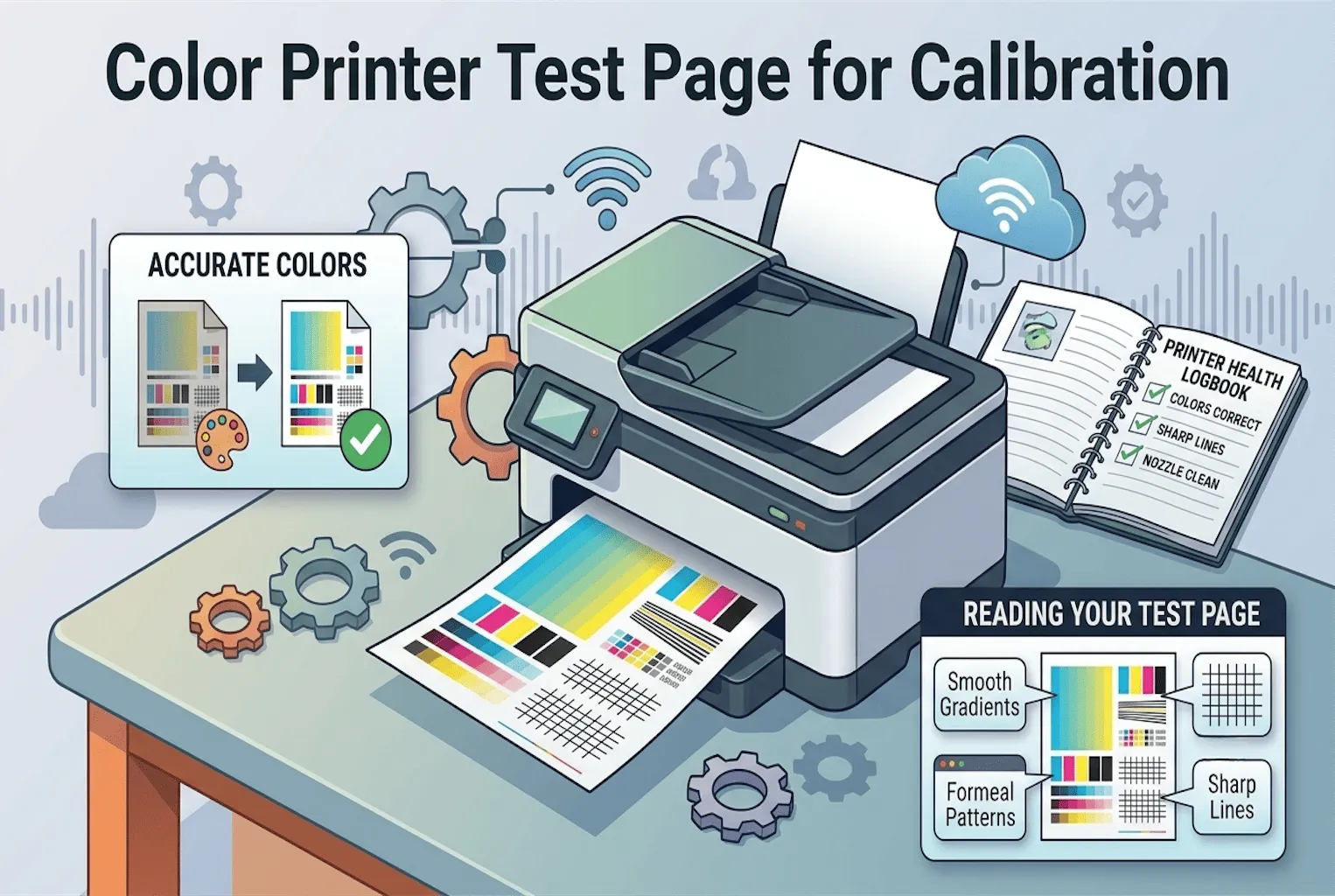
A color printer test page is a special sheet with blocks of color, lines, and patterns. It shows you exactly how your printer is printing right now. It tells you:
- If your colors are printing true to life
- If your ink or toner is running low
- If your print lines are sharp or blurry
- If your printer needs calibration (a fancy word for “adjustment”)
Once you print this page, you can compare it to how it should look. If something’s off, you’ll know exactly what to fix.
Why Does Printer Calibration Even Matter?
You might be thinking, “Do I really need to do this?” Here’s why it matters:
1. Your Colors Stay Accurate
Without calibration, your printer might guess the colors wrong. A calibration test page helps your printer match real colors, so your photos and documents look the way they should.
2. You Save Money on Ink
A printer that’s out of balance often uses more ink to try to “fix” the color on its own. Calibrating it properly means less wasted ink and more savings for you.
3. Your Prints Look Professional
Whether you’re printing a school project, a resume, or family photos, sharp and correct colors make a huge difference. Nobody wants a print job that looks dull or off-color.
4. It Helps You Catch Problems Early
A test page can show you small issues like a clogged nozzle or low toner before they turn into bigger problems.
How to Print a Test Page on the Most Common Systems
On Windows
- Click the Start menu and type “Printers.”
- Click Printers & Scanners.
- Select your printer from the list.
- Click Manage, then click Print a Test Page.
- Wait a few seconds your test page will print out automatically.
On Mac
- Click the Apple menu, then go to System Settings.
- Click Printers & Scanners.
- Select your printer and click Options & Supplies.
- Go to the Utility tab and click Open Printer Utility.
- Look for a button that says Print Test Page or Nozzle Check.
Directly From the Printer
Many printers also let you print a test page without using a computer at all. Just look for a Setup or Maintenance button on your printer’s screen, then find the option for “Test Page” or “Calibration Page.”
How to Read Your Color Test Page
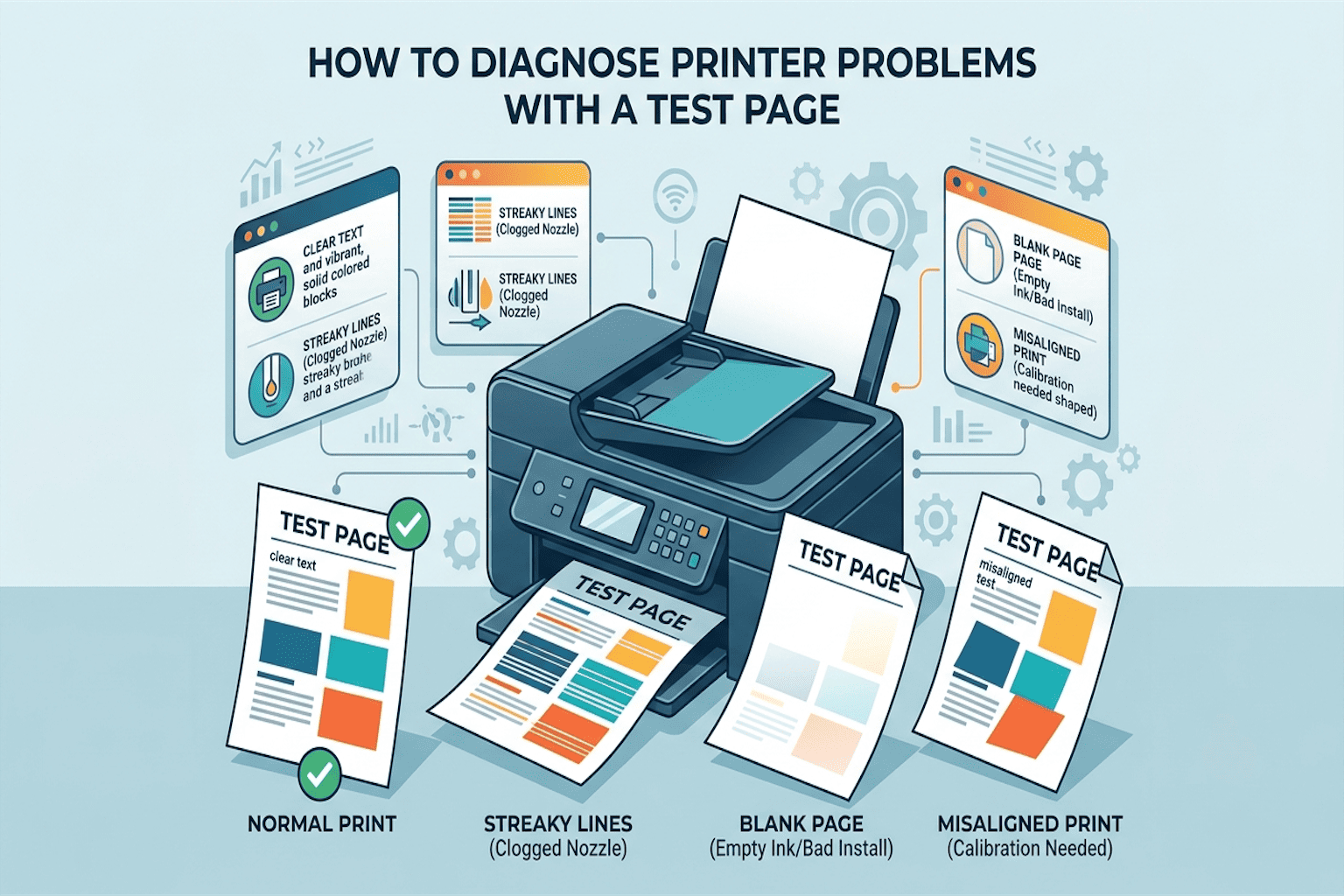
Once your test page is printed, take a close look. Here’s what to check:
- Are the color blocks smooth? Streaky or patchy colors mean your printer needs cleaning or calibration.
- Do the lines look sharp? Blurry or broken lines usually point to alignment issues.
- Are all colors showing up? Missing colors (like no yellow or no blue) often mean an ink cartridge is empty or clogged.
- Do the colors look natural? If skin tones look green or skies look purple, your printer’s color settings need adjusting.
If everything looks smooth, sharp, and true to color, congratulations, your printer is working great! If not, don’t worry. The next section will help you fix it.
How to Fix Common Color Printer Problems
Faded or Streaky Colors
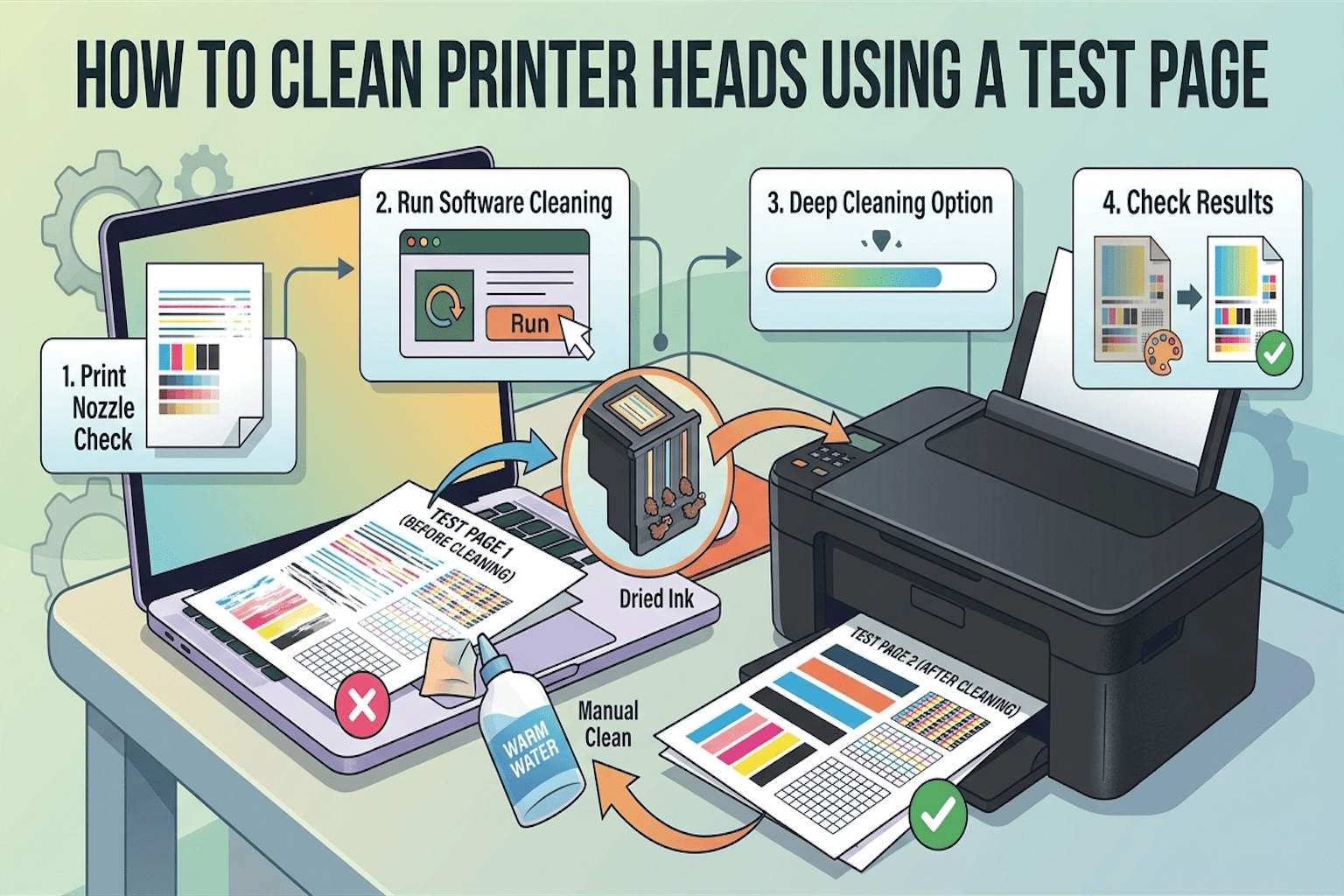
Try running a cleaning cycle from your printer’s software. This clears out dried ink or dust blocking the nozzles.
Blurry or Misaligned Prints
Use the alignment tool in your printer settings. These lines up the print head so text and images come out crisp.
Wrong Colors
Go into your printer’s color management settings and choose “Auto Calibrate” or “Auto Correct.” Most modern printers can fix this with one click.
Still Not Working?
If the colors still look off after cleaning and calibrating, it might be time to check your ink levels or replace a cartridge.
How Often Should You Calibrate Your Printer?
Calibrate your printer once every 1 to 3 months, or anytime you notice colors looking off. If you print a lot of photos or design work, you may want to calibrate even more often to keep everything looking sharp.
Final Thoughts
A color printer test page for calibration is one of the easiest ways to keep your prints looking sharp, accurate, and professional. It takes just a few minutes, costs nothing, and can save you money on wasted ink in the long run. So next time your prints look a little “off,” don’t stress. Print a test page, check the colors, and calibrate. Your printer and your photos will thank you.
Frequently Asked Questions
What is a printer calibration test page used for?
It’s used to check if your printer’s colors, sharpness, and ink levels are working correctly.
Is printer calibration free?
Yes! Most printers have a built-in tool to print a test page and calibrate for free --- no extra software needed.
Can I calibrate my printer without a computer?
Yes. Many printers let you print a test page and calibrate directly from the printer’s control panel.
Why do my printed colors look different from my screen?
Screens and printers use different color systems. Calibration helps bring them closer together, but small differences are normal.