How to Fix Poor Print Quality Using a Test Page
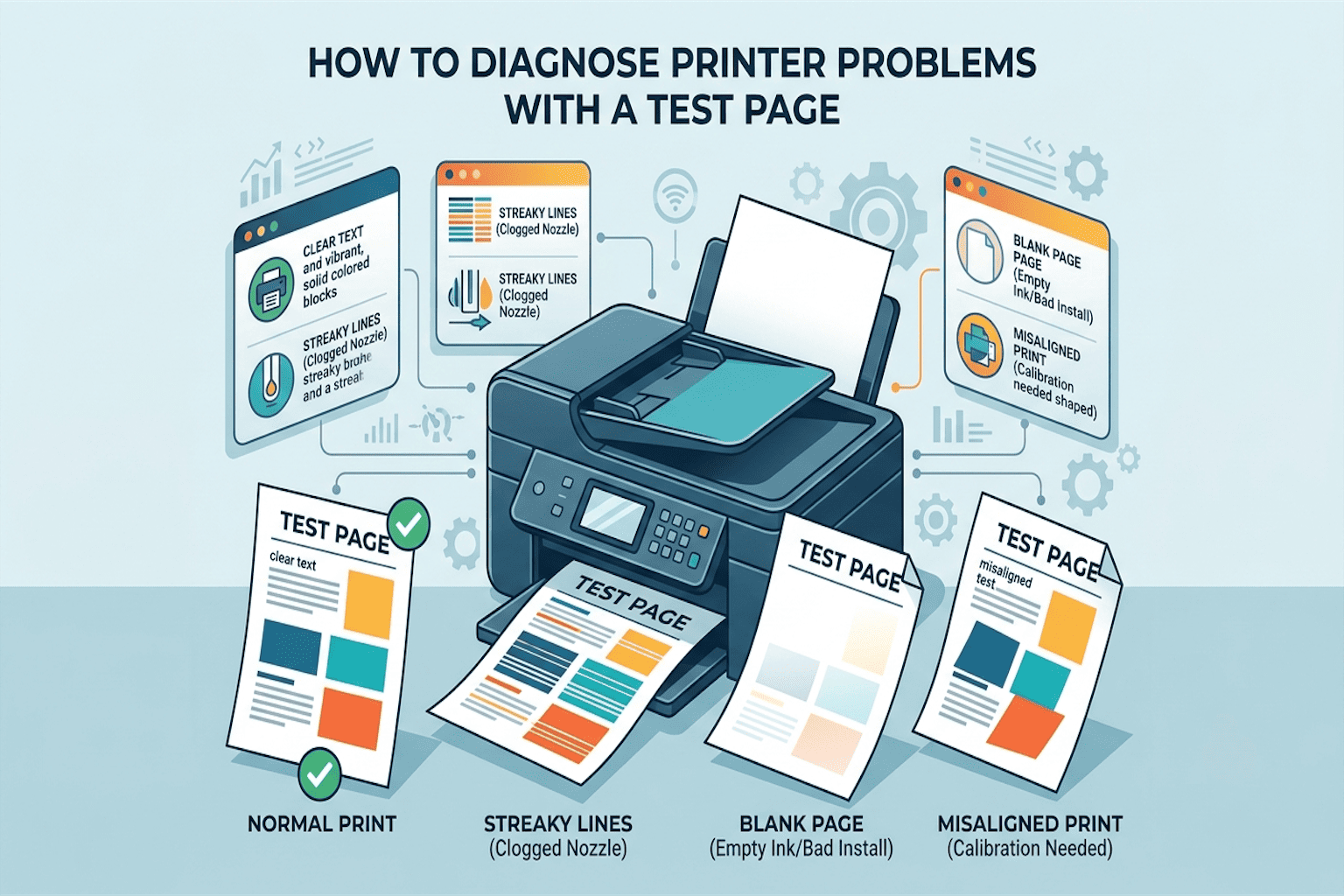
Are your prints coming out blurry, streaky, or missing colors? What if one simple sheet of paper could show you exactly what’s wrong with your printer? That sheet is called a color test page, and it’s the fastest way to find and fix poor print quality, no tech skills needed.
In this guide, you’ll learn how to print a test page, how it helps diagnose printer problems, and fix the problem in just a few easy steps.
How Poor Print Quality Affects Your Printing Process
Poor print quality doesn’t just make your pages look bad, it slows down your whole printing process. When text is blurry or colors are missing, you often end up printing the same page again and again, which wastes paper and ink.
Documents can look unprofessional, photos lose their detail, and important reports or forms may even become hard to read. In short, one small printing problem can turn a quick task into a frustrating, time-wasting job. That’s why catching the issue early with a test page saves both time and money by diagnosing printer problems early.
Common Fixes for Poor Print Quality
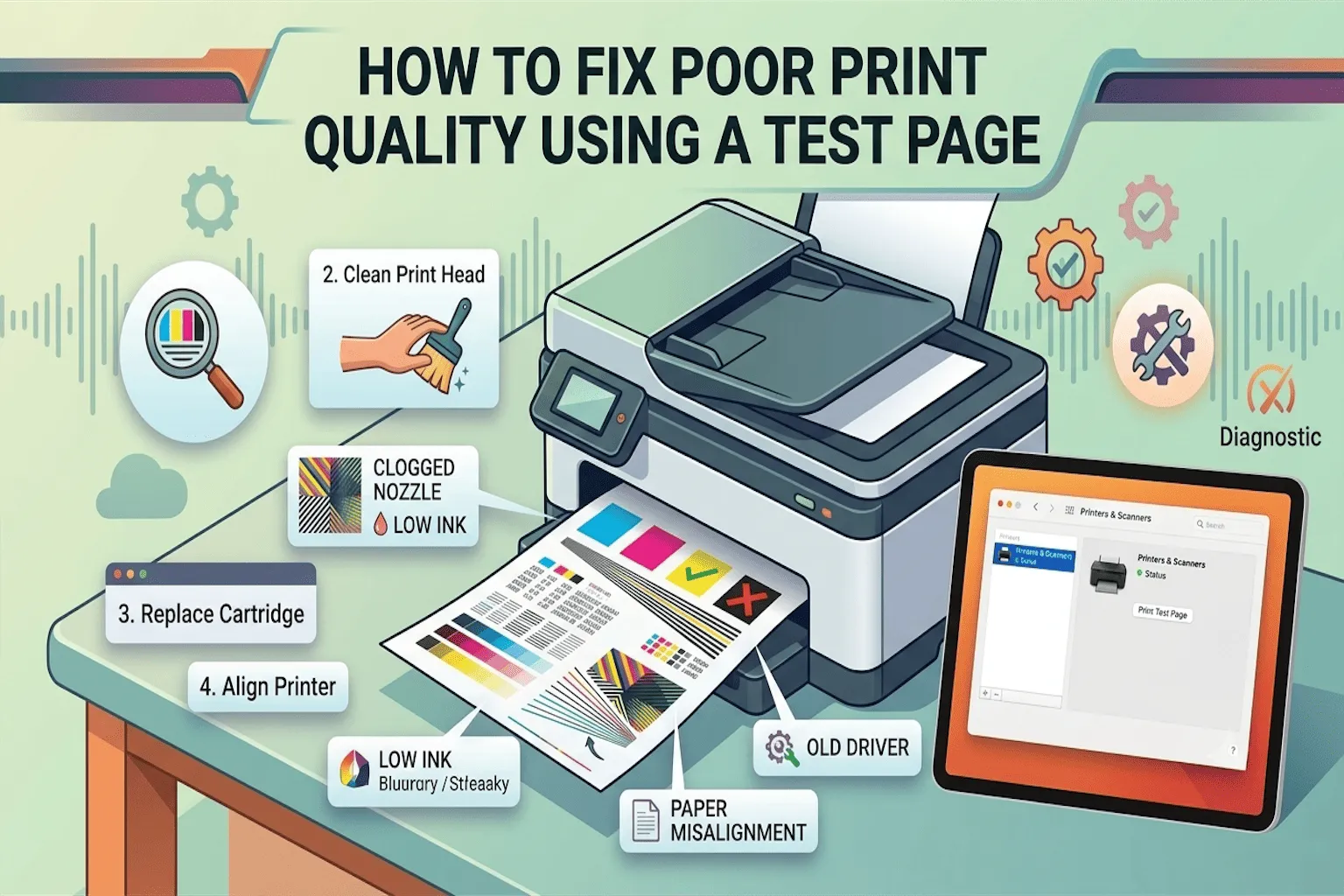
Once you know what your test page is showing, fixing it is usually simple. Below are the most common causes of poor print quality and how to fix each one.
Clean the Print Head
A clogged print head is one of the biggest reasons for streaky or faded prints. Most printers have a built-in cleaning tool. Go to your printer settings, find “Maintenance” or “Clean Print Head,” and run the cleaning cycle. Print another test page afterward to check if the lines look clearer.
Replace Low Ink or Toner Cartridges
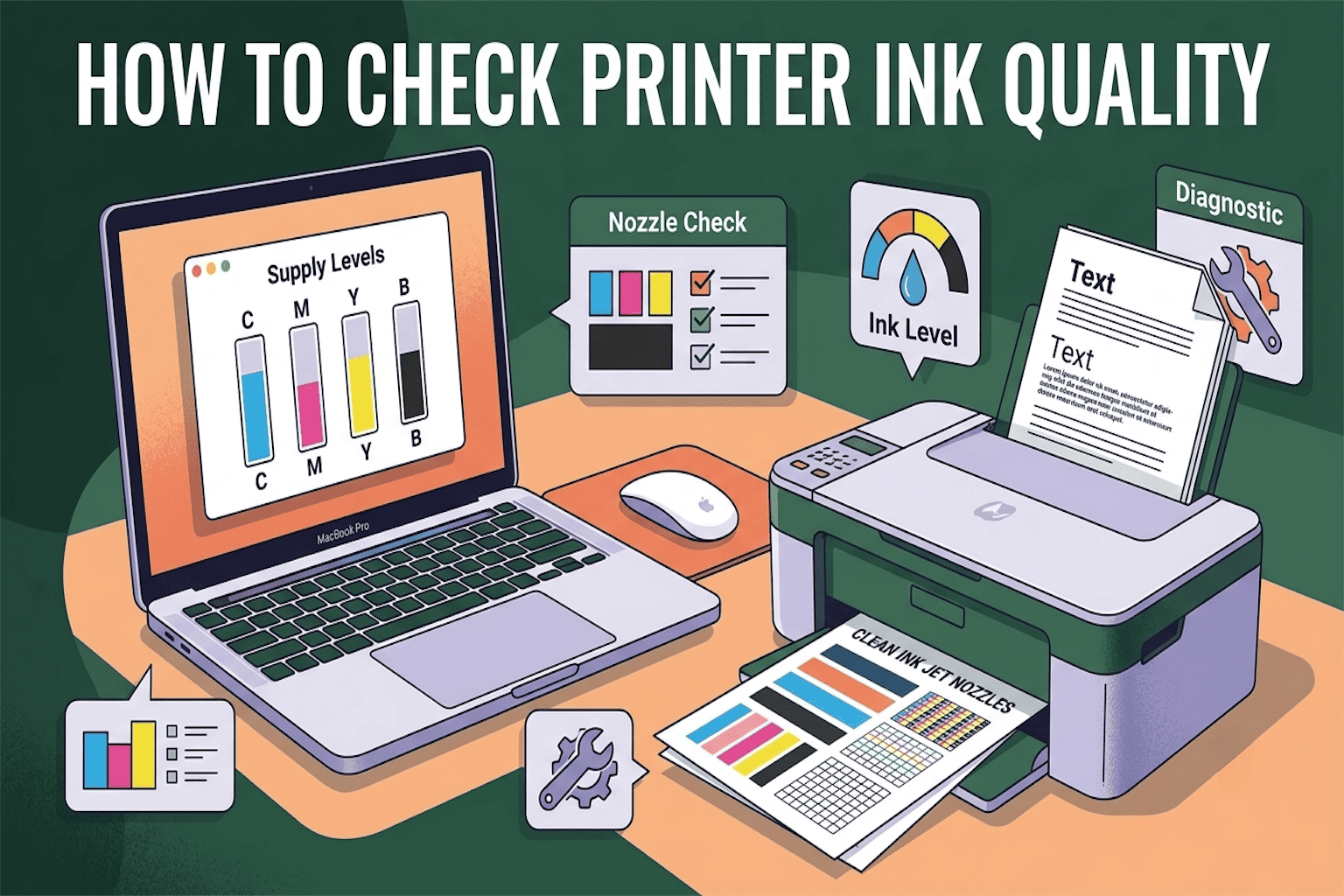
If a color is missing or looks faded, your ink cartridge may be low or empty. Check your ink levels in the printer settings and replace any cartridge that’s running out. This simple fix solves most color-related printing problems right away.
Check Paper Quality and Type
Using the wrong paper can also cause smudged or blurry prints. Make sure the paper you’re using matches your printer settings, whether it’s plain, glossy, or photo paper. Mismatched paper settings are an easy mistake that many people overlook.
Update or Reinstall Printer Drivers
Old or damaged printer drivers can cause strange print issues that ink and paper can’t fix. Visit your printer brand’s official website, download the latest driver, and reinstall it. This step often solves problems that seem confusing at first.
Align the Printer
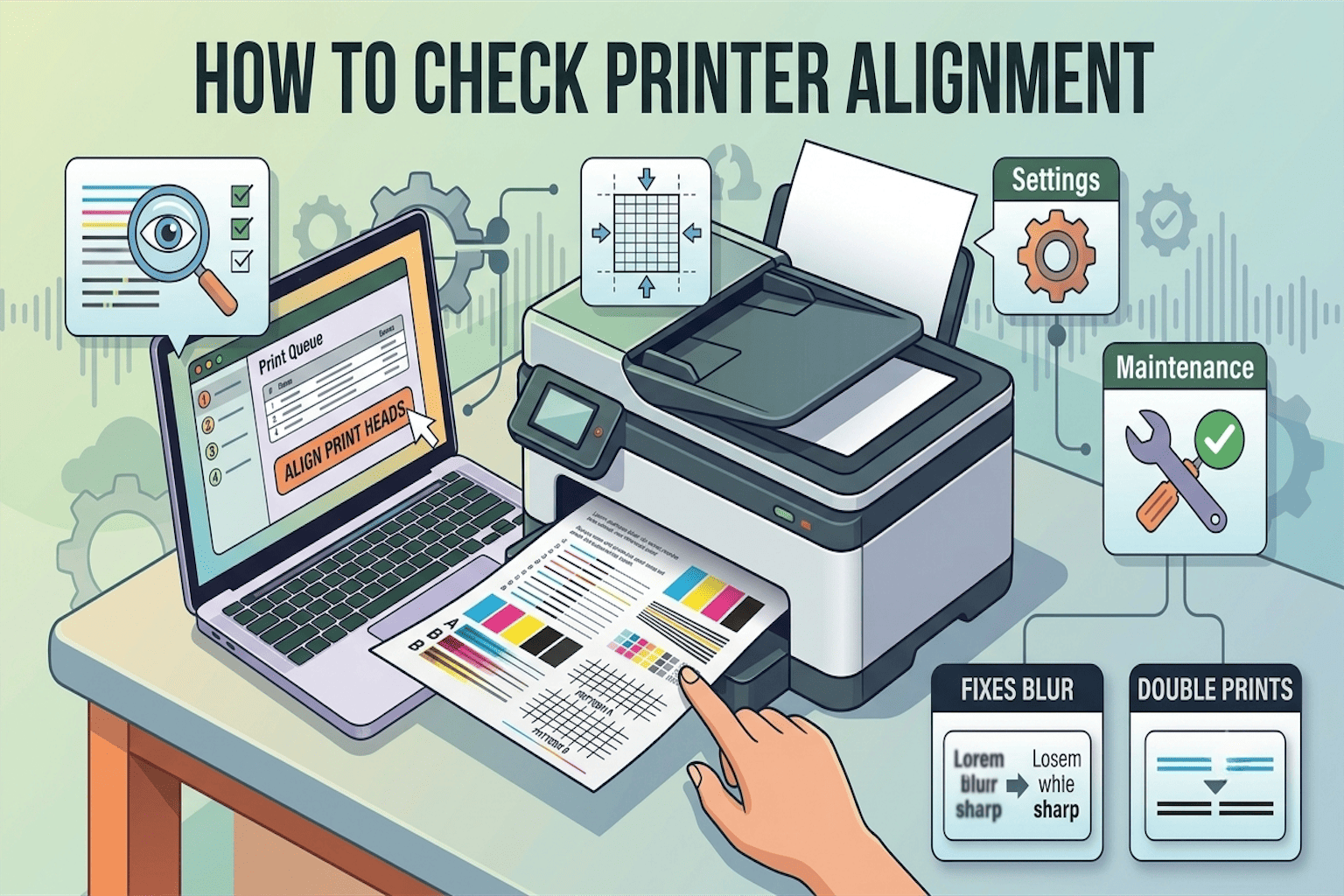
If your text looks slightly crooked or fuzzy, your printer may need alignment. Look for “Print Head Alignment” in your printer’s maintenance menu and run the tool. This small adjustment can instantly make your prints sharper.
Final Thoughts
Poor print quality doesn’t have to be a headache. By printing a simple test page, you can quickly spot the real problem, whether it’s low ink, a clogged print head, or old drivers, and fix it yourself in just a few minutes. Next time your prints look off, don’t stress. Print a test page, follow the steps above, and get back to clean, sharp prints.