Printer Printing Wrong Colors? Easy Fix Guide (2026)
If your printer printing wrong colors, it can be frustrating to see documents come out with inaccurate shades or missing colors. Whether images look dull, colors appear swapped, or prints look completely off, this issue is very common and usually easy to fix. In most cases, the problem is not serious and can be resolved by adjusting settings or performing simple maintenance.
Understanding what causes color problems will help you fix color printing issues quickly and restore accurate, vibrant output.
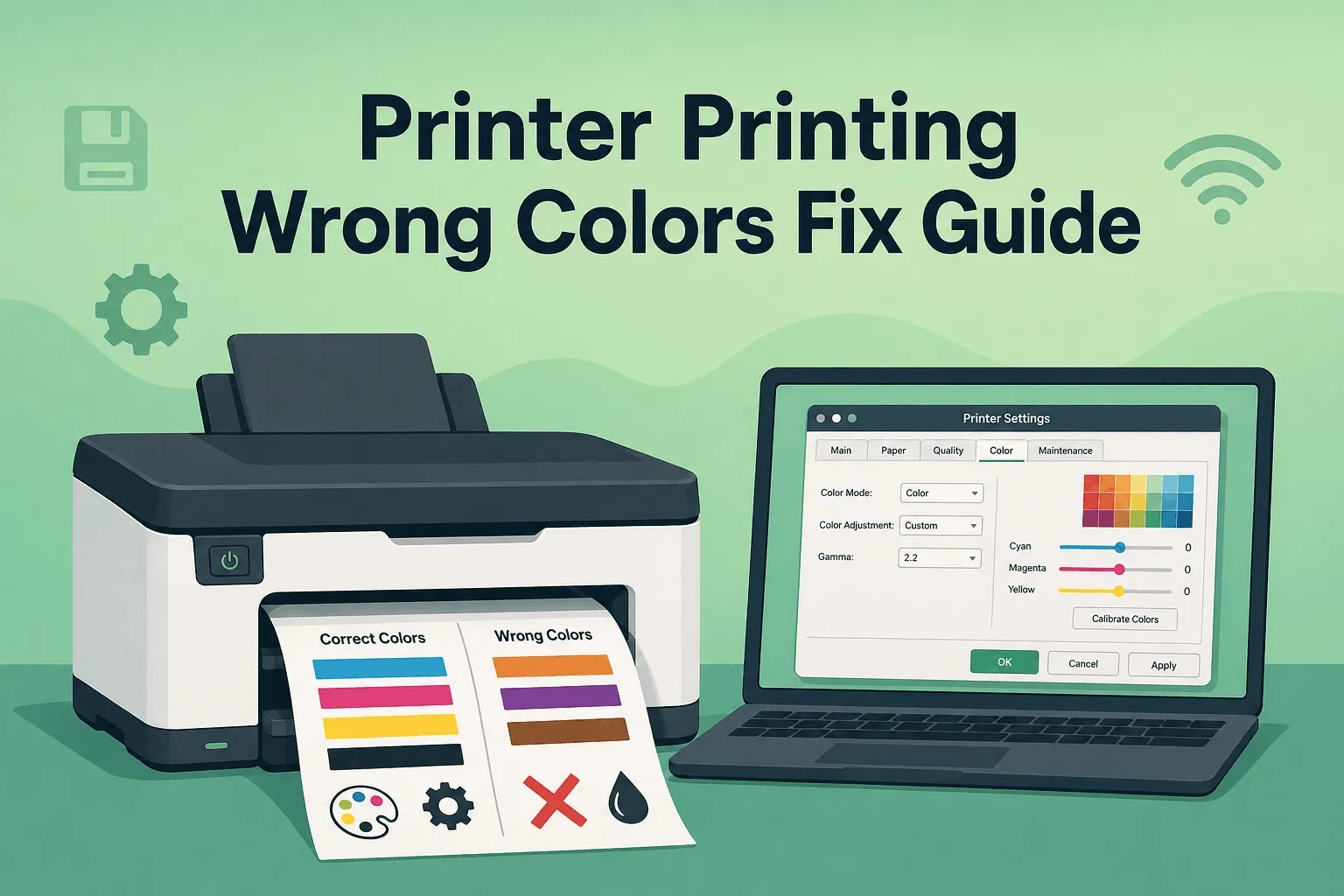
Why Your Printer Is Printing Wrong Colors
Color printing relies on a combination of ink cartridges and precise calibration. When everything is working correctly, your printer blends colors accurately to produce high-quality prints. However, when something goes wrong, the results can look very different from what you see on your screen.
Common causes include incorrect settings, clogged printheads, low ink levels, outdated drivers, or software conflicts. Identifying the root cause is the first step toward fixing the issue.
Check Basic Color Settings First
Before assuming a hardware problem, check your printer settings. Many users accidentally enable grayscale or black-and-white mode, which prevents the printer from using color ink.
Also, verify that the correct color profile is selected. Incorrect profiles can lead to color mismatches and unusual output. Making sure your settings match your printing needs can often resolve the issue immediately.
Run a Color Test Page for Diagnosis
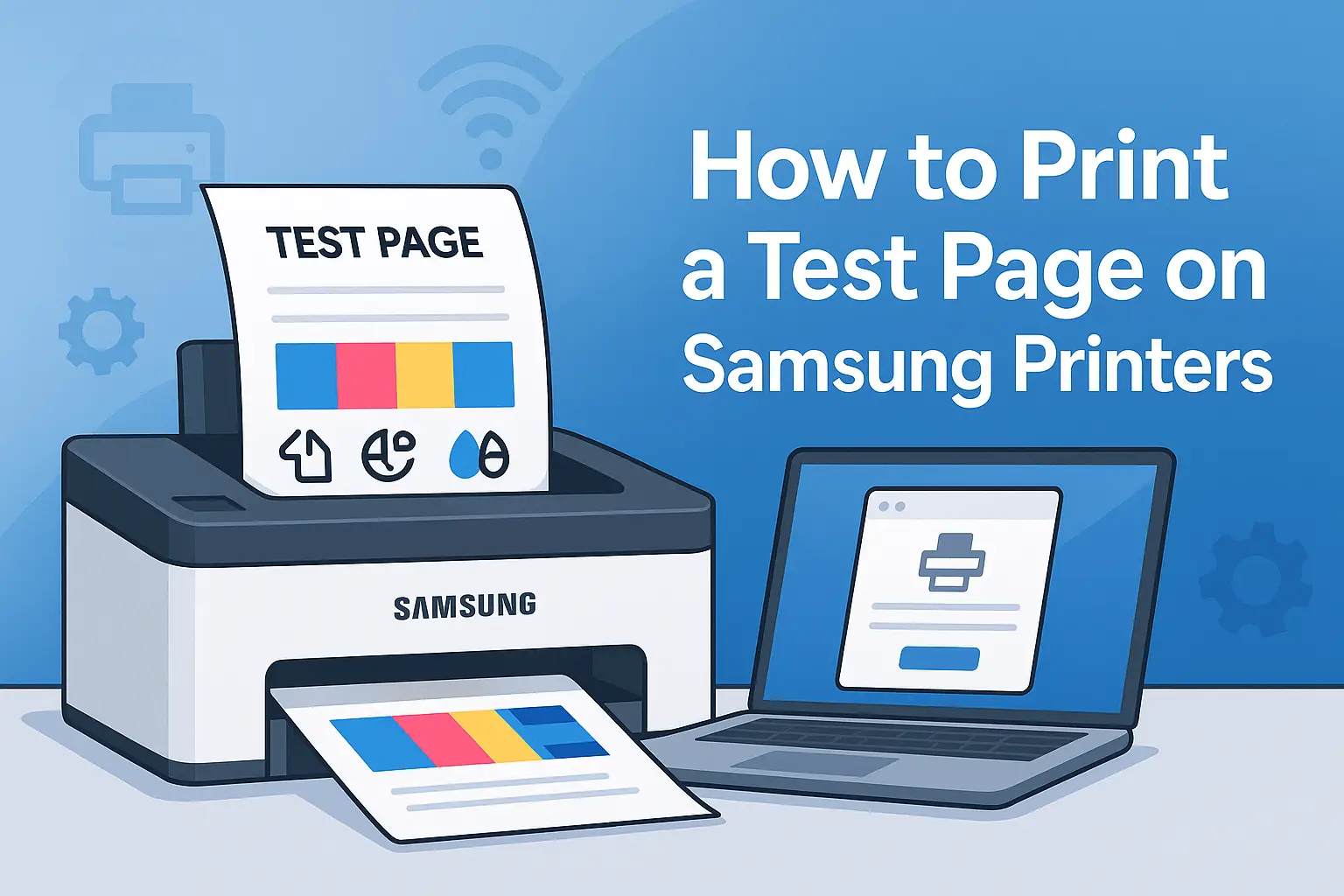
A color test page is one of the most effective ways to identify what’s wrong. It shows how each color is being printed and helps you spot missing or incorrect tones.
If certain colors are not appearing correctly, it usually points to a specific cartridge or printhead issue. This step gives you a clear direction for troubleshooting.
Clean the Printhead to Fix Color Issues
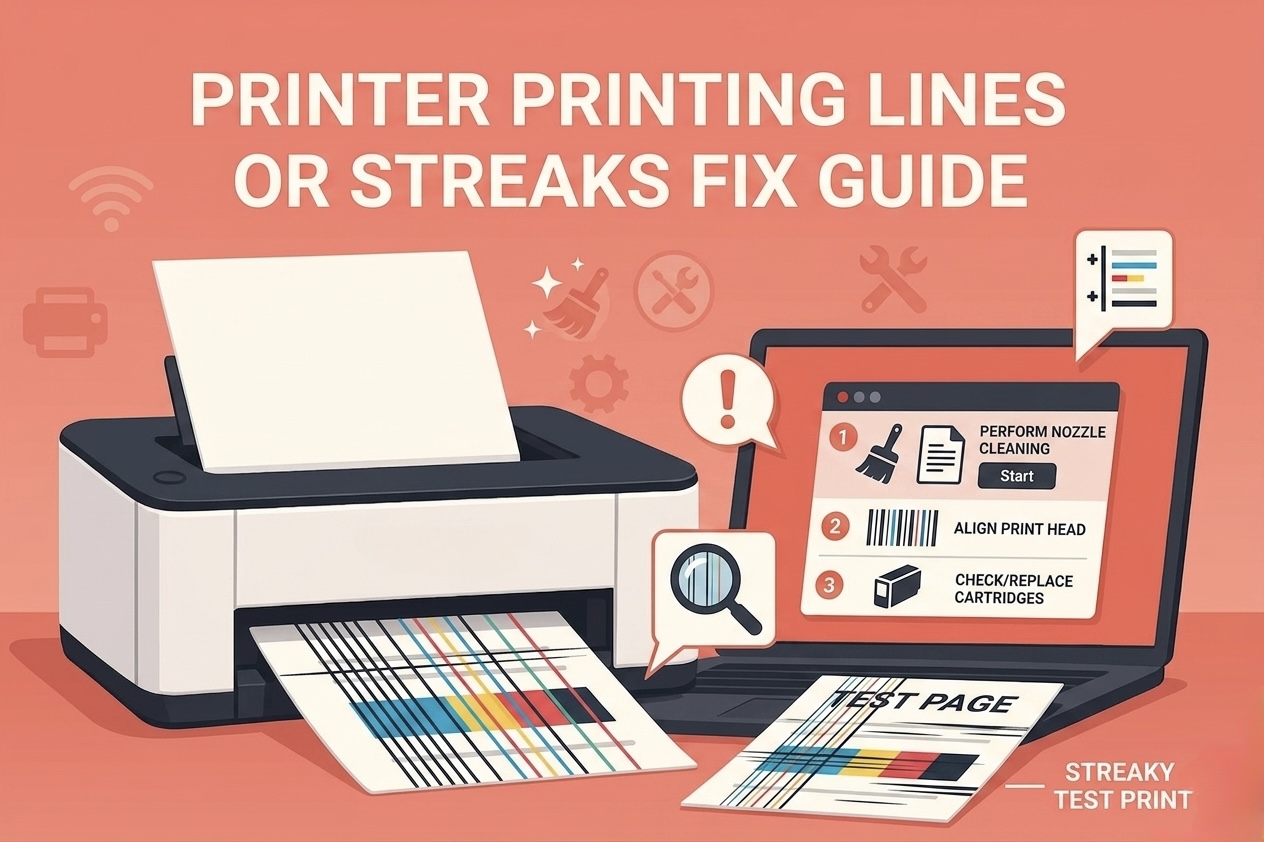
Clogged printheads are a major reason behind wrong color printing. When ink dries inside the nozzles, it prevents proper color mixing and leads to inaccurate results.
Most printers include a cleaning function that helps clear these blockages. Running the cleaning cycle can restore normal ink flow and improve color accuracy. In some cases, repeating the process may be necessary for better results.
Check Ink Cartridges and Levels
Low or faulty cartridges can significantly affect color output. Even if one color is running low, it can distort the entire print.
Make sure all cartridges are properly installed and have enough ink. Replacing damaged or expired cartridges can quickly solve color problems and improve print quality.
Fix Driver and Software Problems
Drivers play a crucial role in ensuring your printer processes color correctly. If the driver is outdated or incompatible, it may produce incorrect colors.
Updating your printer driver can resolve many issues. Additionally, checking your print settings for quality and color options ensures that your printer is using the correct configuration.
Resolve Application-Specific Color Problems
Sometimes, the issue is not with the printer but with the application you are using. Different programs handle color differently, which can lead to unexpected results.
Try printing the same file from another application. If the colors appear normal, the problem is likely related to the original software or file.
When Wrong Colors Indicate Hardware Issues
Although less common, persistent color problems can indicate hardware issues such as damaged printheads or internal malfunctions.
If you have tried all basic fixes and the issue continues, further inspection may be needed. However, most cases are resolved through cleaning, settings adjustments, or cartridge replacement.
Use a Test Page to Confirm Accurate Colors
After applying fixes, printing a test page helps confirm whether your printer is producing accurate colors again. A properly printed test page shows balanced and consistent color output.
You can easily check your results using our print test page, which offers reliable test pages for diagnosing and verifying color performance.
Conclusion
If your printer printing wrong colors, the issue is usually caused by settings, clogged printheads, or ink problems rather than serious hardware faults. By checking your settings, cleaning the printhead, and ensuring your cartridges are in good condition, you can restore accurate color printing quickly.
Taking a simple and methodical approach makes it easy to identify the problem and fix it without advanced technical knowledge.
FAQ
Why is my printer printing wrong colors suddenly
This can happen due to clogged printheads, low ink, or incorrect settings. Cleaning and checking settings usually fixes the issue.
How do I fix color printing issues
Check your color settings, clean the printhead, and replace faulty cartridges if needed.
Can a driver cause wrong color printing
Yes, outdated or incorrect drivers can affect how colors are processed and printed.