How to Fix Streaks, Lines & Faded Prints (Complete Guide)
If your printer printing lines or streaks, or producing faded output, it can make even simple documents look unprofessional. This issue is very common and usually easy to fix, especially for beginners. Whether you notice horizontal lines, vertical streaks, or dull colors, the problem often comes down to ink flow or maintenance issues rather than serious hardware failure.
Understanding what causes these print defects will help you fix faded prints quickly and restore your printer’s performance without unnecessary expense.
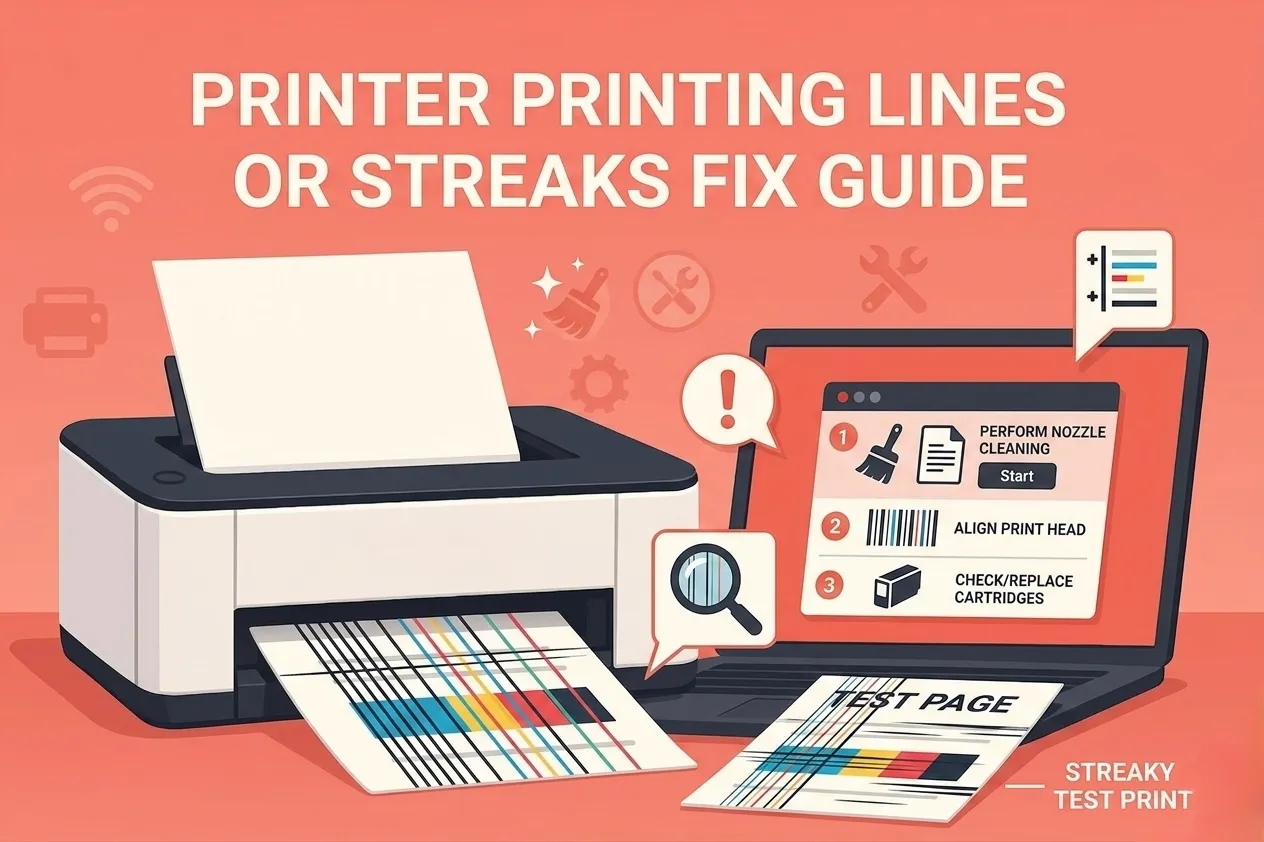
What Causes Printer Printing Lines or Streaks
Print quality problems happen when ink or toner is not distributed evenly on the paper. When everything is working correctly, your printer produces smooth and consistent output. However, small disruptions can lead to visible defects.
The most common causes include clogged printheads, low ink levels, misalignment, dirty rollers, or incorrect settings. In many cases, multiple factors may contribute to the issue.
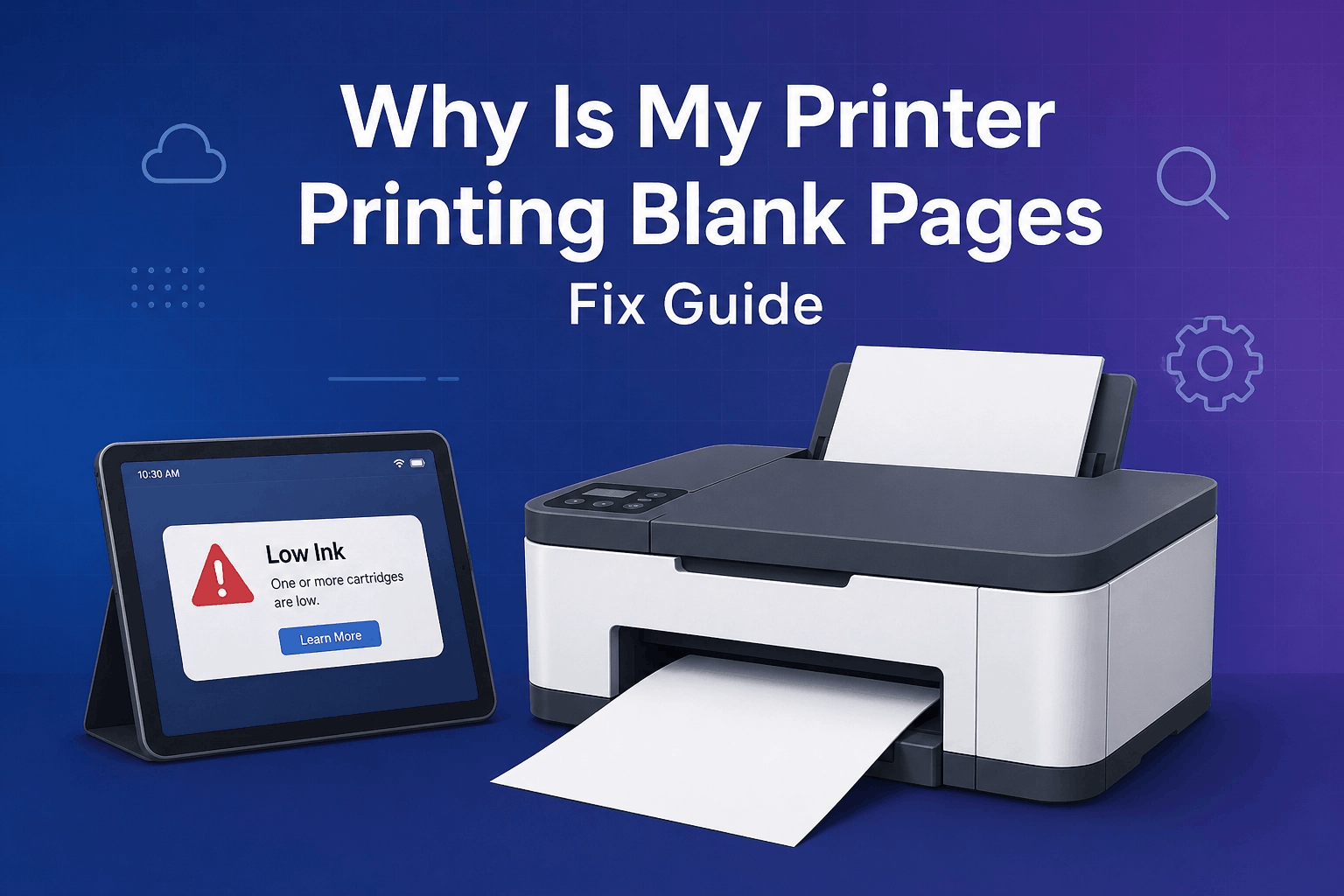
Check Ink or Toner Levels
Low ink is one of the simplest reasons behind faded prints. When ink levels drop too low, the printer cannot produce solid colors, resulting in weak or uneven output.
Even if your printer still has some ink left, it may not be enough to maintain consistent print quality. Checking and replacing cartridges when necessary can immediately improve results.
Run a Nozzle Check to Identify the Problem
A nozzle check is a useful diagnostic step that shows how well your printer is delivering ink. It prints a pattern that reveals missing lines or colors.
If parts of the pattern are incomplete, it indicates blocked nozzles. This helps you pinpoint whether the issue is related to a specific color or the entire print system.
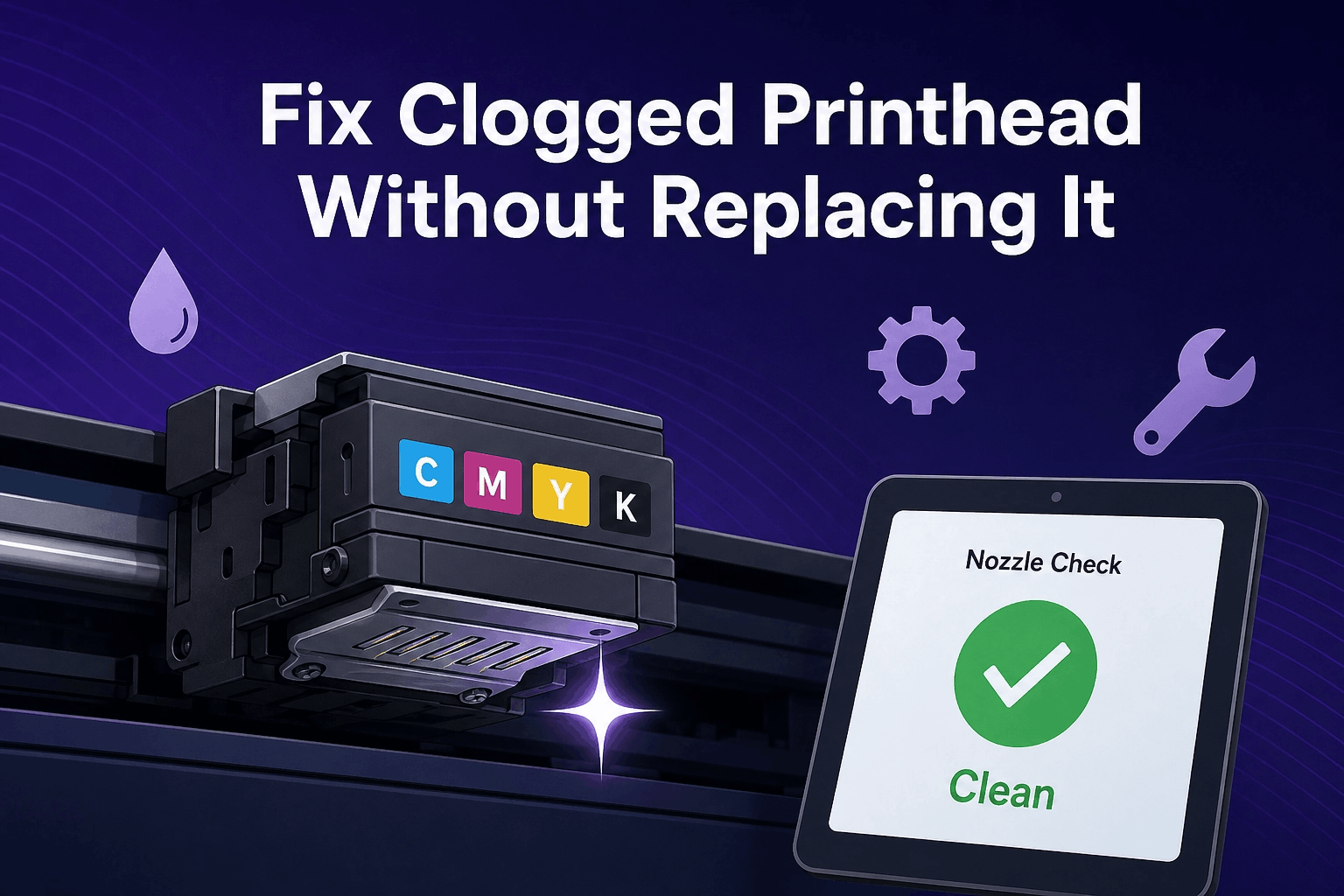
Clean the Printhead to Remove Clogs
Clogged printheads are one of the leading causes of printer streaking problems. Over time, ink can dry and block the tiny nozzles responsible for spraying ink onto paper.
Most printers offer a built-in cleaning function that flushes out dried ink. Running this process can restore proper ink flow and eliminate streaks. In more stubborn cases, repeating the cleaning cycle may be necessary.
Align the Printer for Better Accuracy
Misalignment can cause lines or uneven printing, even when ink levels are sufficient. When the printhead is not properly aligned, the ink may not land in the correct position on the paper.
Running the alignment feature from your printer settings helps correct this issue. Proper alignment ensures sharper text and smoother images.
Clean Rollers and Internal Components
Dust, paper particles, and debris inside the printer can also affect print quality. Dirty rollers may cause uneven movement of paper, leading to streaks or inconsistent output.
Regular cleaning of accessible components helps maintain smooth operation. Keeping your printer clean is an often overlooked but important step in preventing print defects.
Replace Old or Faulty Cartridges
Cartridges that are old, damaged, or of poor quality can lead to inconsistent printing. Even if they are not completely empty, they may fail to deliver ink properly.
Replacing faulty cartridges with new ones can resolve persistent issues and improve overall print clarity.
Fix Driver and Software Issues
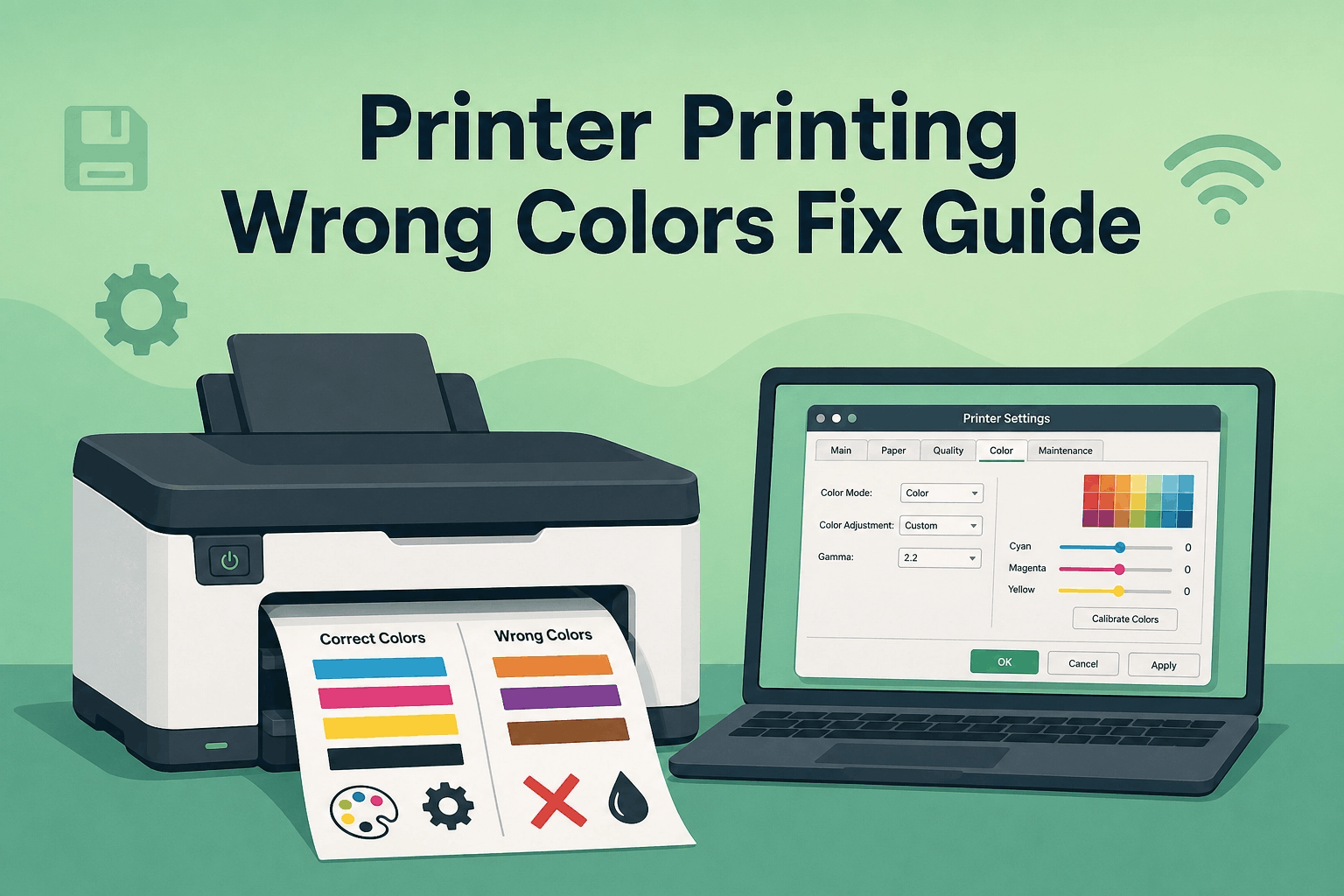
Although less common, software-related problems can also affect print quality. Incorrect settings such as low-quality print mode can result in faded prints.
Updating your printer driver ensures compatibility and optimal performance. Checking your print settings before printing can also prevent unnecessary issues.
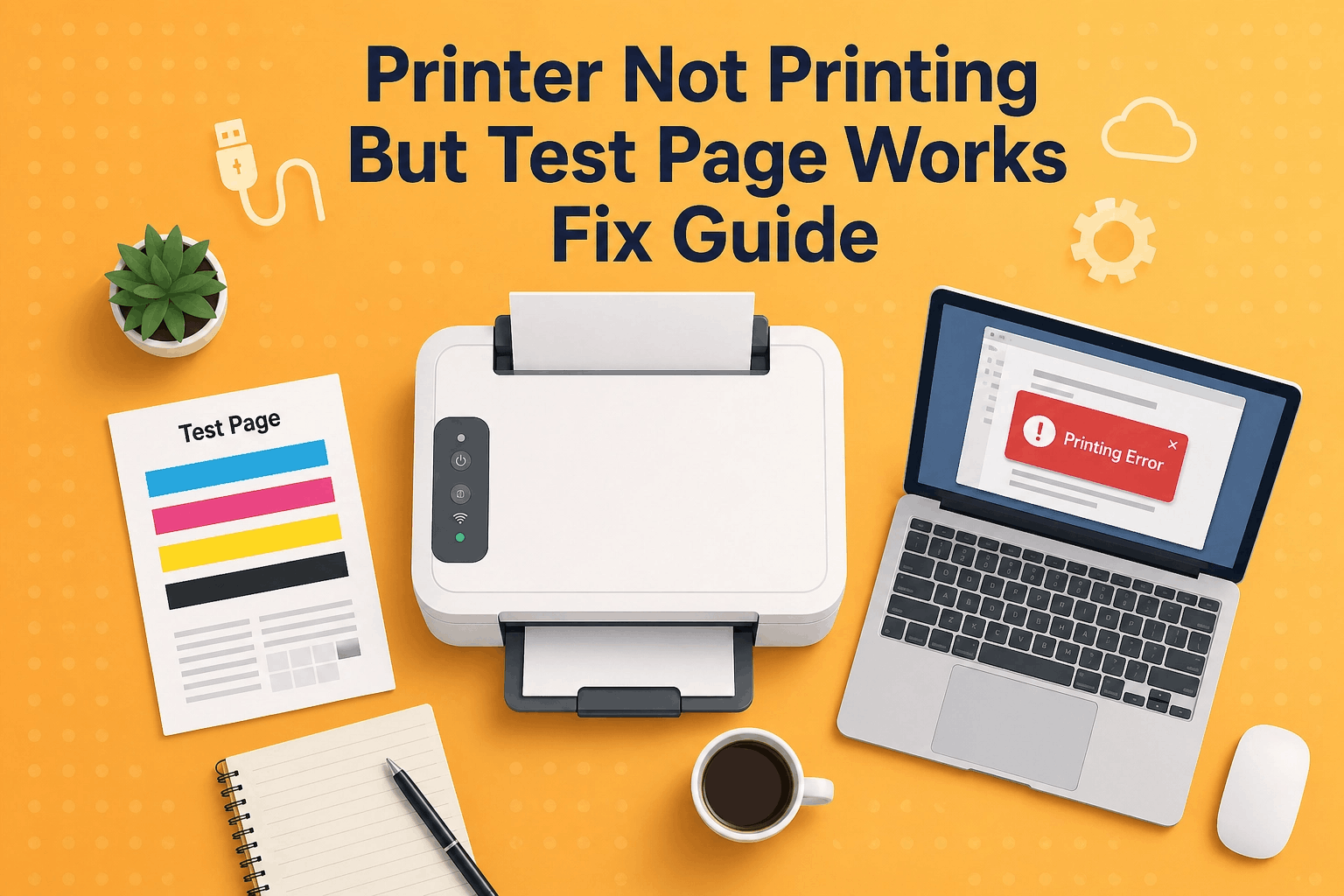
Use a Test Page to Confirm Print Quality
After applying fixes, printing a test page is the best way to confirm whether the issue has been resolved. A clear and consistent test page indicates that your printer is functioning properly.
You can quickly check your printer’s performance using our Printer Test Page, which provides ready-to-use test pages for diagnosing streaks, alignment, and color issues.
Conclusion
Problems like printer printing lines or streaks and faded output are usually easy to fix once you identify the cause. Most issues come from clogged printheads, low ink, or alignment errors rather than serious hardware faults.
By checking ink levels, running cleaning cycles, aligning the printer, and maintaining its internal components, you can restore high-quality prints quickly. A simple maintenance routine can also prevent these issues from happening again.
FAQ
Why is my printer printing lines on paper
This is often caused by clogged printheads, low ink levels, or alignment issues. Cleaning and aligning the printer usually fixes the problem.
How do I fix faded prints
Check ink levels, clean the printhead, and adjust print settings. Replacing old cartridges may also help.
Can dirty rollers cause streaks
Yes, dust and debris inside the printer can lead to uneven paper movement and visible streaks.