Why Is My Printer Printing Blank Pages? (Step-by-Step Fix)
If you’re wondering why is my printer printing blank pages, you’re dealing with one of the most common printing issues faced by beginners. It can be frustrating to send a document to print only to receive completely blank sheets in return. The good news is that this problem is usually easy to diagnose and fix without professional help.
In most cases, blank pages are caused by simple issues like low ink, clogged printheads, or incorrect settings. Once you understand what’s going wrong, you can quickly restore your printer to normal working condition.
Why Is My Printer Printing Blank Pages
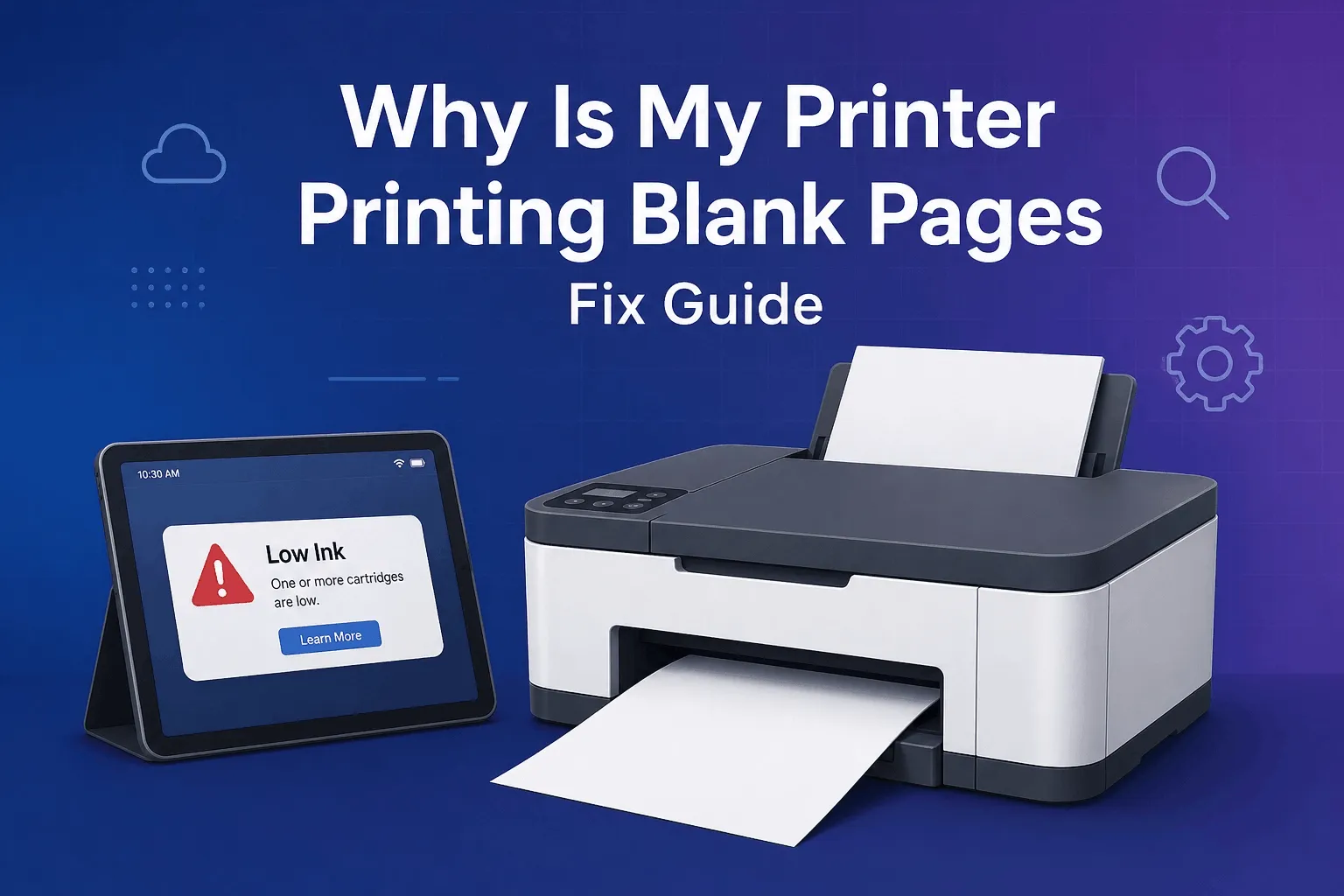
Printers rely on ink or toner being properly delivered onto paper. When something interrupts this process, the result is a blank page. Even if your printer appears to be functioning normally, small issues in the system can prevent ink from being applied.
Common causes include empty or dried cartridges, blocked printheads, incorrect print settings, or outdated drivers. Sometimes, the issue can even come from the file you are trying to print.
Check Ink or Toner Levels First
One of the most obvious reasons for blank pages is low or empty ink. Even if your printer does not display a warning, the cartridge may not have enough usable ink left.
Remove the cartridge and inspect it. If it looks dry or has been unused for a long time, it may no longer function properly. Reinstalling the cartridge securely can also help, as loose placement can interrupt ink flow.
If necessary, replace the cartridge with a new one to see if the issue is resolved.
Clean the Printhead to Restore Ink Flow
A clogged printhead is another major cause of blank pages. Over time, ink can dry and block the nozzles, preventing ink from reaching the paper.
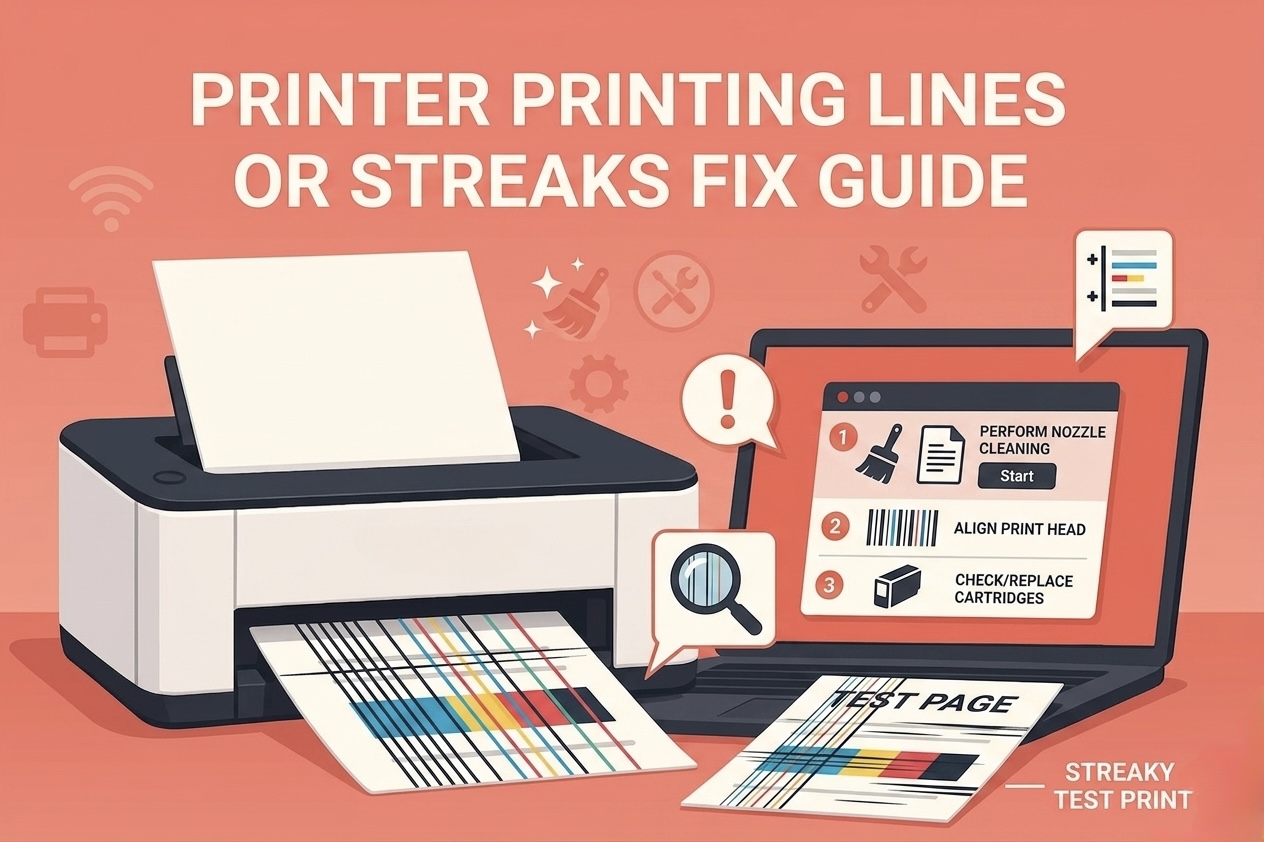
Most printers have a built-in cleaning function that can be accessed through settings. Running this cleaning process helps clear dried ink and restore normal printing.
In some cases, you may need to run the cleaning cycle more than once to fully resolve the blockage.
Check Print Settings and Paper Configuration
Incorrect settings can sometimes cause your printer to produce blank output. For example, if your printer is set to print in a mode that skips ink usage or if the document contains formatting issues, the result may appear blank.
Make sure the correct printer is selected and that the document is not empty or set to print invisible content. Also, verify that the paper size and type match your printer settings.
These small adjustments can make a significant difference.
Fix Driver or Software Issues
Printer drivers play a key role in translating your document into a printable format. If the driver is outdated or corrupted, your printer may fail to print properly.
Updating or reinstalling the driver can often solve this issue. It ensures your printer communicates correctly with your computer and processes print jobs as expected.
Software glitches can also interfere with printing, especially after system updates.
Test with Another File or Application
Sometimes the problem is not with the printer but with the file you are trying to print. A corrupted or improperly formatted document can result in blank pages.
Try printing a different file or use another application. For example, if a PDF does not print correctly, test with a simple text document.
If other files print normally, the issue is likely limited to that specific document.
When Blank Pages Indicate Hardware Issues
Although rare, blank pages can sometimes indicate hardware problems. This may include damaged cartridges, faulty printheads, or internal printer issues.
If you have tried all basic fixes and the problem persists, it may be time to inspect the hardware more closely or consider professional assistance.
However, most cases do not reach this stage and can be resolved with simple troubleshooting.
Use a Test Page to Diagnose the Issue
Printing a test page is one of the quickest ways to identify whether the problem is related to your printer or your computer. A properly printed test page confirms that your printer hardware and ink system are working correctly.
You can easily access a reliable test page from PrintTestPage.net to check alignment, colors, and print quality.
If the test page prints correctly but your documents do not, the issue is likely related to software or file settings.
Conclusion
If you are dealing with printer printing blank pages, the solution is usually straightforward. Most problems are caused by ink issues, clogged printheads, or incorrect settings rather than serious hardware faults.
By checking your ink levels, cleaning the printhead, reviewing your settings, and testing different files, you can quickly identify and fix the issue. Taking a simple step-by-step approach helps restore your printer’s performance without unnecessary stress.
FAQ
Why is my printer printing blank pages even with full ink
This can happen if the printhead is clogged or the cartridge is not installed correctly. Cleaning the printhead usually resolves the issue.
Can a bad driver cause blank pages
Yes, outdated or corrupted drivers can prevent proper printing and result in blank pages.
How do I fix printer printing blank pages quickly
Check ink levels, clean the printhead, verify settings, and test with another file. These steps solve most problems.