Printer Not Printing But Test Page Works? Here’s the Fix
If your printer not printing but test page works, you’re not alone. This is a very common issue, especially for beginners who expect the printer to behave the same for every task. When a printer successfully prints a test page, it means the hardware, ink system, and basic connection are working correctly. However, if it refuses to print documents from your computer, the problem is usually related to software, settings, or communication between your device and the printer.
Understanding the difference between a successful test page and a failed document print is the key to solving the issue quickly without unnecessary frustration.
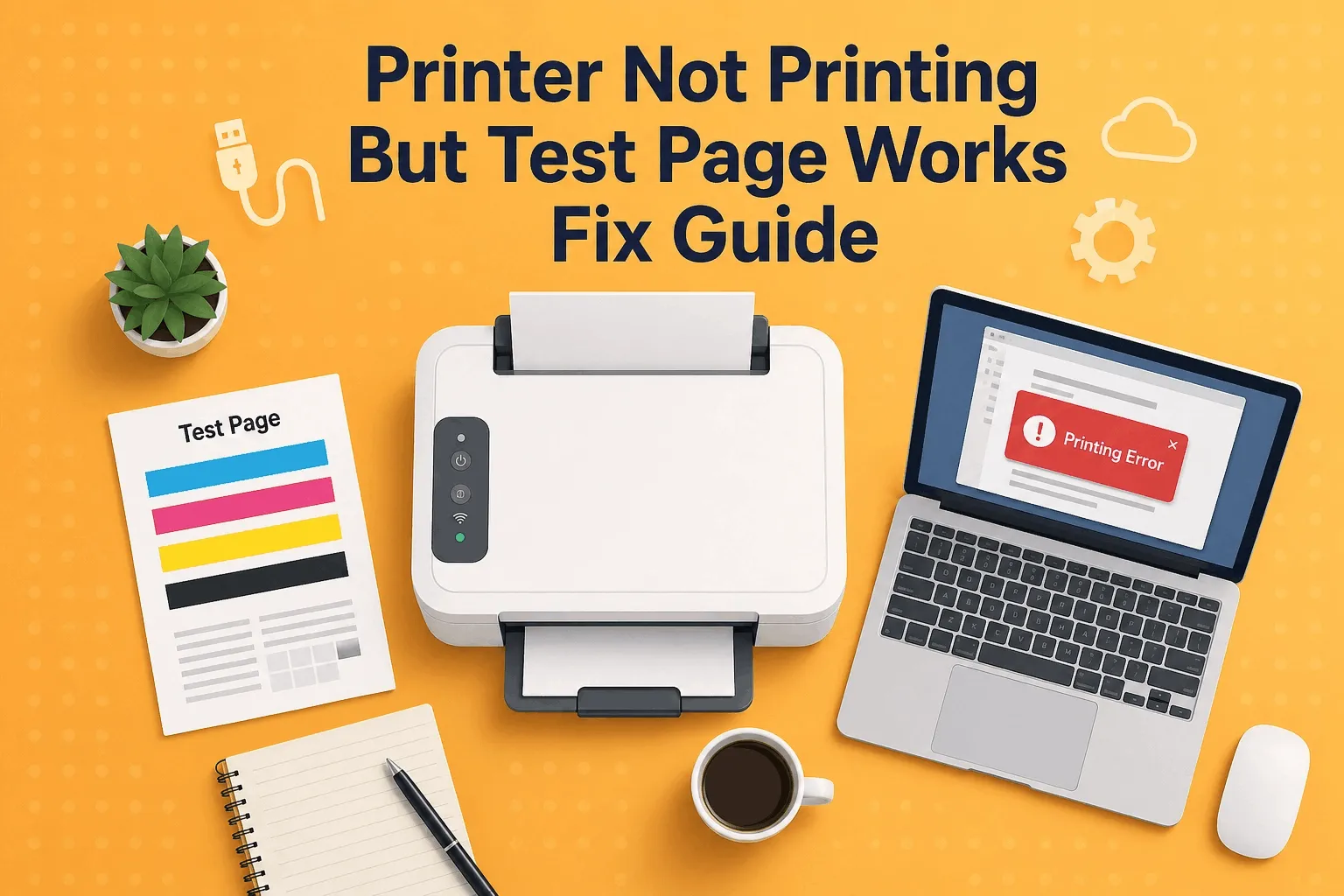
Why Your Printer Prints a Test Page but Not Documents
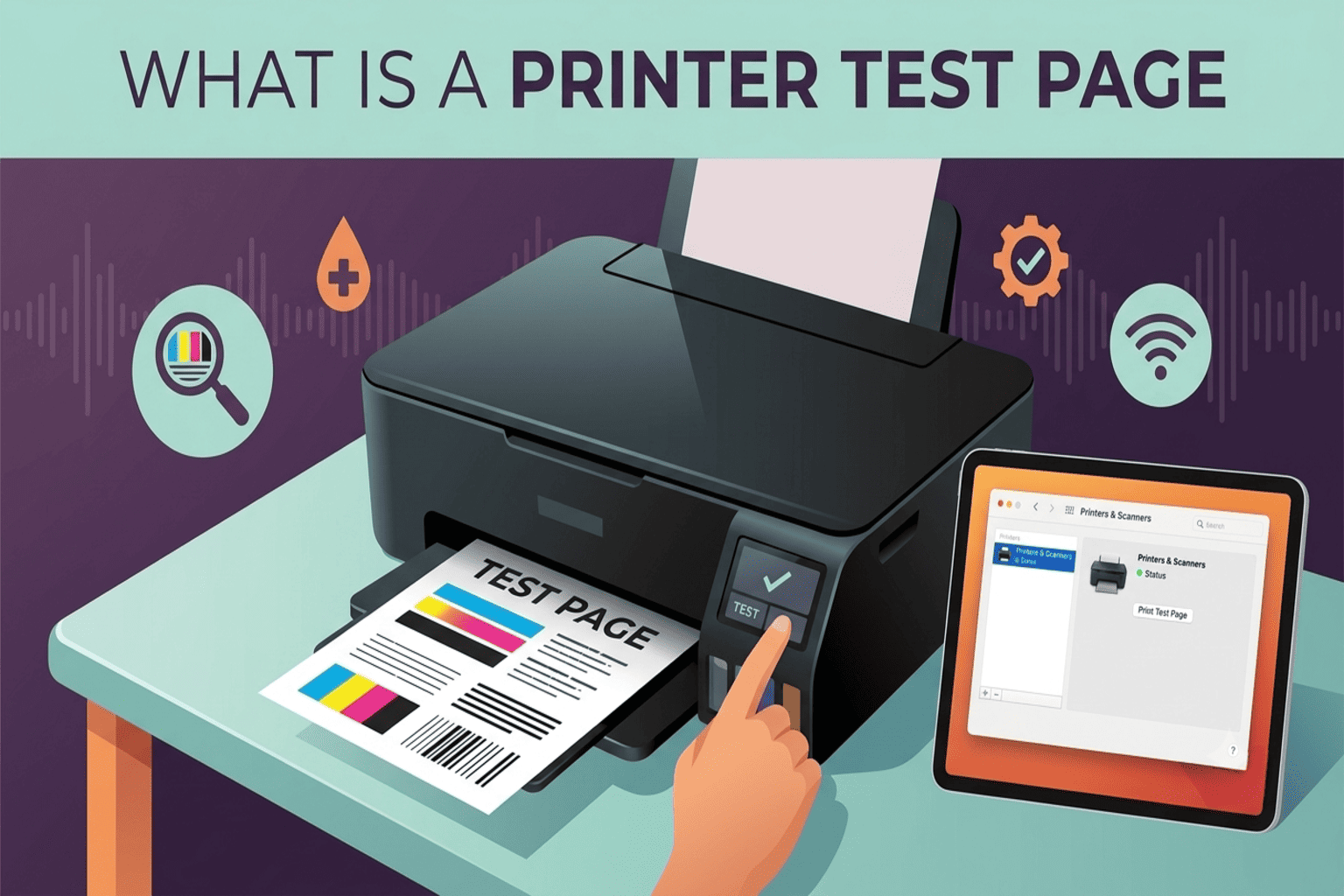
A test page is generated directly by your operating system or printer itself, which means it bypasses many of the processes involved when printing a file. On the other hand, when you print a document, the request travels through applications, drivers, and system services before reaching the printer.
This explains why a printer works test page but not documents. The most common causes include outdated drivers, stuck print queues, incorrect printer selection, or software conflicts. In many cases, the issue is not with the printer at all but with how your computer communicates with it.
Check Your Printer Connection and Status
Start with the basics. Even if the printer can produce a test page, connection issues can still affect regular printing tasks.
Make sure your printer is properly connected via USB or Wi-Fi. If you are using a wireless printer, confirm that it is connected to the same network as your computer. A mismatch in network connections can prevent documents from reaching the printer.
Next, check the printer status in your system settings. If it shows as “offline,” your computer will not send print jobs correctly. Also, ensure the correct printer is set as default. Many users unknowingly send documents to a virtual printer or an old device.
Clear the Print Queue to Remove Stuck Jobs
A blocked print queue is one of the most common reasons behind printer not printing from computer issues. When a print job gets stuck, it can prevent all subsequent documents from being processed.
Open your printer queue and remove all pending jobs. Once cleared, try printing again. This simple step often resolves the problem immediately, especially if the issue started suddenly.
Fix Printer Drivers and Software Conflicts
Printer drivers act as translators between your computer and printer. If they are outdated, corrupted, or incompatible, your documents may fail to print even though the test page works fine.
Updating or reinstalling the driver is a reliable way to fix printer not printing problems. Visit the manufacturer’s website and download the latest version for your printer model. After reinstalling, restart your computer and test again.
Software conflicts can also interfere with printing. If you recently installed new programs or updates, they may have affected printer communication.
Resolve Application-Specific Printing Problems
Sometimes the issue is not system-wide but limited to a specific application. For example, a document may fail to print from a PDF reader but work perfectly from a web browser.
Try printing a different file or using another application. If only one program is causing the issue, reinstalling or updating that software may solve the problem.
Corrupted files can also prevent printing. Creating a new document and testing it can help identify whether the issue is file-related.
Restart Print Spooler Service
The print spooler is a system service that manages print jobs. If it stops working correctly, your printer may not receive commands from your computer.
Restarting the spooler refreshes the printing process and clears temporary errors. This step is especially useful if your printer suddenly stops responding even though it was working earlier.
Check Printer Permissions and System Settings
In some cases, system permissions or security settings can block printing. Make sure your user account has permission to access the printer.
Firewall or antivirus software can also interfere with communication between your computer and printer. Temporarily disabling these programs can help determine if they are causing the issue.
When the Problem Is Not the Printer
It’s important to recognize that the printer itself is rarely the problem in this situation. If it can produce a test page, it is functioning correctly.
The issue usually lies within the computer, operating system, or software environment. Keeping your system updated and maintaining clean software configurations can prevent many of these problems from occurring.
Use a Reliable Test Page for Diagnosis
Running a proper test page is one of the easiest ways to confirm whether your printer is working as expected. If you need a quick and reliable option, you can visit PrintTestPage.net to access printable test pages designed to check alignment, color accuracy, and print quality.
Using a well-designed test page helps you isolate whether the issue is hardware-related or caused by your computer settings.
Conclusion
When your printer not printing but test page works, the solution is usually straightforward once you understand the cause. Since the hardware is already functioning, your focus should be on software, drivers, and system settings.
By checking connections, clearing the print queue, updating drivers, and testing different applications, you can resolve the issue without needing technical expertise. Taking a step-by-step approach ensures you identify the exact problem and fix it efficiently.
FAQ
Why does my printer print a test page but not PDFs?
This usually happens due to software or compatibility issues with the PDF reader. Trying a different application often resolves the problem.
Why is my printer not printing from computer but works fine otherwise?
This indicates a communication issue between your computer and printer, often caused by drivers, settings, or print queue errors.
How do I fix printer not printing quickly?
Start by clearing the print queue, checking the default printer, updating drivers, and restarting the print spooler. These steps solve most issues.