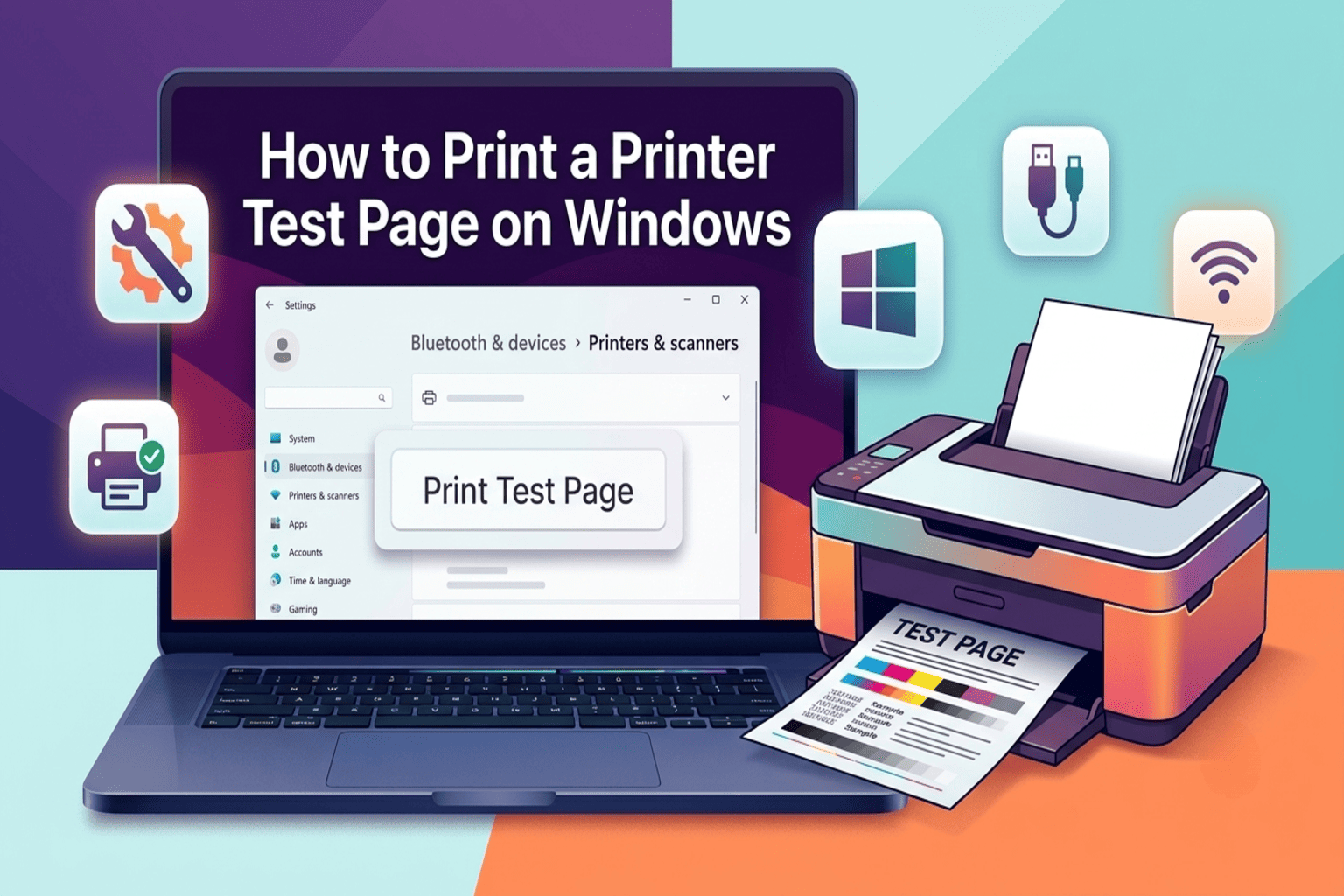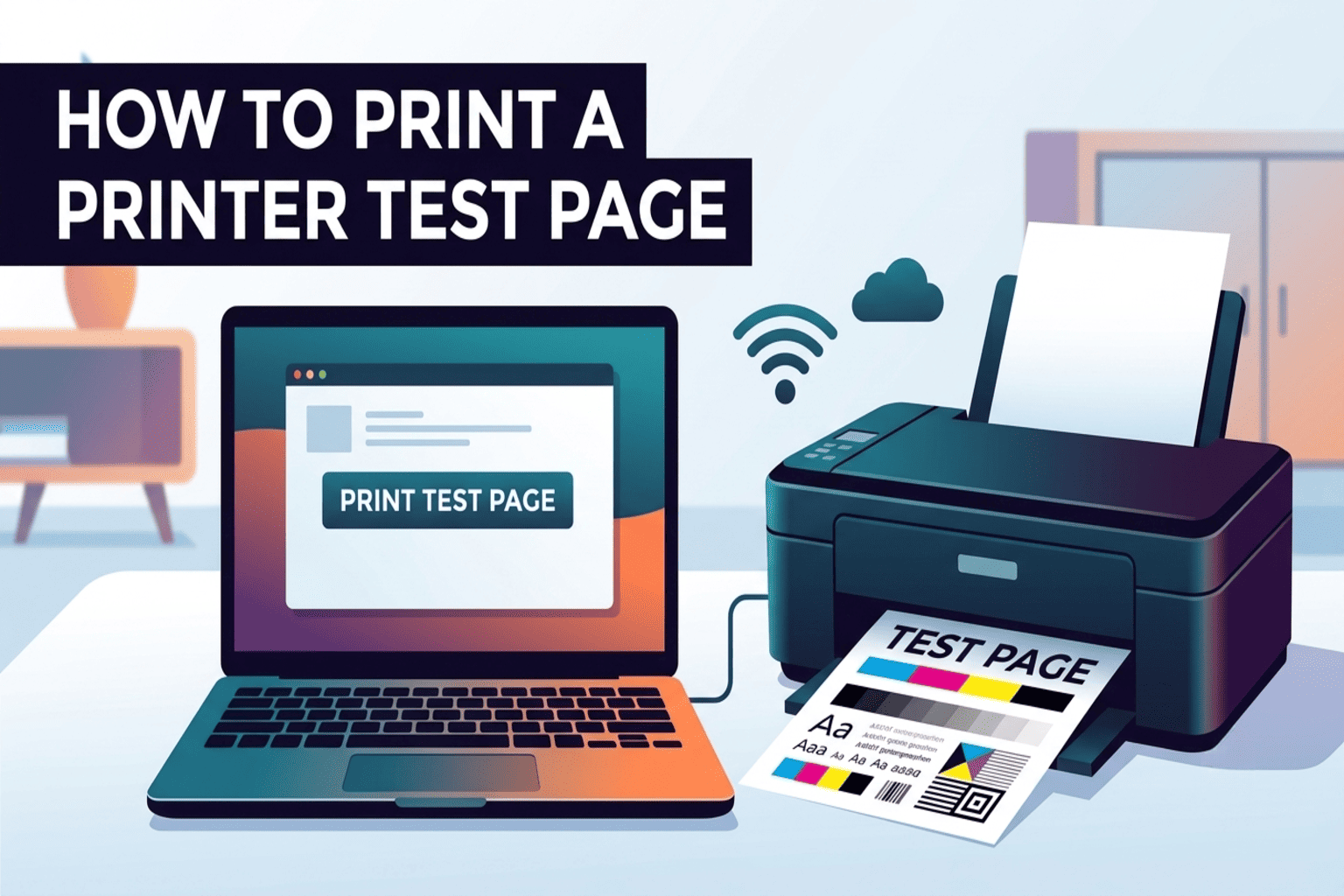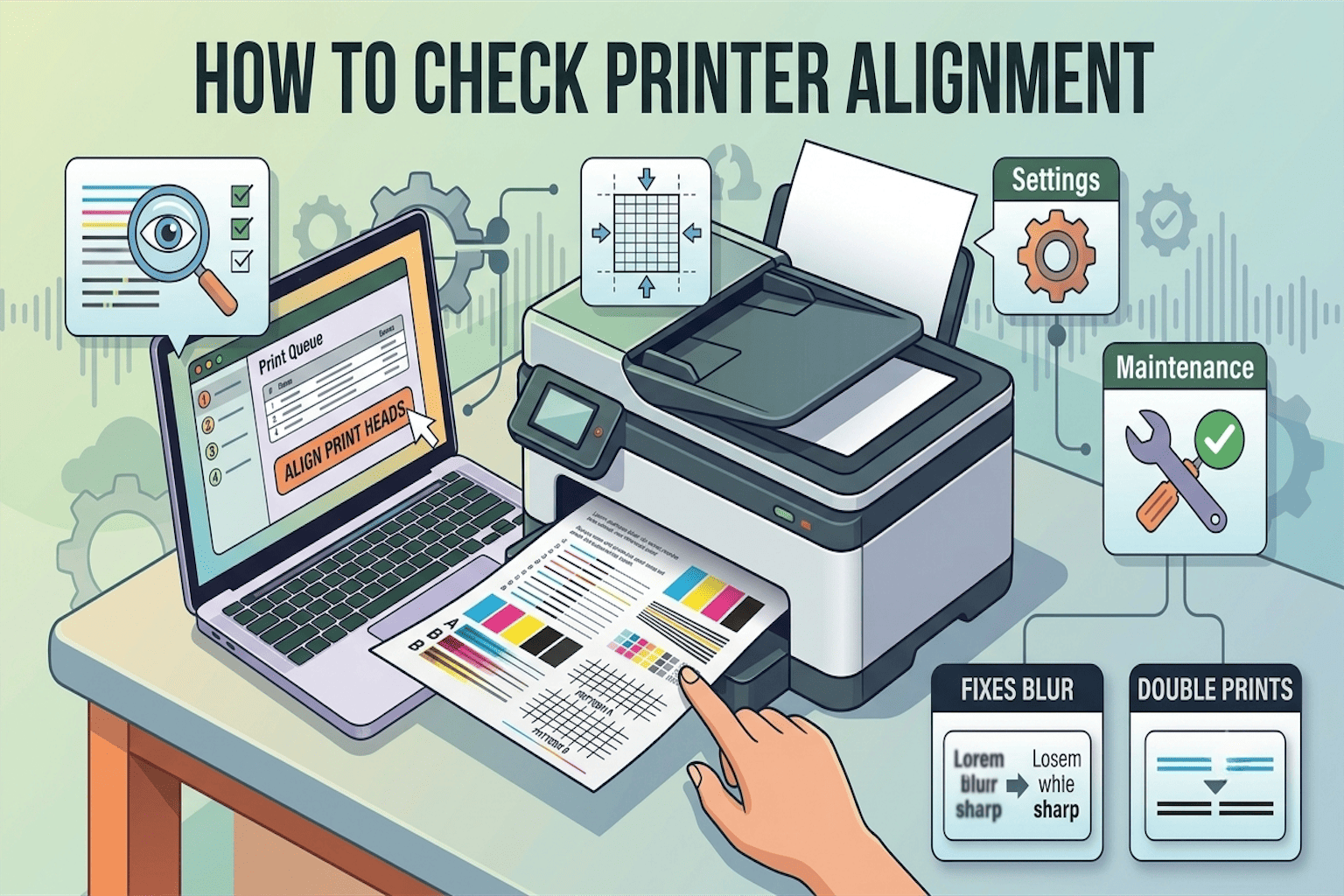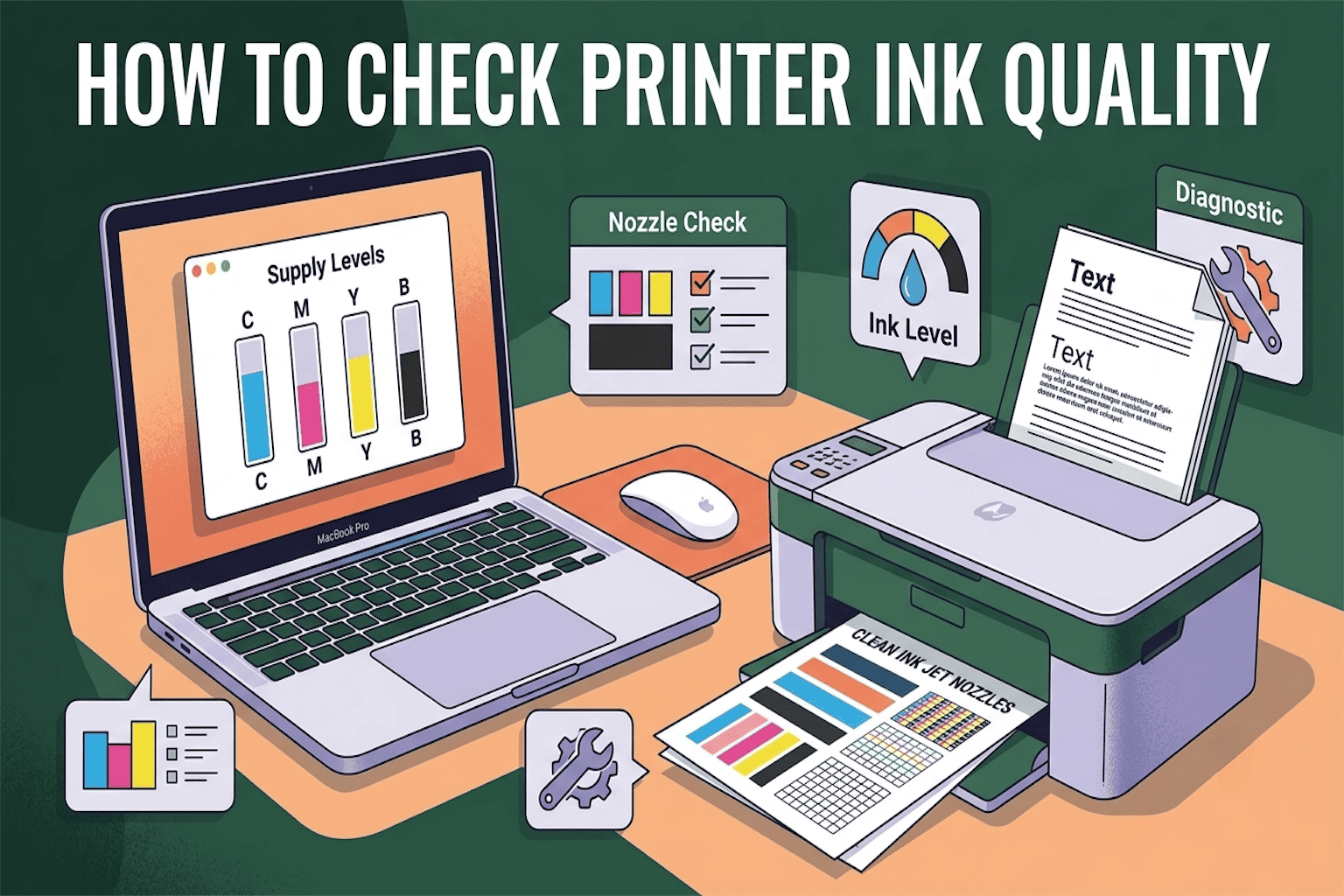
How to Print a Printer Test Page on Mac
Have you ever hit “print” and just hoped for the best? Do you want to know for sure if your printer is working before you print something important, like a resume or school project? If yes, you are in the right place.
In this guide, we will show you exactly how to print a printer test page on a Mac in a few simple steps. You don’t need to be a tech expert. Anyone can do this, even if you’ve never touched printer settings before. Let’s get started.
What Is a Printer Test Page?
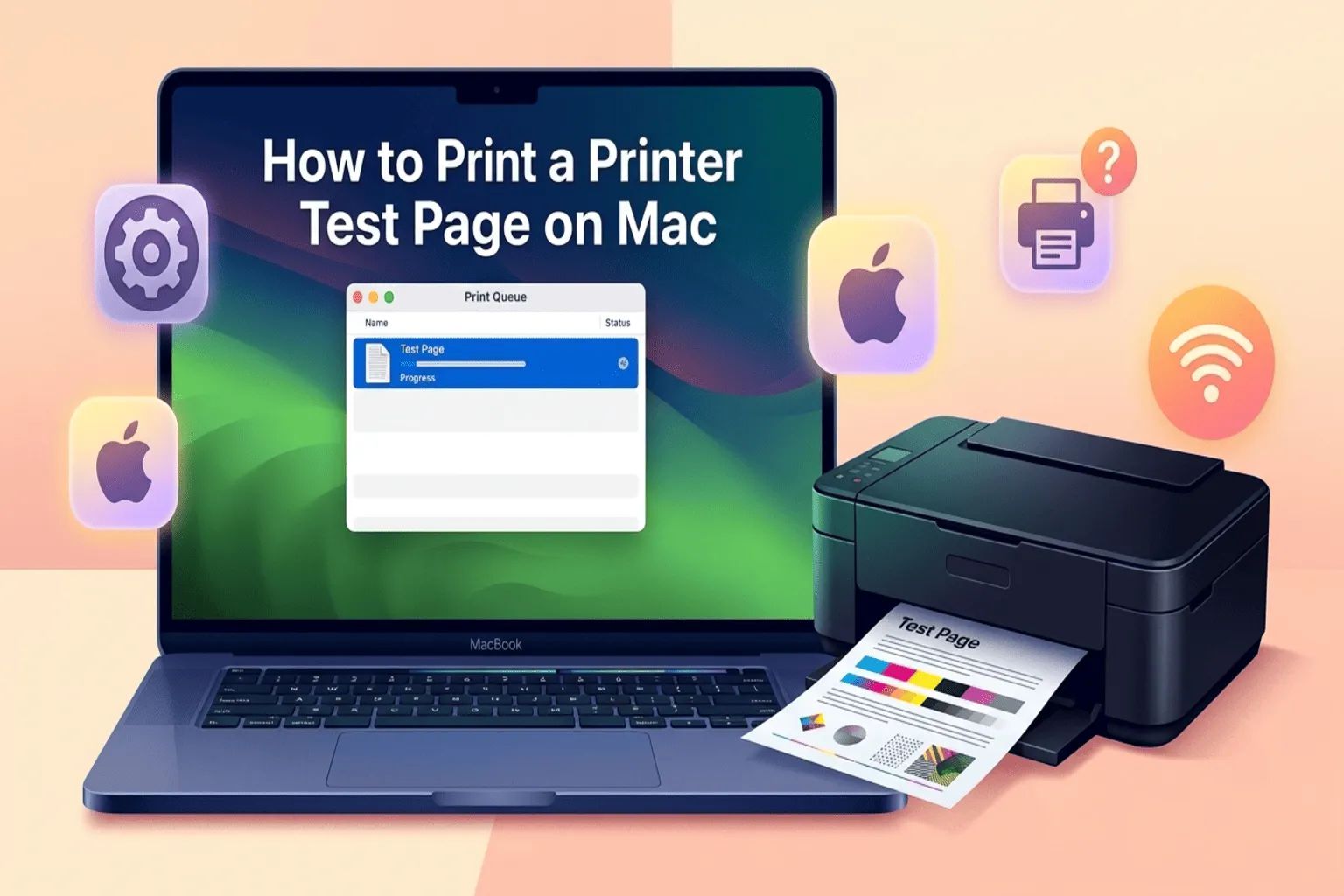
A printer test page is a simple page your printer prints out to show that everything is working the way it should. It checks things like:
- Ink or toner levels
- Print quality (are the colors sharp and clear?)
- Connection between your Mac and printer
It only takes a few seconds, but it can save you a lot of stress later.
Why Should You Print a Test Page on a Mac?
You might be wondering, “Why should I bother with this?” Here’s why it matters:
- It helps you catch printer problems early, before you waste paper or ink
- It confirms your Mac and printer are properly connected
- It shows if your print quality is fading or blurry
- It saves time when you’re in a hurry to print something important
Now that you know why it’s useful, let’s move on to actually doing it.
How to Print a Test Page on Mac (Step-by-Step)
There are two easy ways to print a test page on your Mac. Pick whichever one feels easier for you.
Method 1: Using System Settings
- Click the Apple menu in the top left corner of your screen
- Select System Settings (or System Preferences on older Macs)
- Click on Printers & Scanners
- Choose your printer from the list on the left
- Click Open Print Queue
- From the top menu, click Printer, then select Print Test Page
That’s it! Your printer should start printing right away.
Method 2: Using the Printers & Scanners Menu
If the first method doesn’t show a “Print Test Page” option, don’t worry. Try this instead:
- Go to System Settings > Printers & Scanners
- Select your printer
- Click Options & Supplies
- Go to the Utility tab
- Click Open Printer Utility
- Look for a button that says Test Print or Print Test Page
Every printer brand is a little different, so the exact wording might change slightly. However, the steps stay mostly the same.
What to Do If the Test Page Doesn’t Print
Sometimes, things don’t go as planned. If your test page doesn’t print, try these quick fixes:
- Check the connection: Make sure your printer is properly connected to Wi-Fi or a USB cable
- Restart your printer: Turn it off, wait ten seconds, then turn it back on
- Update your printer software: Old software can cause printing problems
- Check ink or toner levels: Low ink can stop printing completely
- Remove and re-add your printer: Go to Printers & Scanners, remove the printer, then add it again
If none of these work, it might be a hardware issue. In that case, checking your printer manufacturer’s support page is a good next step.
Tips to Keep Your Printer Working Smoothly
Once your test page prints successfully, here are a few simple tips to keep things running smoothly:
- Print a test page once a month, even if you don’t print often
- Keep your printer software updated
- Store your printer in a clean, dust-free space
- Don’t let ink cartridges sit unused for too long
These small habits can help your printer last longer and work better.
Final Thoughts
Printing a test page on a Mac is quick, simple, and something everyone can do. In just a few clicks, you can check your printer’s connection, ink levels, and print quality, all before it becomes a bigger problem.
So next time your printer seems a little off, don’t panic. Just follow the steps above, print a quick test page, and get back to printing with confidence.
Frequently Asked Questions
Why won’t my printer print a test page on Mac?
This usually happens because of a connection problem between your Mac and your printer. Check that your printer is turned on, connected to the same Wi-Fi network (or plugged in with a USB cable), and that it isn’t stuck with a paper jam. Restarting both your Mac and your printer often fixes this, too.
How often should I print a test page?
It’s a good habit to print a test page once a month, even if you don’t use your printer often. You should also print one right after setting up a new printer, adding new ink or toner, or if your printer has been sitting unused for a while.
Does printing a test page waste ink?
A little, but not much. A test page uses a small, normal amount of ink or toner, about the same as printing one regular page. It’s a small cost for making sure your printer is working the way it should.
How do I know if my printer is properly connected to my Mac?
Go to System Settings > Printers & Scanners. If your printer shows up in the list with an “Idle” or “Ready” status, it’s properly connected. If it shows an error or doesn’t appear at all, you may need to reconnect it or re-add it.
What should a normal test page look like?
A normal test page usually shows your printer name, model, and settings, along with clear lines and solid colors (if you have a color printer). If the page looks faded, has streaks, or is missing colors, it could mean low ink or a dirty print head.