How to Print a Test Page
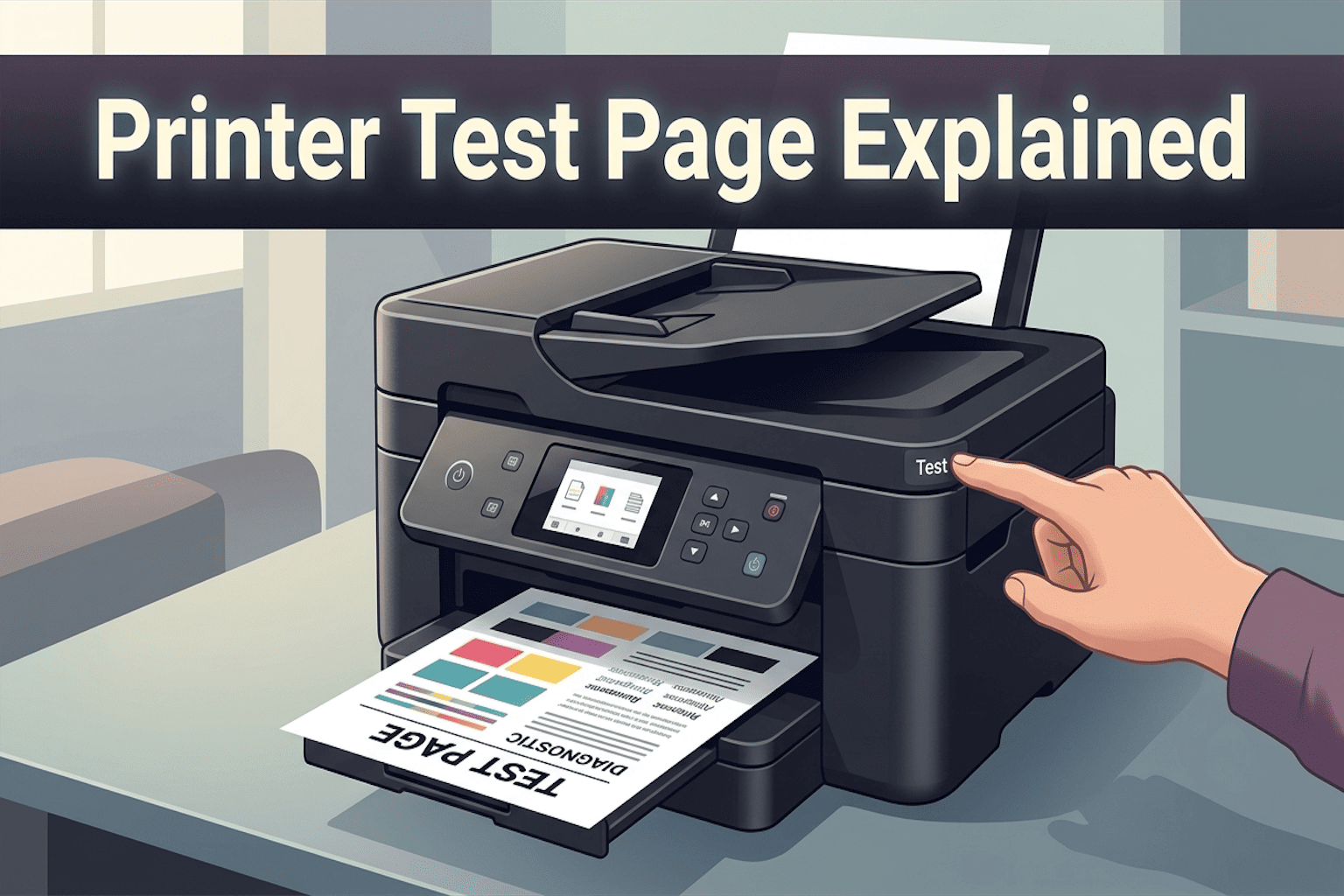
Did your printer just stop working out of nowhere? Are you seeing a red light blink, or maybe the page just won’t come out? Before you panic or call for help, there’s one small trick that can tell you exactly what’s wrong. It’s called a print test page. A test page is a simple sheet that your printer prints out to show if it’s working the right way.
It’s like a quick health check-up for your printer. If you know how to print a test page, you can quickly find out if the problem is your printer, your computer, or the connection between them. The best part? You don’t need to be a tech expert. Anyone can do this in just a few clicks. Keep reading, and by the end of this guide, you’ll know every easy way to print a test page on Windows 11, Windows 10, and even Mac.
What Is a Test Page and Why Do You Need One?
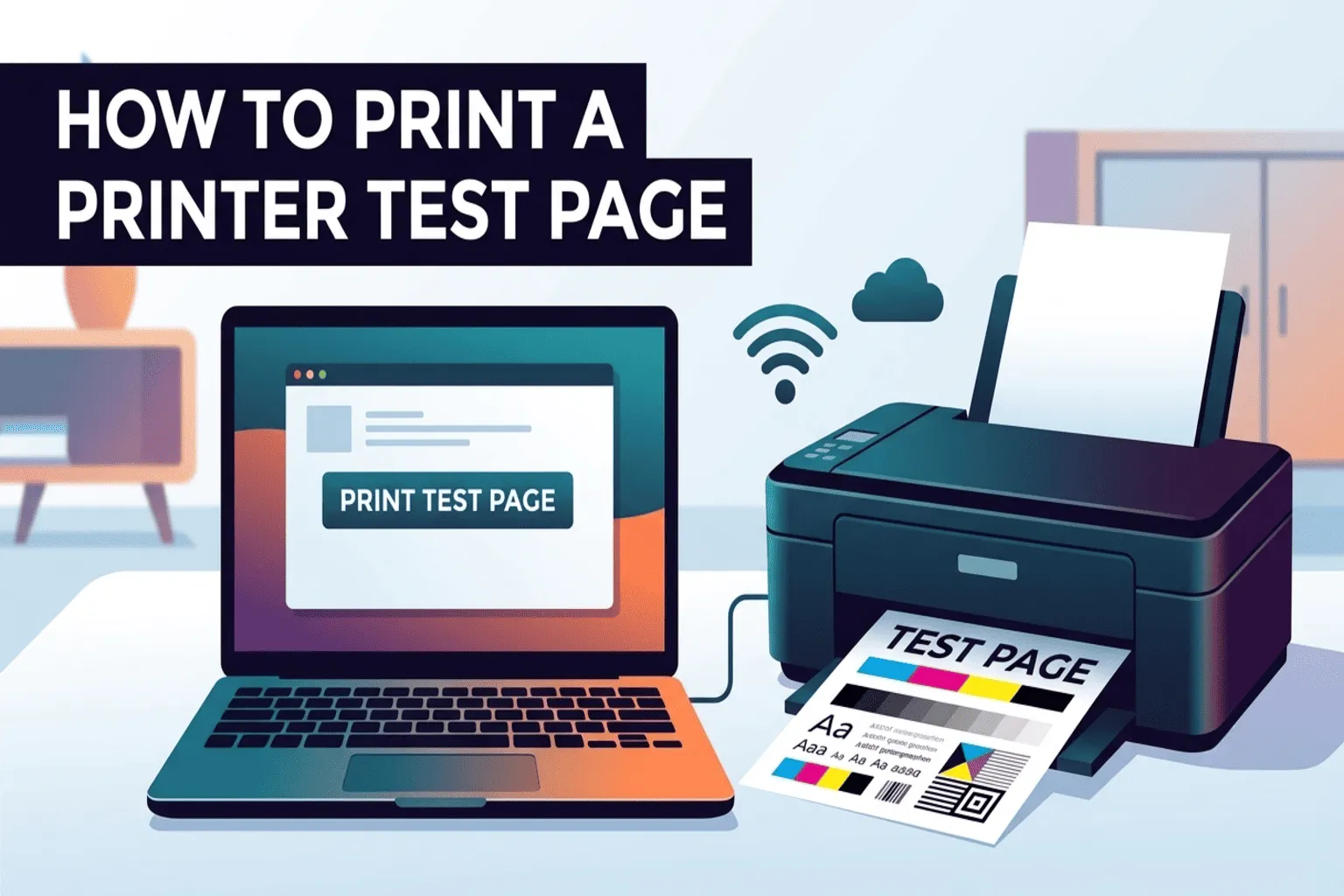
A test page is a plain paper that your printer sends out with some basic info on it, like:
- The printer name
- The port it’s connected to
- Basic color or print quality checks
- The driver version
Think of it as your printer saying, “Hey, I’m alive and working!”
You should print a test page when:
- You just set up a new printer
- Your printer is showing an error
- Print jobs are stuck or not printing
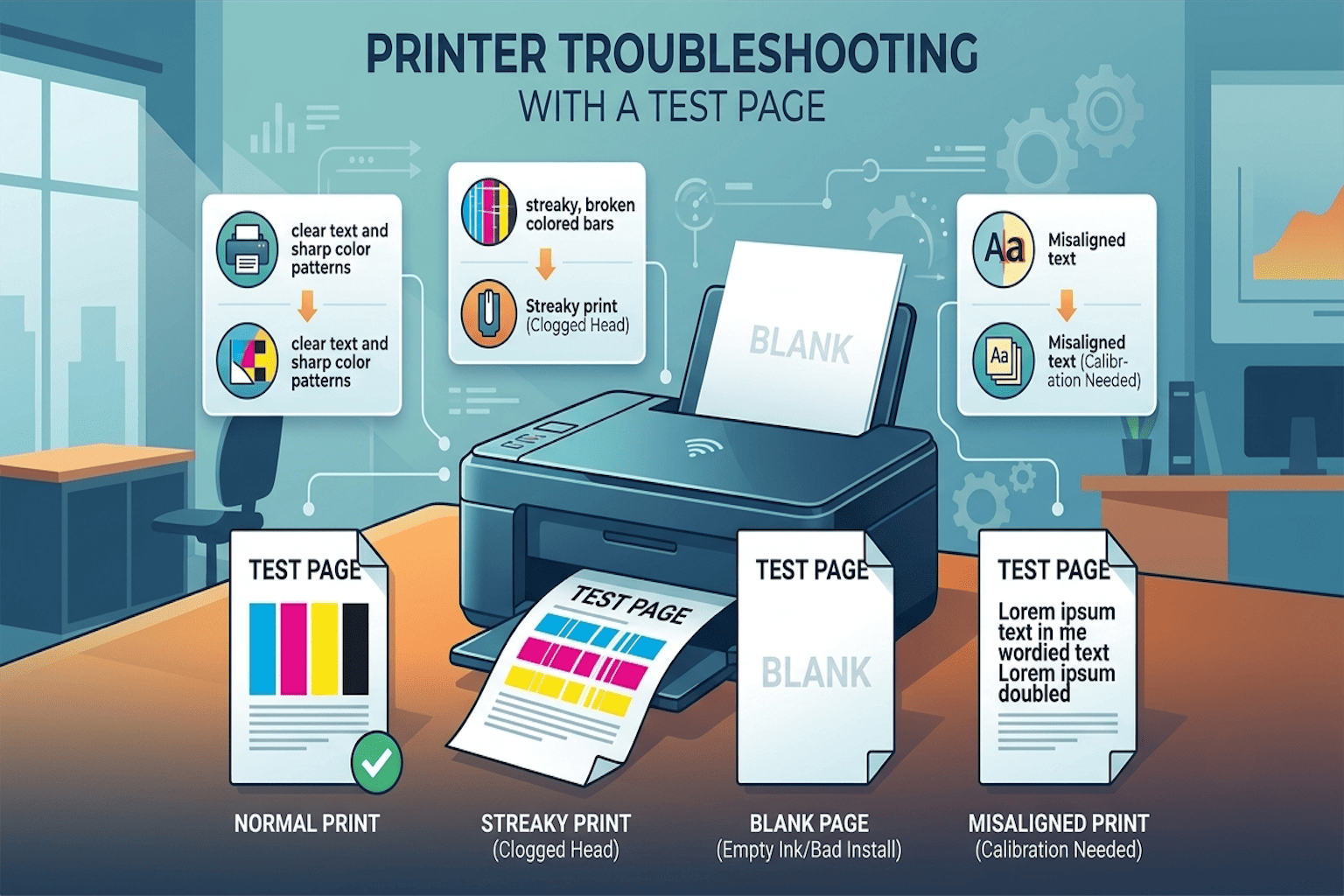
- You want to check the print quality (colors, lines, sharpness)
- You installed a new printer driver
Now let’s jump into the easy steps.
How to Print a Test Page in Windows 11
Windows 11 makes this super simple. You have two easy ways to do it. Pick whichever feels easier for you.
Method 1: Print a Test Page Using Windows Settings
This is the fastest way, and most people prefer it.
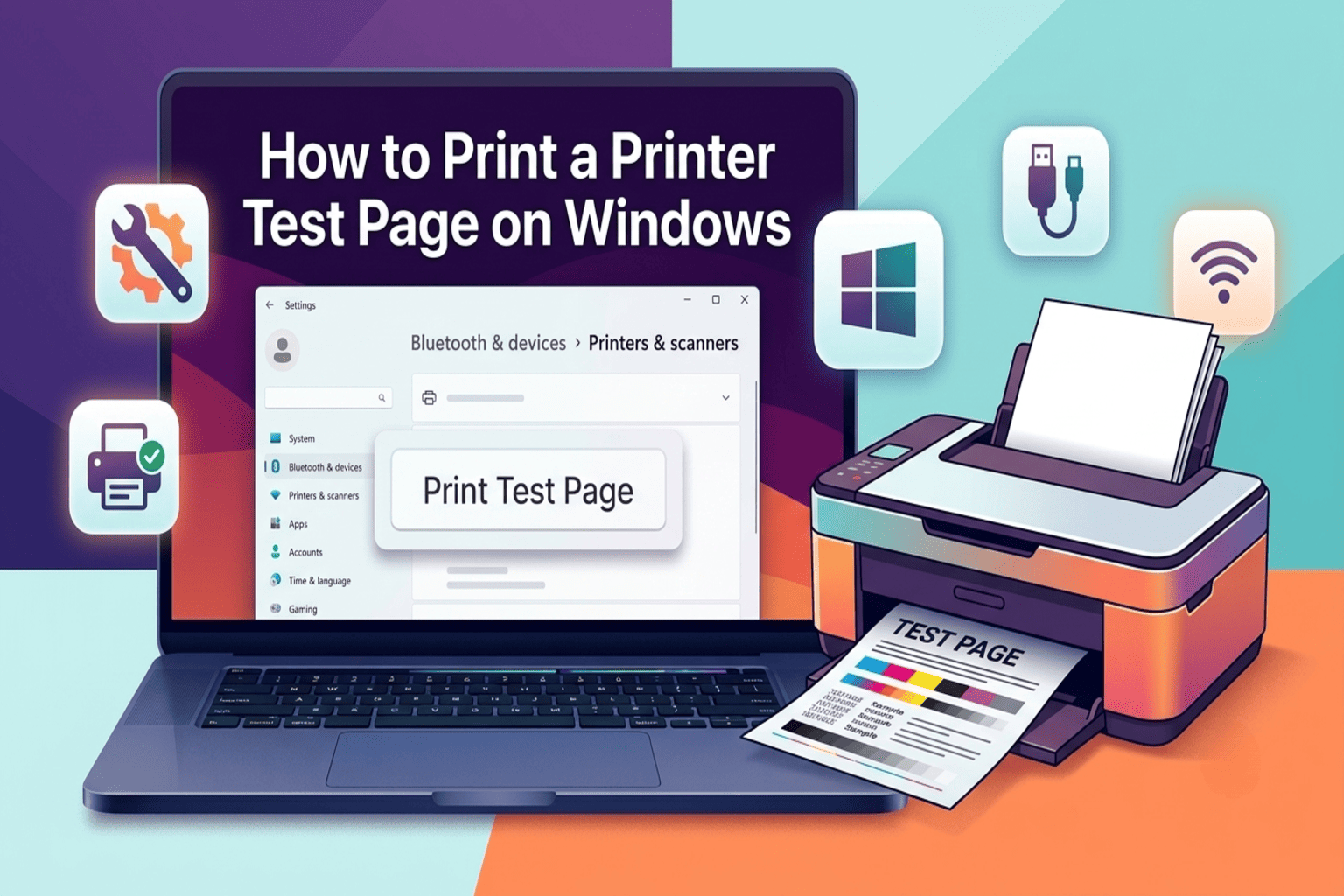
- Press the Windows key + I on your keyboard to open Settings.
- Click on Bluetooth & devices.
- Select Printers & scanners.
- Click on your printer’s name from the list.
- Click the Print test page.
That’s it! Your printer should start printing right away. If nothing happens, don’t worry, we’ll cover fixes further down.
Method 2: Print a Test Page Using Printer Properties
This method gives you more detailed info on the test page, like your printer’s port and driver name.
- Press Windows key + R to open the Run box.
- Type control printers and hit Enter.
- Right-click on your printer.
- Choose Printer properties (not just “Properties,” this is important!).
- Under the General tab, click Print Test Page.
Within seconds, a test page should pop out of your printer.
How to Print a Test Page in Windows 10
Windows 10 users can follow almost the same steps. Here’s how:
- Type Devices and Printers in the taskbar search box and open it.
- Right-click your printer.
- Select Printer Properties.
- Under the General tab, click Print Test Page.
Simple, right? In just four steps, you’ll know if your printer is working properly.
How to Print a Test Page on Mac
Mac users aren’t left out! Here’s how you can do it:
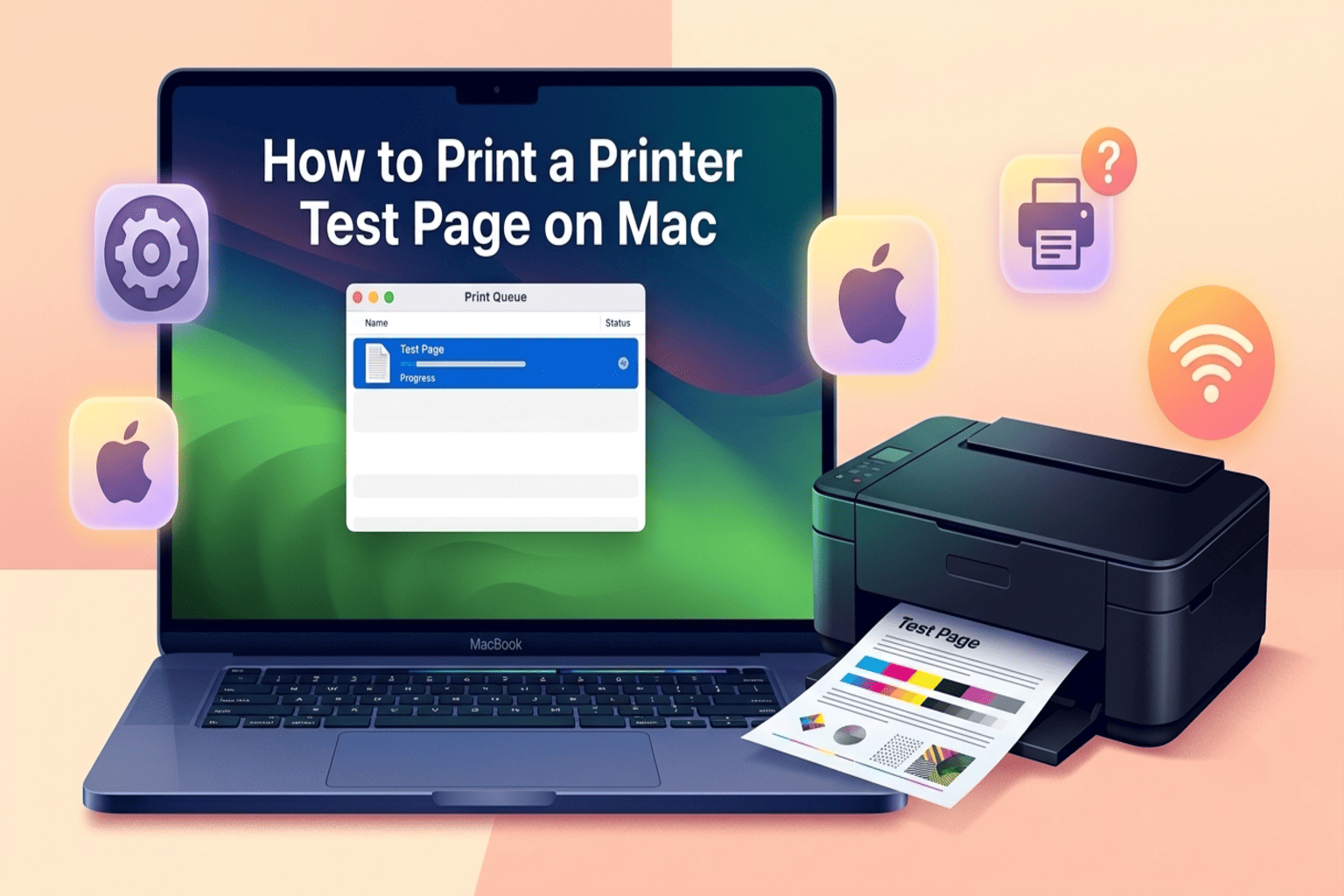
- Click the Apple menu and open System Settings.
- Go to Printers & Scanners.
- Select your printer from the list.
- Click Open Print Queue.
- From the printer menu at the top, choose Printer Settings, then look for the test page or maintenance option, depending on your printer brand.
Some printer brands (like HP or Canon) also have their own app where you can print a test page directly.
What to Do If the Test Page Doesn’t Print
Sometimes, things don’t go as planned. Don’t stress, here are some quick fixes that solve most problems.
1. Check the Basics First
Before anything else, make sure your printer is:
- Turned on
- Connected to Wi-Fi or a cable
- Loaded with paper
- Has enough ink or toner
2. Restart the Print Spooler
The print spooler is a small program that manages your print jobs. Sometimes it gets stuck.
- Press Windows key + R, type services.msc, and hit Enter.
- Find Print Spooler in the list.
- Right-click it and choose Restart.
- Try printing the test page again.
3. Update or Reinstall the Printer Driver
An old or broken printer driver is one of the most common reasons a test page fails. Go to your printer brand’s official website (like HP, Canon, or Epson) and download the latest driver for your model.
4. Check the Printer Port
If your test page still won’t print, go to Printer Properties > Ports and make sure the correct port is selected. This matters more for network printers.
Why Printing a Test Page Is So Useful
Learning how to print a test page isn’t just a random tech skill, it saves you time and money. Instead of guessing what’s wrong, you can quickly pinpoint the exact issue. It also helps you:
- Confirm your printer and computer are talking to each other properly
- Spot low ink or faded print quality early
- Avoid unnecessary printer repairs or replacements
- Fix issues before printing something important, like a resume or contract
So the next time your printer starts acting up, this small step could save your whole day.
Final Thoughts
Printing a test page is one of the easiest ways to check if your printer is working the way it should. Whether you’re on Windows 11, Windows 10, or Mac, the steps only take a minute or two. So, next time your printer gives you trouble, skip the stress, just print a quick test page and get your answer right away