Printer Troubleshooting With a Test Page
Is your printer acting weird? Are you seeing weird lines, blank pages, or faded text, and you don’t know why? Do you wish there was one simple trick to find out exactly what’s wrong with your printer, without calling a tech expert? There is good news. It’s called a printer test page, and it’s the fastest way to check what’s really going on inside your printer.
In this guide, we’ll discuss printer troubleshooting with a test page in plain, simple words. No confusing tech talk. Just clear steps that actually work. By the end of this article, you’ll know how to print a test page, read the results like a pro, and fix the most common printer problems yourself. Let’s get started.
What Is a Printer Test Page?
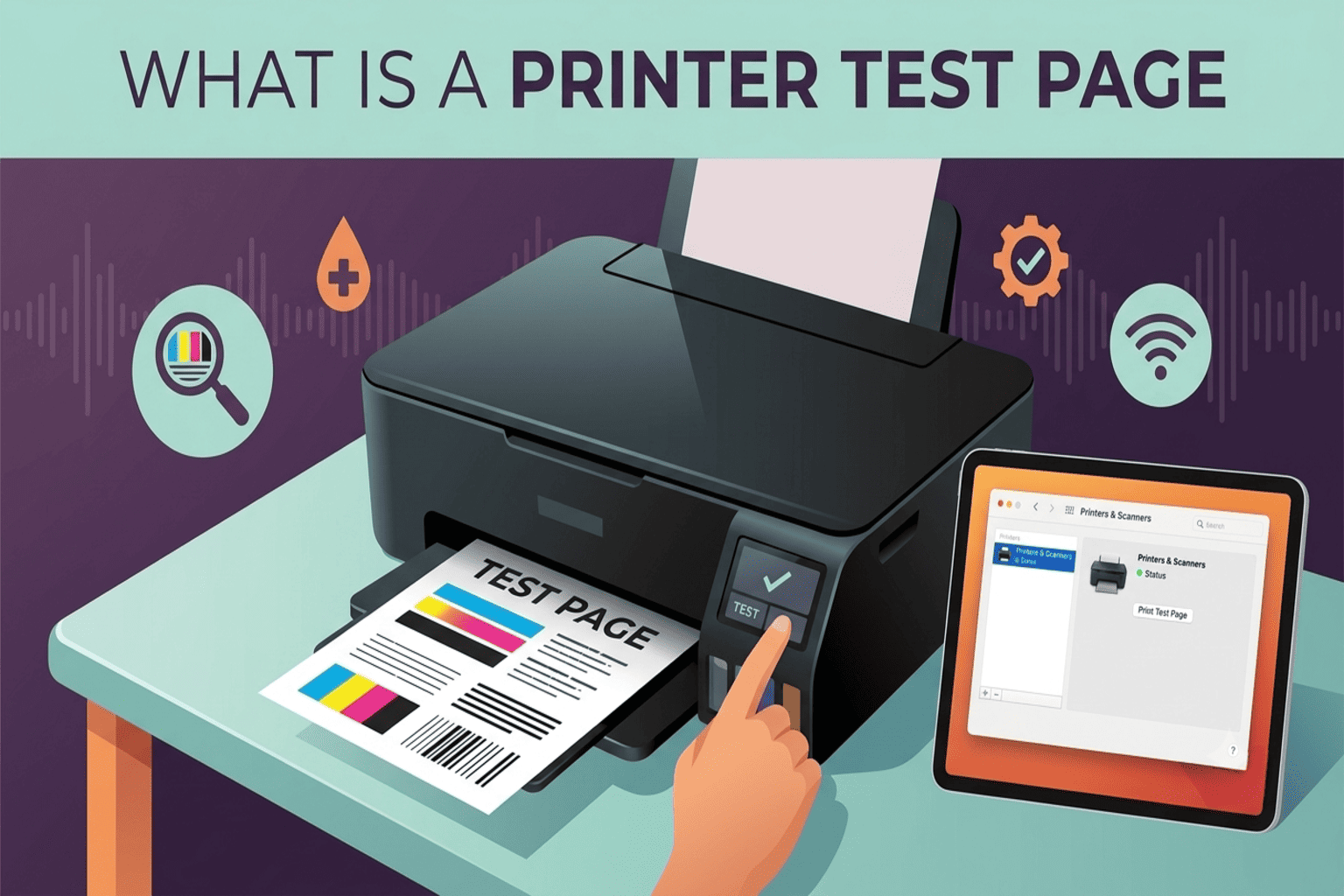
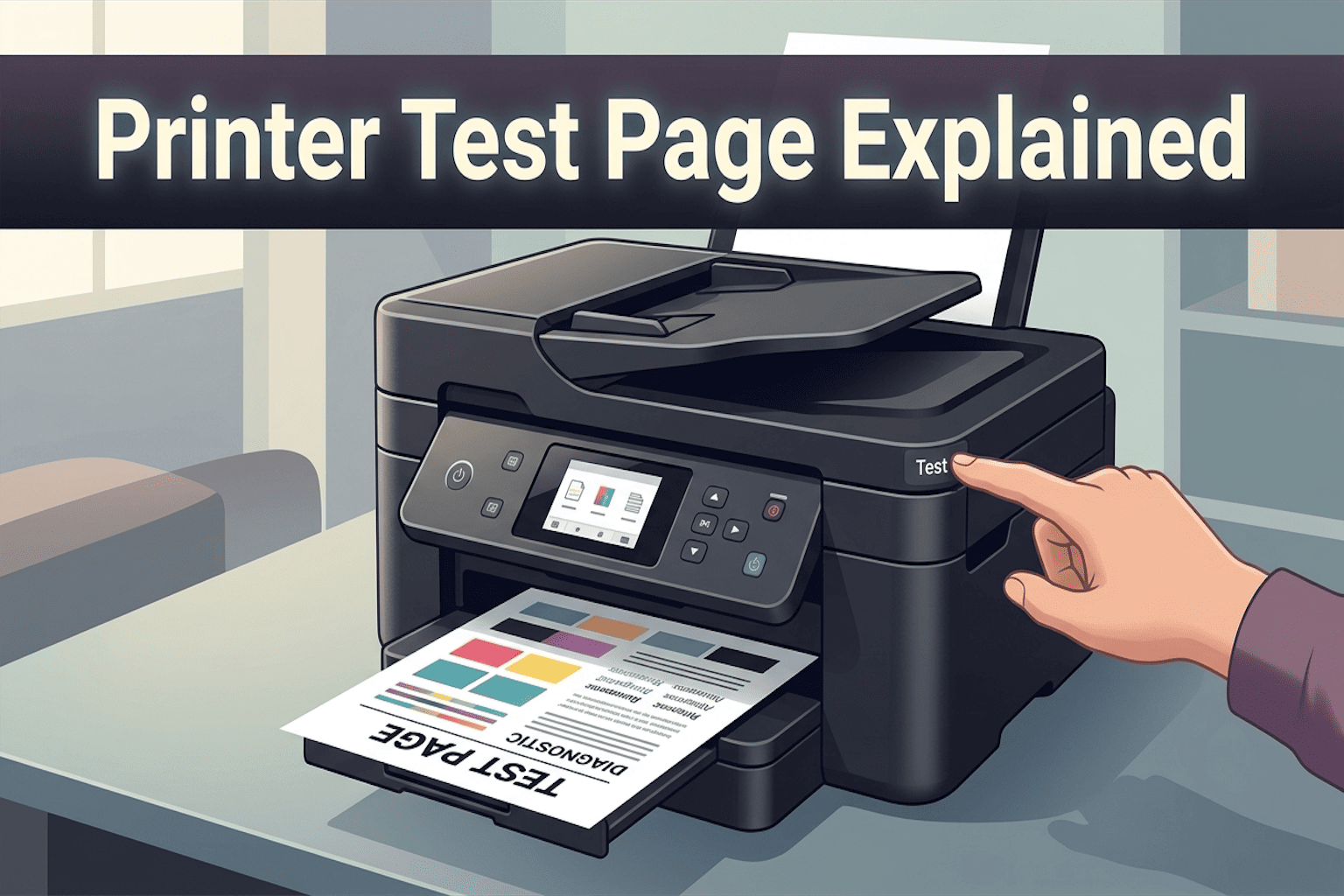
A printer test page is a sample page that your printer prints on its own. It’s built into your printer’s software. This page has colors, lines, text, and patterns. Its whole job is to show you if your printer is working the way it should. Think of it like a health check-up, but for your printer. Instead of guessing what’s wrong, the test page shows you clearly.
Why You Should Print a Test Page First
Before you replace an ink cartridge or call for repair, printing a test page can save you time and money. Here’s why it matters:
- It tells you if the problem is with the printer or your computer
- It shows if your ink cartridges or toner are low
- It reveals if the print head is clogged
- It helps you catch small issues before they turn into big ones
In short, this simple step can solve many problems before they get worse.
How to Print a Test Page (Step-by-Step)
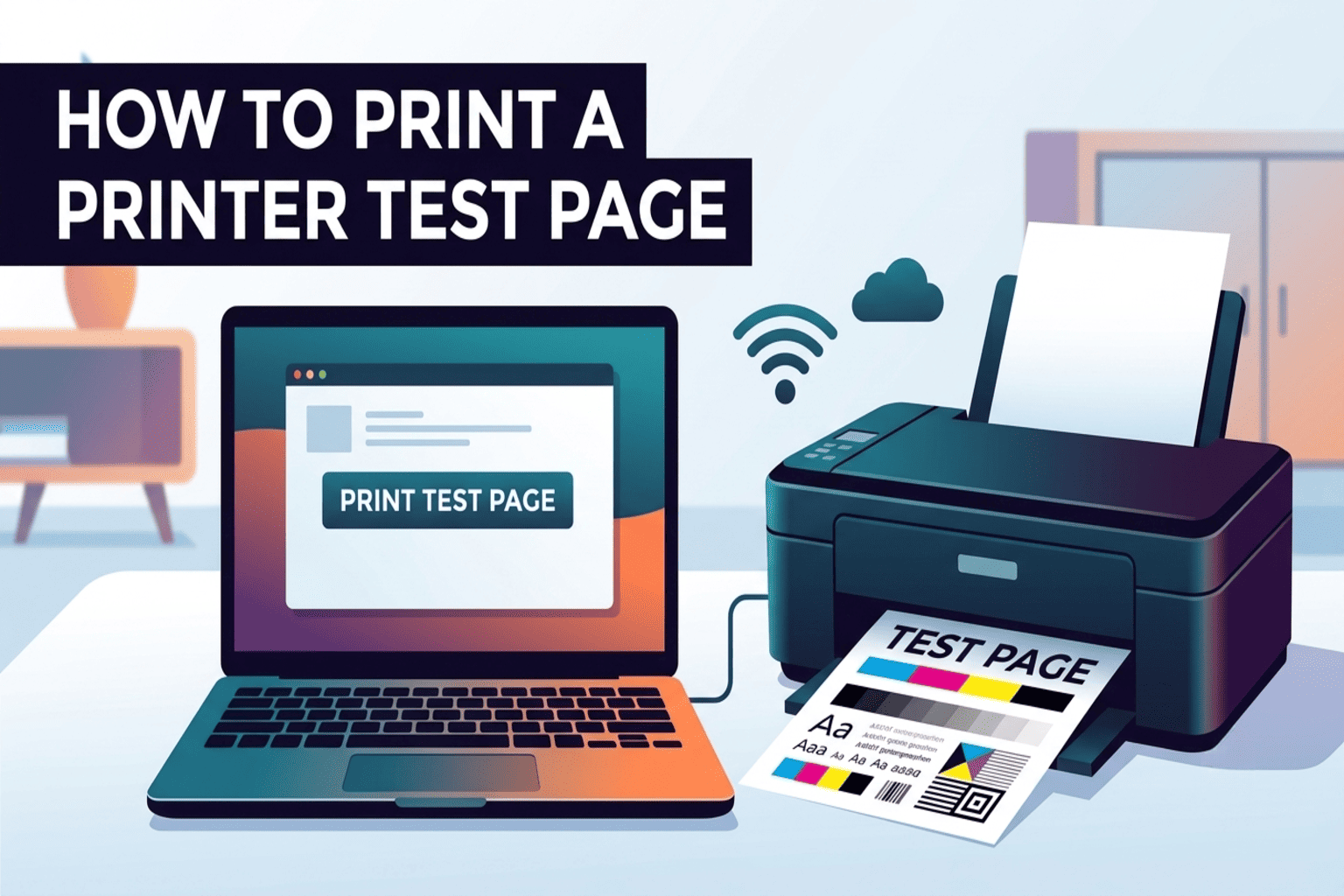
Printing a test page is easy. The steps are almost the same whether you use Windows or Mac. Here’s how to do it.
On Windows
- Click the Start menu and open Settings
- Go to Devices, then click Printers & Scanners
- Select your printer from the list
- Click Manage, then choose Print a Test Page
- Wait a few seconds for the page to print
On Mac
- Click the Apple menu, then go to System Settings
- Select Printers & Scanners
- Choose your printer from the list
- Click Open Print Queue
- Select Printer from the top menu, then click Print Test Page
That’s it. Your printer should now print a sample page with colors, text, and patterns.
How to Read Your Test Page Results
Now comes the important part. Once your test page prints out, look closely. What you see tells you exactly what to fix next.
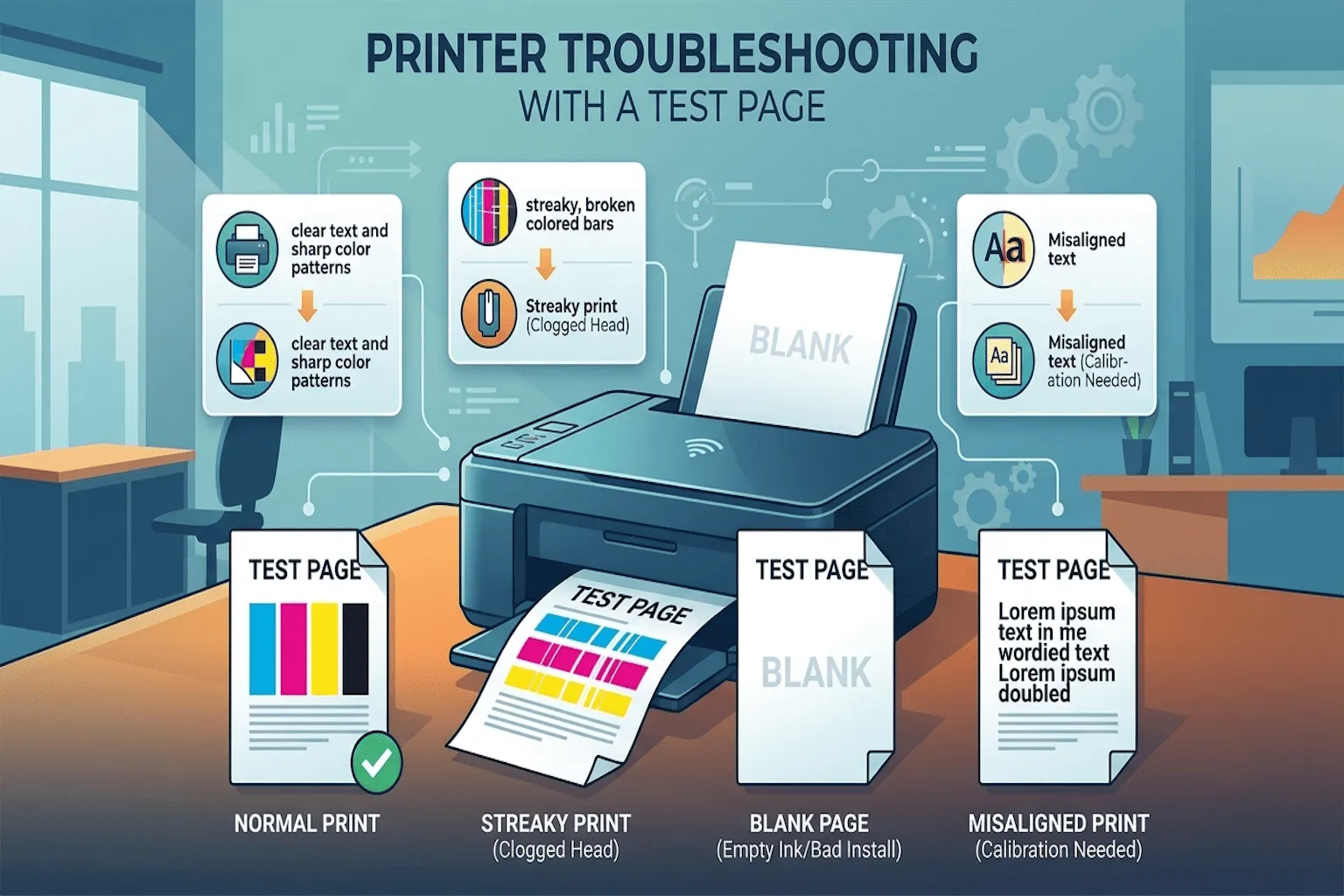
Blank Page Comes Out
If nothing prints at all, this usually means:
- The ink cartridge is empty or not installed correctly
- The printer is not connected properly
- There’s a paper jam blocking the print path
Fix it: Remove and reinsert the ink cartridge. Check the paper tray for jams. Make sure the printer is properly connected to your computer or Wi-Fi.
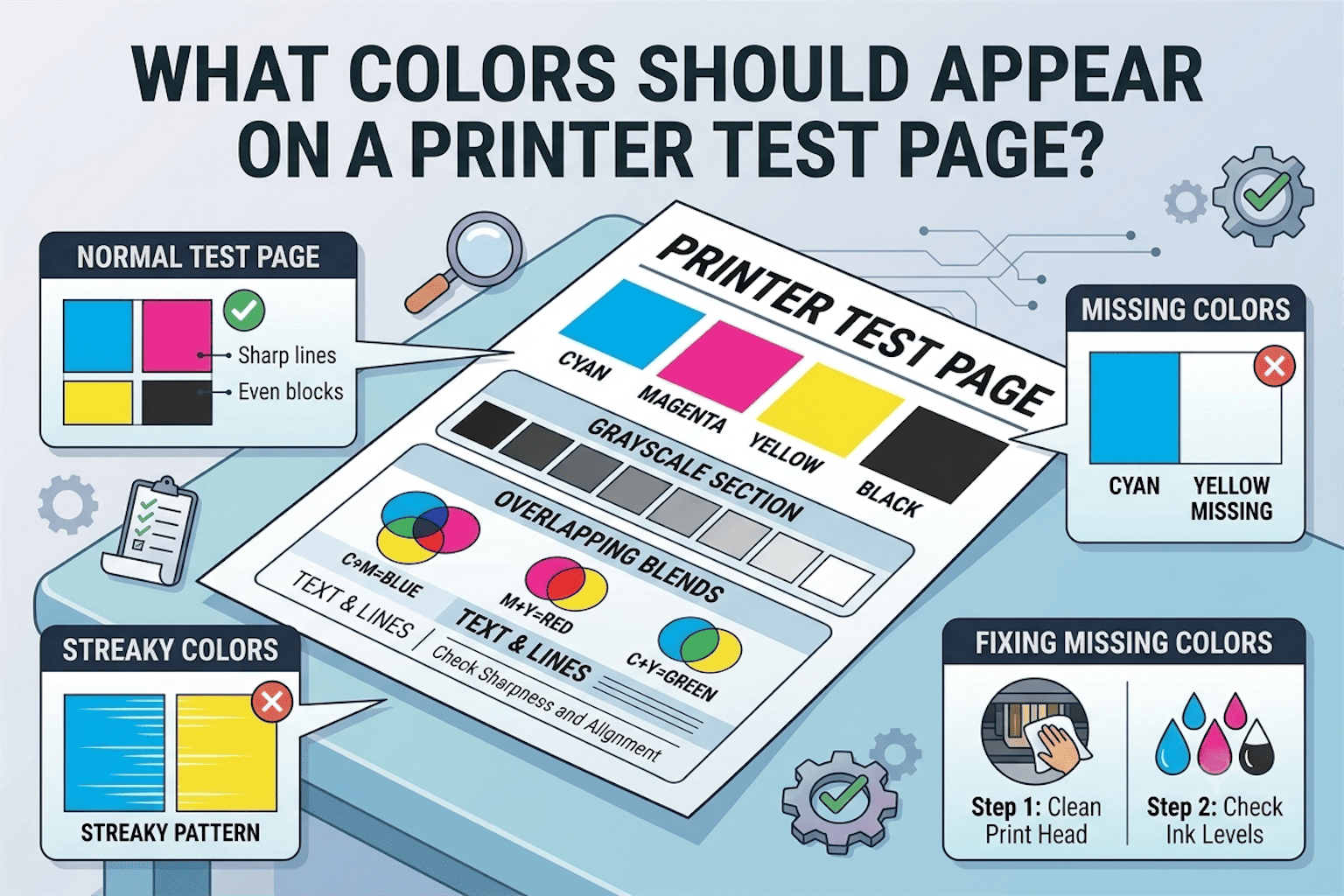
Streaky or Faded Lines
If you see thin white lines running through the page, or the colors look faded, this usually points to:
- A clogged print head
- Low ink levels
Fix it: Most printers have a built-in cleaning tool. Go to your printer settings and look for “Clean Print Heads” or a similar option. Run it once, then print another test page to check.
Wrong Colors or Missing Colors
If one color is missing completely, like no red or no blue, this usually means that specific ink cartridge is empty or clogged.
Fix it: Check the ink levels for each color. Replace the empty cartridge. If ink is full but color is still missing, run the cleaning cycle again.
Smudges or Ink Marks
Smudges usually happen because of:
- Too much ink build-up inside the printer
- Low-quality or wet paper
Fix it: Use dry, good-quality paper. Let the printed page sit for a few seconds before touching it. Clean the printer rollers if smudging continues.
Test Page Doesn’t Print at All
If the test page won’t print, the issue is often a connection problem, not the printer itself.
Fix it: Check that your printer is turned on and connected to the same Wi-Fi network as your computer. Restart both the printer and your computer. Try printing again.
Common Printer Problems and Quick Fixes
Here’s a quick-reference table so you can find your issue fast.
| Problem You See | Likely Cause | Quick Fix |
|---|---|---|
| Blank page | Empty ink or bad connection | Check ink and cables |
| Faded print | Low ink or clogged head | Clean print head |
| Streaky lines | Clogged nozzles | Run cleaning cycle |
| Missing color | Empty color cartridge | Replace cartridge |
| Smudges | Wet or low-quality paper | Use dry, quality paper |
| No printing at all | Connection issue | Restart the printer and PC |
When Should You Print a Test Page?
You don’t need to wait for a problem to show up. It’s smart to print a test page:
- After setting up a new printer
- Once a month, to catch small issues early
- Before printing something important, like documents for work or school
- Right after changing an ink cartridge
This small habit can save you from big printing headaches later.
Simple Tips to Keep Your Printer Running Smoothly
Along with regular test pages, these easy habits will help your printer last longer and print better:
- Turn off your printer properly instead of just unplugging it
- Use your printer at least once a week, even for small print jobs
- Store extra ink cartridges in a cool, dry place
- Keep the printer covered when not in use to avoid dust
- Update your printer’s software or drivers when new versions come out
Final Thoughts
Printer problems can feel frustrating, but most of the time, the fix is simple. A quick test page can show you exactly what’s wrong, whether it’s low ink, a clogged print head, or a simple connection issue. Instead of guessing or spending money on repairs, try this easy trick first. Next time your printer starts acting up, don’t panic. Print a test page, follow the steps above, and get back to printing in no time.
Frequently Asked Questions
1. What is a printer test page used for?
A printer test page checks if your printer is working correctly. It shows you the print quality, ink levels, and color accuracy in one page, so you can spot problems early instead of guessing.
2. Why does my printer print a blank test page?
A blank test page usually means the ink cartridge is empty, not installed correctly, or the printer has a connection issue. Check the cartridge first, then check your printer’s cable or Wi-Fi connection.
3. How often should I print a test page?
It’s a good idea to print a test page once a month, right after changing an ink cartridge, or before printing something important. This simple habit helps you catch small problems before they get bigger.
4. Can a test page fix printer problems on its own?
No, a test page doesn’t fix anything by itself. It simply shows you what’s wrong, like faded print or missing colors, so you know exactly what to fix next, such as cleaning the print head or replacing ink.
5. Why are there streaks or lines on my test page?
Streaks or white lines usually mean the print head is clogged or the ink is running low. Running the built-in cleaning tool in your printer settings often solves this problem quickly.