Printer Test Page Explained
Have you ever pressed a button on your printer and watched a strange page come out full of colors, lines, and numbers? Did you wonder, “What is this page for?” Or maybe your printer keeps printing this page over and over, and you don’t know why?
If any of this sounds like you, don’t worry. You are not alone. Many people see a printer test page and have no idea what it means. The good news is, it’s not complicated at all. By the end of this article, you will fully understand what a printer test page is, why your printer prints it, and how to use it to fix common printer problems. Let’s understand in the simplest way possible.
What Is a Printer Test Page?
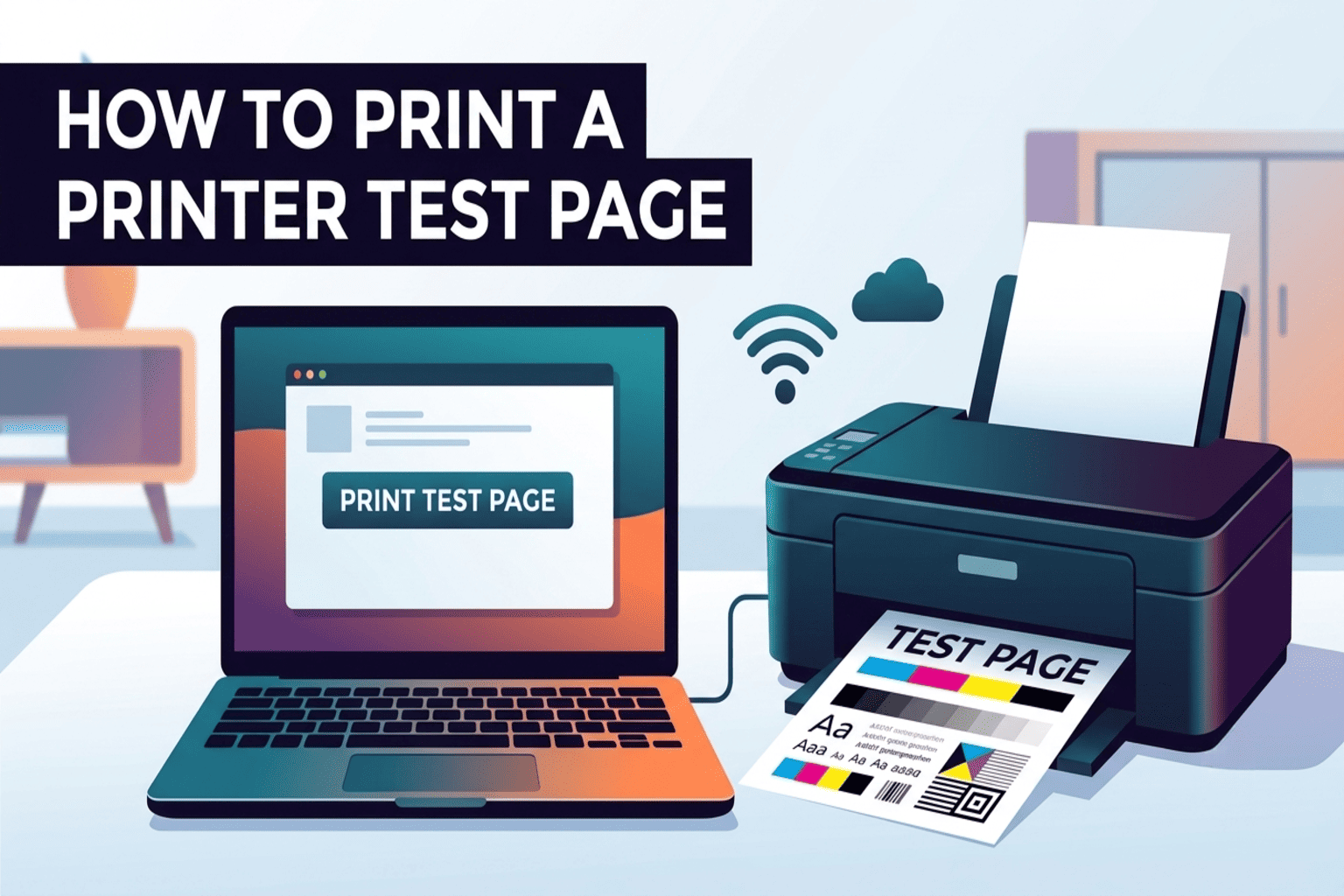
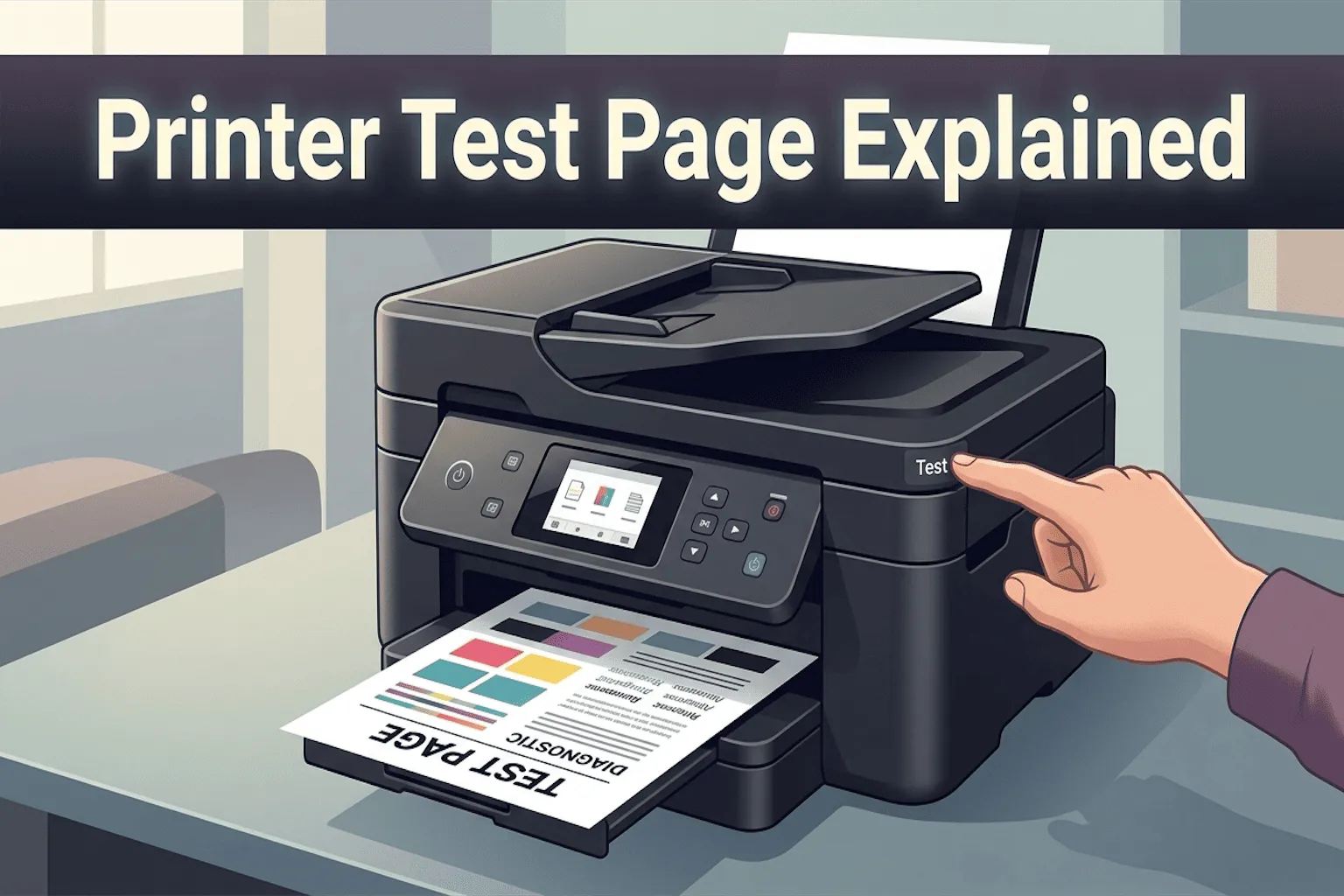
A printer test page is a special page your printer prints to check if it is working the right way. Think of it like a health check-up, but for your printer instead of your body.
This page usually shows:
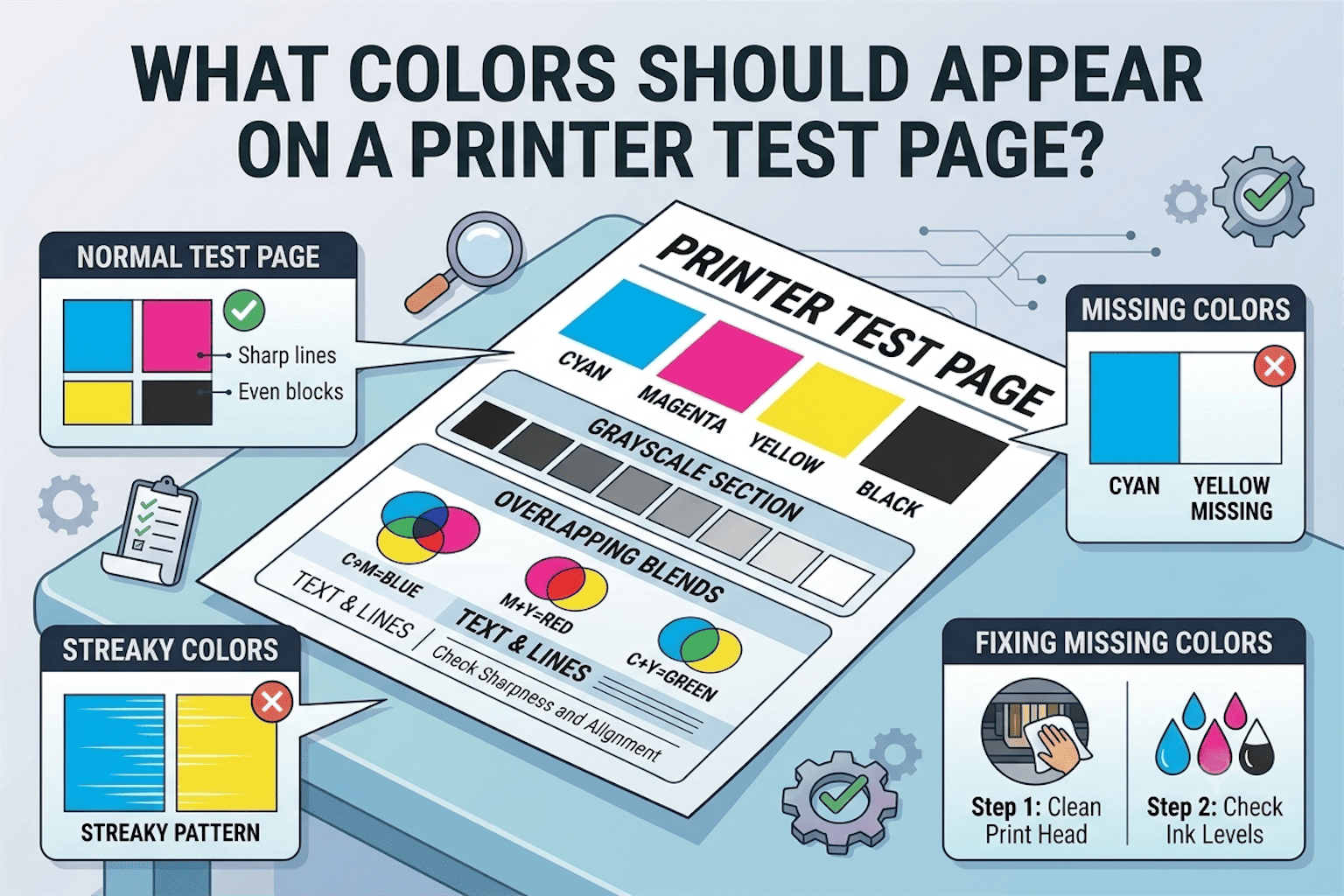
- Colored blocks (red, blue, green, yellow, and black)
- Straight lines
- Small text and numbers
- Information about your printer, like its name, driver, and ink levels
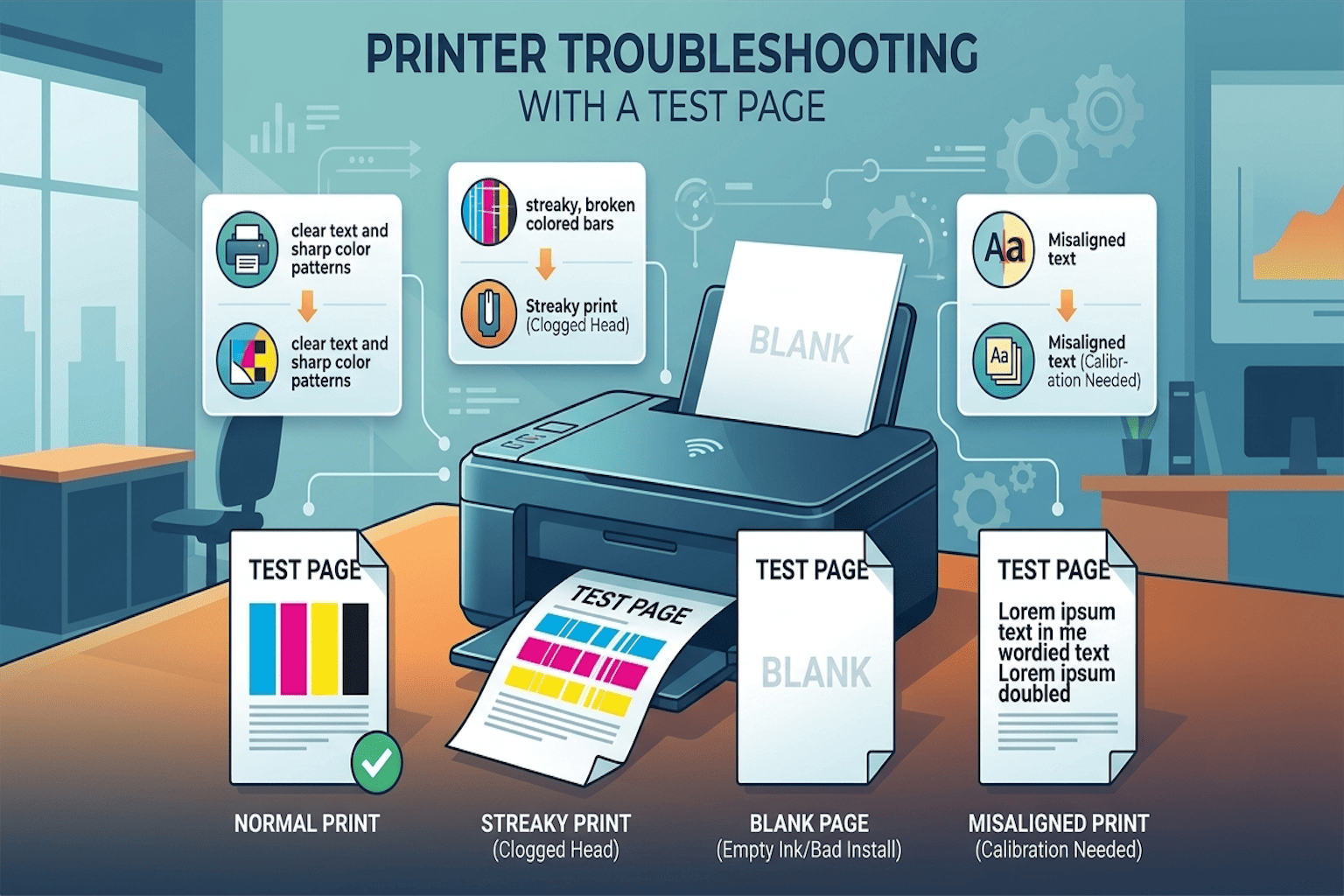
The main job of this page is simple: it tells you if your printer can print correctly. If the colors look right and the lines are clear, your printer is healthy. If something looks wrong, like missing colors or blurry lines, then your printer needs some attention.
Why Does a Printer Print a Test Page?
There are a few common reasons your printer might print this page. Let’s go through them one by one.
1. You Just Installed a New Printer
When you set up a new printer, your computer often prints a test page automatically. This helps confirm that the printer is connected properly and ready to use.
2. You Installed New Printer Software (Drivers)
A printer driver is the software that helps your computer “talk” to your printer. After installing or updating this software, a test page may print to check if everything is working.
3. You Clicked “Print Test Page” by Mistake
Sometimes, people click this option inside printer settings without knowing it. This is completely normal and nothing to worry about.
4. Your Printer Has an Error
If your printer is stuck or confused, it may print a test page to show an error code or explain what went wrong.
How to Print a Test Page (Step-by-Step)
If you want to print a test page on purpose to check your printer, here is how to do it on different devices.
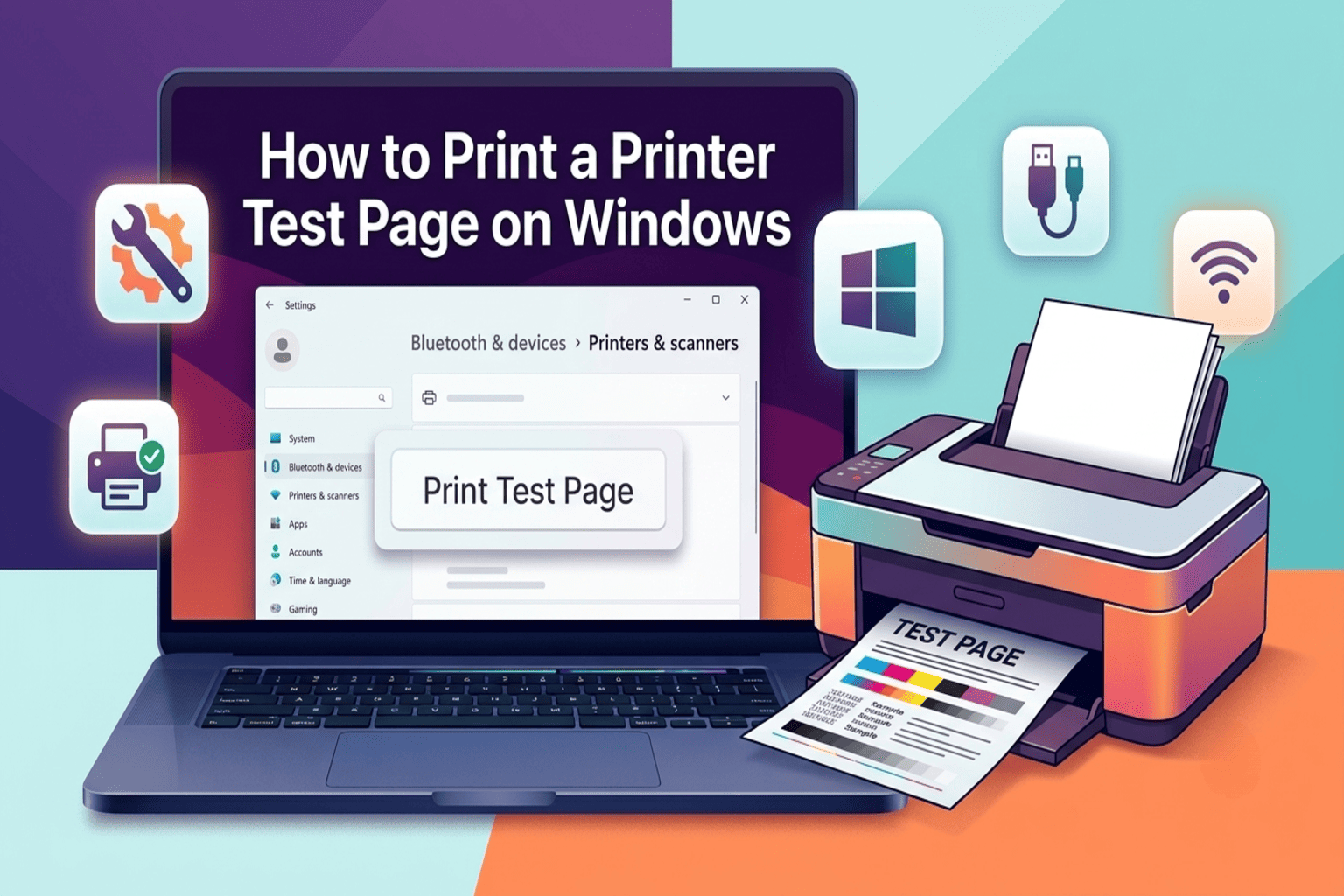
On Windows Computers
- Click the Start menu
- Search for Printers & Scanners
- Choose your printer
- Click Manage
- Select Print a Test Page
On Mac Computers
- Open System Settings
- Click Printers & Scanners
- Choose your printer
- Click Open Print Queue
- Select Print Test Page
Directly From the Printer
Most printers also let you print a test page without a computer. Just look for a small Wi-Fi button, Info button, or Test Page button on your printer. Hold it for a few seconds, and the page will print automatically.
How to Read a Printer Test Page
Once your test page prints, here’s what to look for:
- Clear, solid colors: This means your ink or toner is working well
- Straight, unbroken lines: This means your printer’s alignment is correct
- Readable text: This shows your print quality is good
- No streaks or fading: This means there are no clogs or low ink issues
If everything looks clean and sharp, congratulations! Your printer is working perfectly. But if you notice problems, don’t worry. That’s actually the whole point of this test. It helps you catch printer issues early, before they get worse.
Common Problems You Might See on a Test Page
Here are some issues people often notice, and what they usually mean.
Faded or Light Colors
This usually means your ink or toner cartridge is low and needs replacing soon.
Missing Colors
If one color (like blue or red) is completely missing, the cartridge for that color may be empty or clogged.
Blurry or Smudged Text
This can mean the print head needs cleaning, or the paper is low quality.
Lines With Gaps
Gaps in straight lines usually point to a clogged print nozzle. Most printers have a built-in cleaning tool in their settings to fix this.
How to Fix Printer Problems Found on the Test Page
Here are simple fixes for the most common issues:
- Run the printer’s cleaning cycle. Found in your printer’s settings or app
- Replace low or empty ink cartridges
- Realign the print head. Also found in printer settings
- Use the correct paper type. Cheap or wrong paper can affect print quality
- Update your printer driver. Outdated software can cause printing errors
Try printing the test page again after doing any of these steps. This will show you if the problem is fixed.
Why This Small Page Is Actually Important
A printer test page might seem like a small, unimportant thing. But it plays a big role in keeping your printer healthy. It helps you:
- Catch printing problems early
- Avoid wasting ink or paper on bad prints
- Confirm your printer is set up correctly
- Save time and money on repairs
In short, this simple page can save you from bigger headaches later.
Final Thoughts
A printer test page is nothing to be afraid of. It’s simply your printer’s way of saying, “Hey, let’s make sure everything is working!” Now that you understand what it means, why it prints, and how to read it, you can easily spot problems early and keep your printer running smoothly for a long time. The next time your printer prints one of these pages, you’ll know exactly what to do.
Frequently Asked Questions (FAQs)
Is it bad if my printer keeps printing test pages?
Not always. But if it happens too often without you asking for it, this could mean there’s a connection issue or a software glitch. Restarting your printer and computer usually helps.
Can I stop my printer from printing a test page every time I turn it on?
Yes. You can go into your printer settings and turn off the “Print Test Page on Startup” option, if your printer has one.
Does a test page use a lot of ink?
No. A test page uses a very small amount of ink, so there’s nothing to worry about.