What Colors Should Appear on a Printer Test Page?
Have you ever printed a test page and stared at it? The page comes out. But something looks off. Maybe a color looks faded, or one is missing completely. Maybe you’re just not sure what you’re even supposed to see. You’re not alone. Thousands of people search for what colors should appear on a printer test page every single day, and most printer manuals don’t explain it in simple words.
So let’s fix that right now. By the end of this article, you’ll know exactly which colors should show up, why each one matters, and what to do if something looks wrong.
What Is a Printer Test Page?
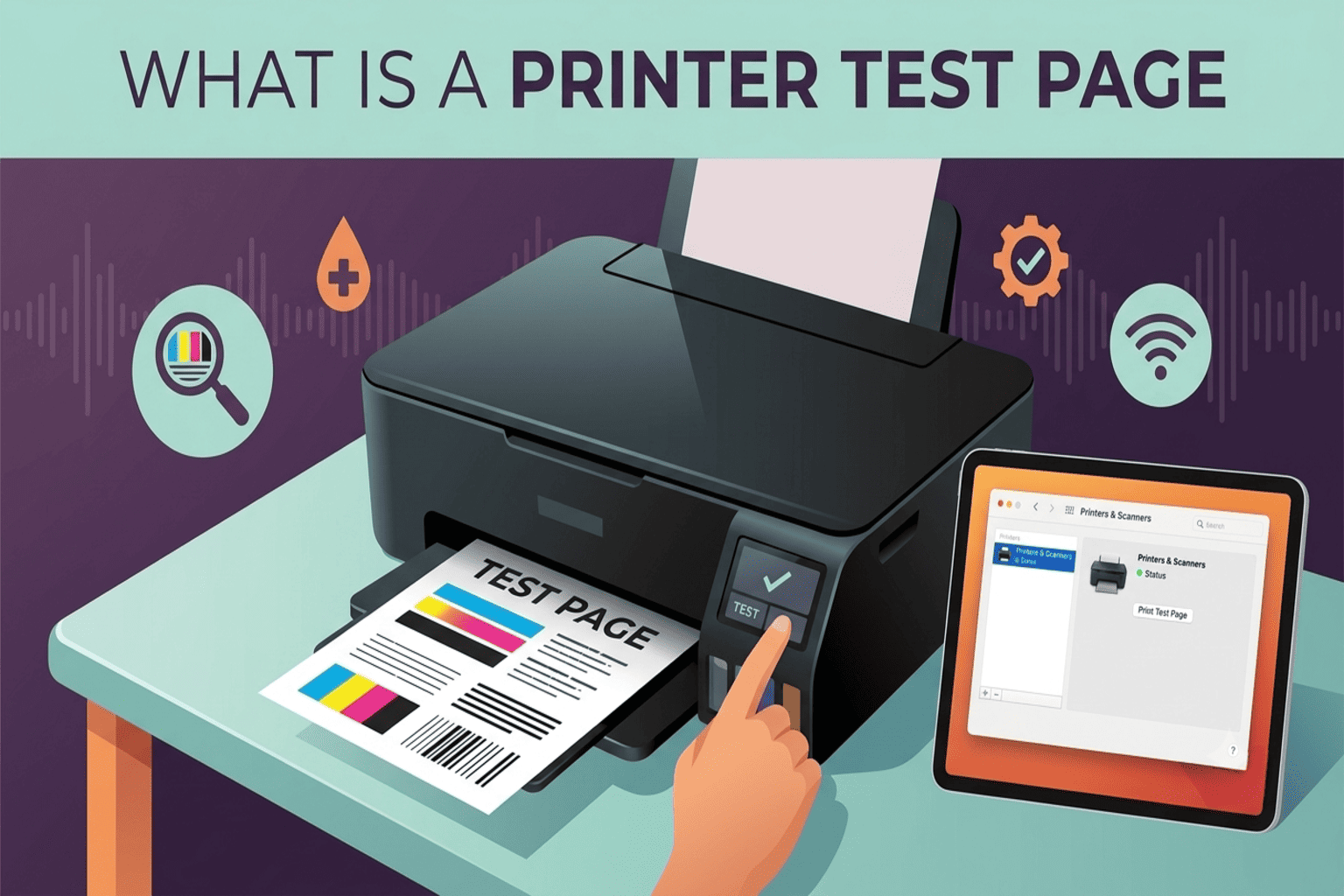
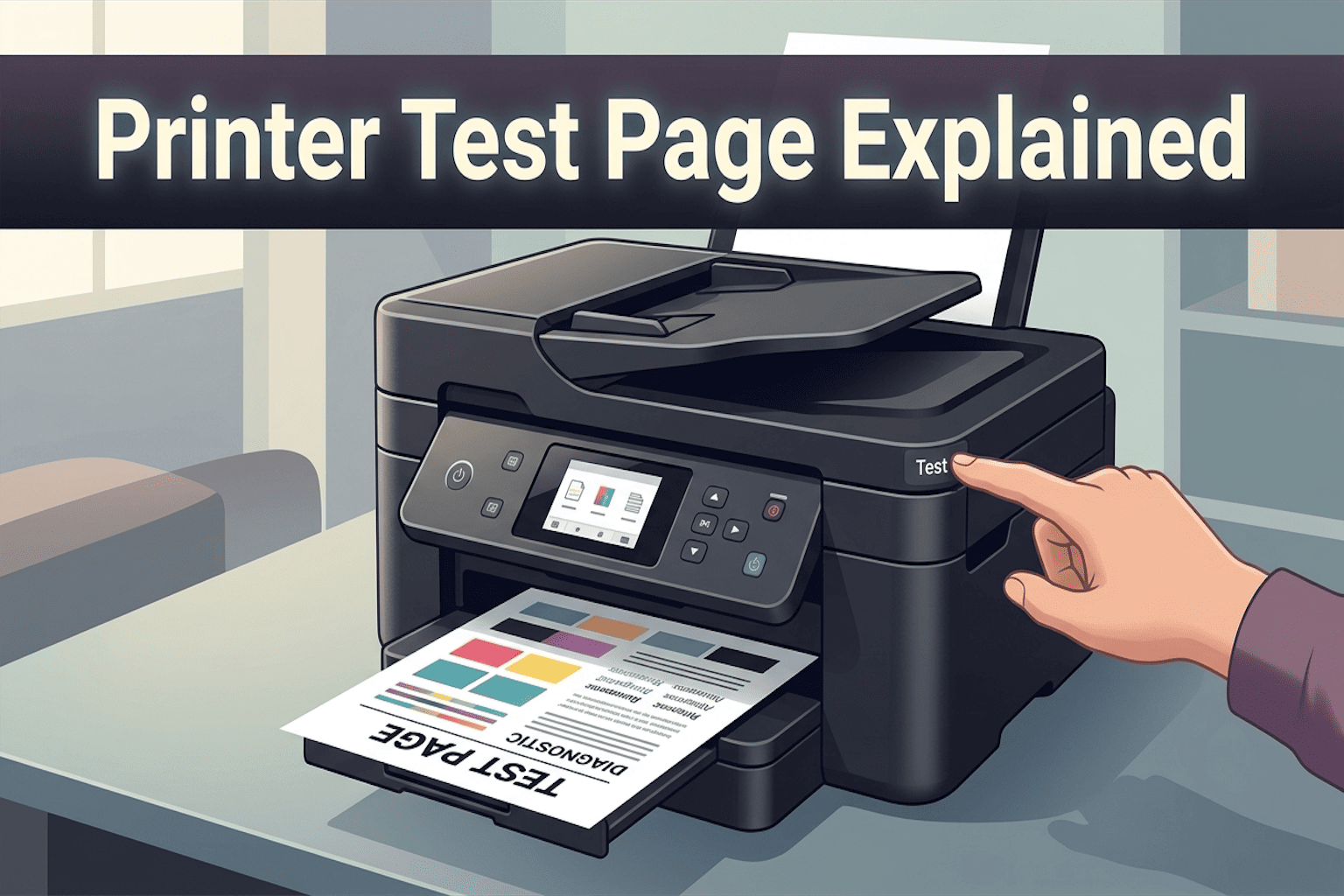
A printer test page is a simple printout your printer creates to check if everything inside it is working the way it should. Think of it like a quick health check-up for your printer.
It shows you colors, lines, and sometimes text so you can see if the ink or toner is flowing correctly. If something is broken, faded, or clogged, the test page will usually show it first.
What Colors Should Appear on a Printer Test Page?
This is the big question, so let’s understand it clearly. Most color printers use a system called CMYK. That stands for:
- Cyan (a bright blue)
- Magenta (a pinkish-red)
- Yellow
- Black (the “K” in CMYK)
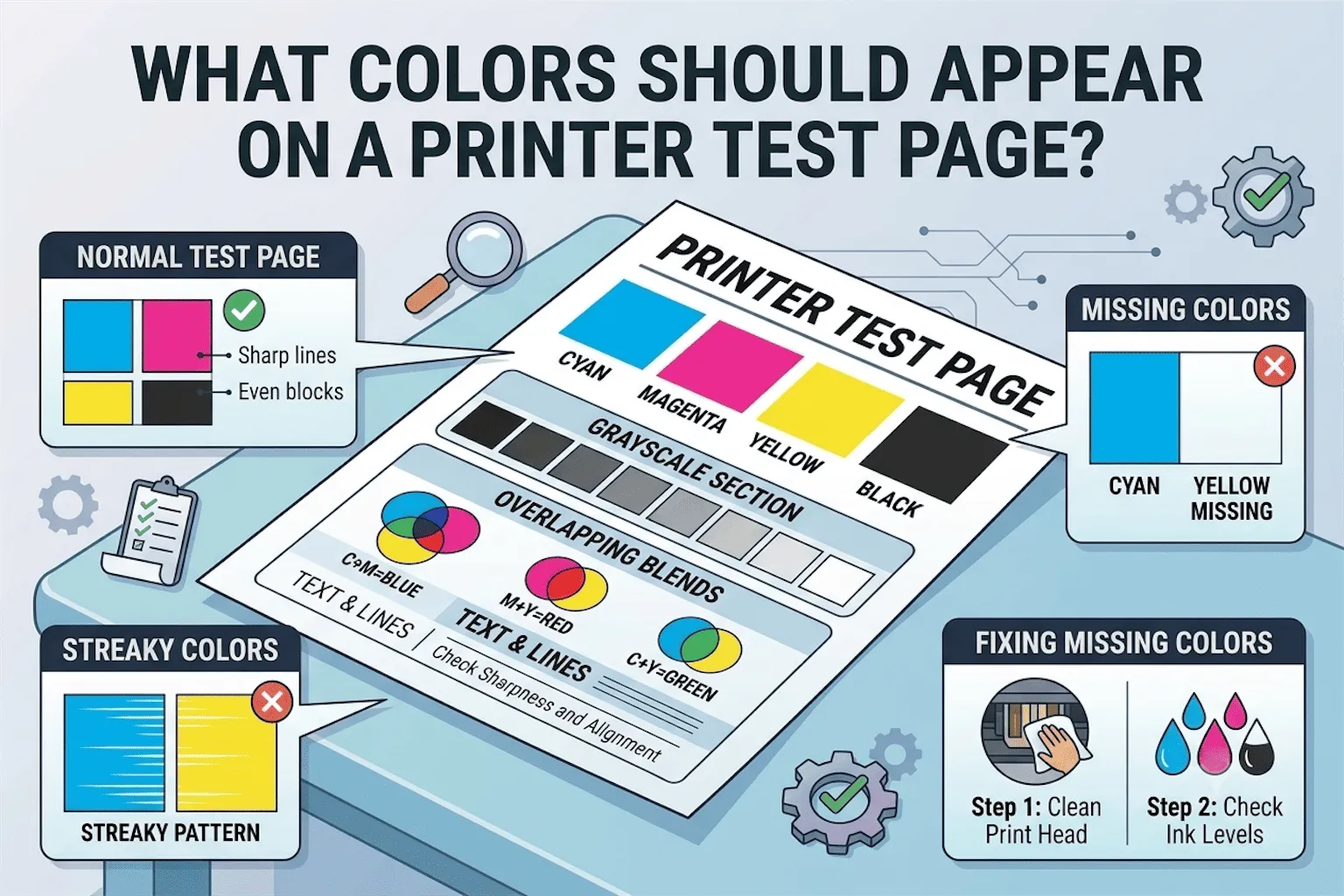
On a normal test page, you should see all four of these colors printed clearly, usually as separate blocks, bars, or circles. This helps you check that each ink or toner cartridge is doing its job.
Black and White Sections
Along with the four main colors, most test pages also include a grayscale section. This is a row of black, gray, and white shades. It checks whether your printer can handle shading and contrast correctly, not just solid colors.
Overlapping Color Blends
Some test pages also show blended colors, like:
- Cyan + Magenta = Blue
- Magenta + Yellow = Red
- Cyan + Yellow = Green
These blends confirm that your printer can mix colors properly to create a full range of shades, not just print one flat color at a time.
Text and Line Samples
Many test pages also include small text and thin lines. This part isn’t really about color, but it helps you check sharpness and alignment, which matters just as much as color accuracy.
Why Do These Colors Matter?
Good question! Here’s the simple answer: each color represents a different cartridge or ink system inside your printer. If cyan looks streaky, that usually means the cyan ink is low or clogged. If black looks gray or patchy, your black cartridge might need attention. In short, the test page is like a report card. Each color tells you exactly which part of your printer needs help.
What a Normal Printer Test Page Should Look Like
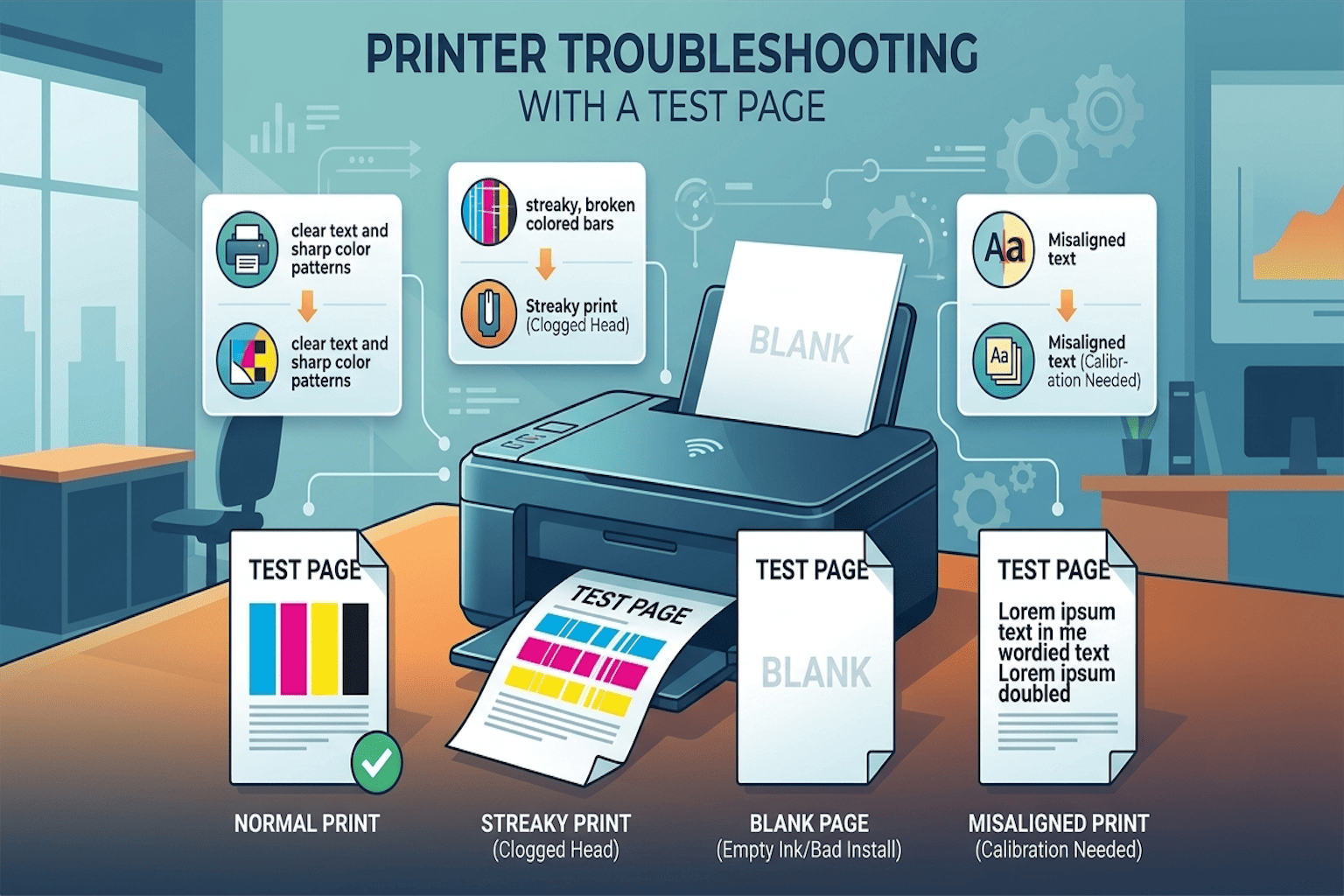
A healthy test page usually includes:
- Solid, even blocks of color for cyan, magenta, yellow, and black
- Straight, unbroken lines in each color block
- No white streaks or blank spots
- Sharp black text, if your printer includes a text sample
If your test page looks like this, congratulations, your printer is working great!
Signs Your Printer Test Page Has a Problem
Sometimes, the test page doesn’t look right. Here’s what to watch for:
1. Missing Color Blocks
If one of the four colors (cyan, magenta, yellow, or black) doesn’t show up at all, it usually means that the ink cartridge is empty or clogged.
2. Faded or Light Colors
If a color looks pale instead of bold, your ink might be running low, or the print head could be dirty.
3. Streaky or Patchy Colors
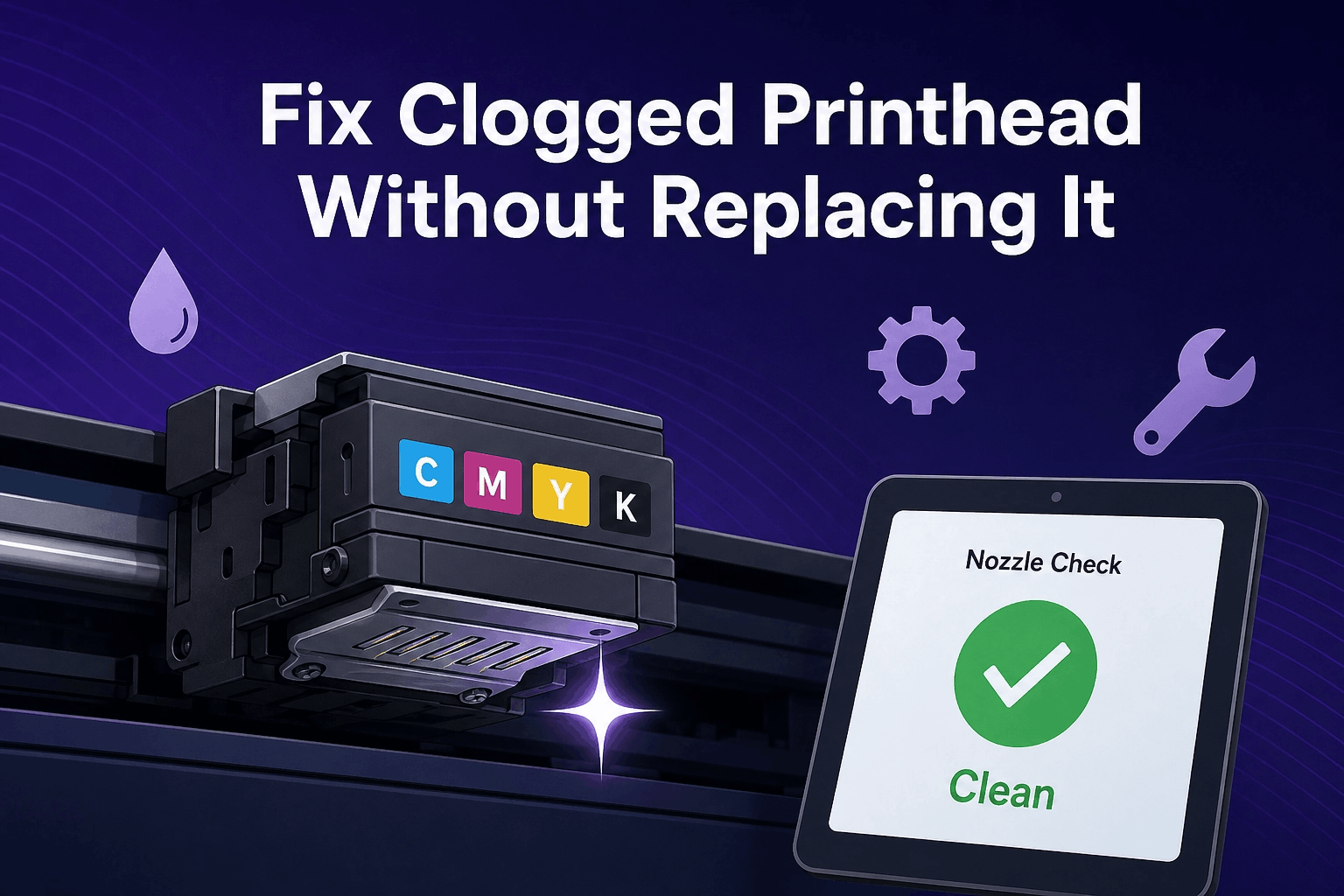
White lines running through a color block usually mean the print nozzles are clogged. This is very common if you haven’t printed in a while.
4. Wrong Colors Appearing
If magenta looks orange, or cyan looks green, this could mean the cartridges are installed in the wrong slot, or the printer needs a color calibration.
How to Fix a Bad Printer Test Page
Don’t worry, most of these problems are easy to fix at home. Here are some simple steps:
Step 1: Run a Cleaning Cycle
Almost every printer has a built-in “clean print head” option in its settings menu. This helps clear out dried ink and unclogs the nozzles.
Step 2: Check Your Ink or Toner Levels
Open your printer software or control panel to see if any cartridge is low or empty.
Step 3: Reseat the Cartridges
Sometimes just removing and reinserting the ink cartridges can fix a poor connection.
Step 4: Print a Test Page Again
After cleaning or replacing ink, print another test page to see if the colors now look correct.
Step 5: Calibrate the Printer
If colors still look wrong, use your printer’s calibration tool. This helps the printer balance all four colors correctly.
Common Test Page Problems And What They Mean
| What You See | What It Likely Means |
|---|---|
| One color is missing entirely | That cartridge may be empty or clogged |
| Faded or streaky colors | Low ink or a dirty print head |
| Blurry text or lines | Alignment issue |
| All colors look off | Possible color calibration problem |
Tips to Keep Your Printer Colors Accurate
A little maintenance goes a long way. Here are simple habits that help:
- Print something at least once a week, even a test page, to keep ink flowing
- Store your printer in a cool, dry place
- Use genuine or high-quality ink cartridges
- Run a cleaning cycle every few months, even without problems
These small steps can save you money and stress in the long run.
Final Thoughts
So, what colors should appear on a printer test page? In short, there are 4 colors, including cyan, magenta, yellow, black, and a grayscale scale, sometimes with a few blended shades too. If one of these colors looks wrong, it’s almost always a simple fix, like cleaning the print head or replacing a cartridge.
Now that you know exactly what to expect, you can check your own test page with confidence and solve color printer problems before they become bigger headaches.
Frequently Asked Questions
What colors should a color printer test page show?
It should show cyan, magenta, yellow, and black, along with a grayscale section and sometimes blended color samples.
Why does my printer’s test page only show black and white?
This usually means your printer is set to “black and white” or “draft” mode instead of full color mode. Check your printer settings before printing again.
Can I use plain paper for a printer test page?
Yes! Regular printer paper works perfectly fine for a test page.
Why is my printer test page missing yellow?
This usually means the yellow cartridge is low, clogged, or not seated properly. Try a cleaning cycle first.
How often should I print a test page?
Once a month is a good habit, especially if you don’t print often, to catch problems early.
Does a black-and-white printer need a color test page?
No. Black-and-white printers only need to show a grayscale test, since they don’t use color ink.
What does it mean if my test page has streaks?
Streaks usually point to clogged print nozzles, which you can often fix with a simple print head cleaning cycle.